

How a guest signs in
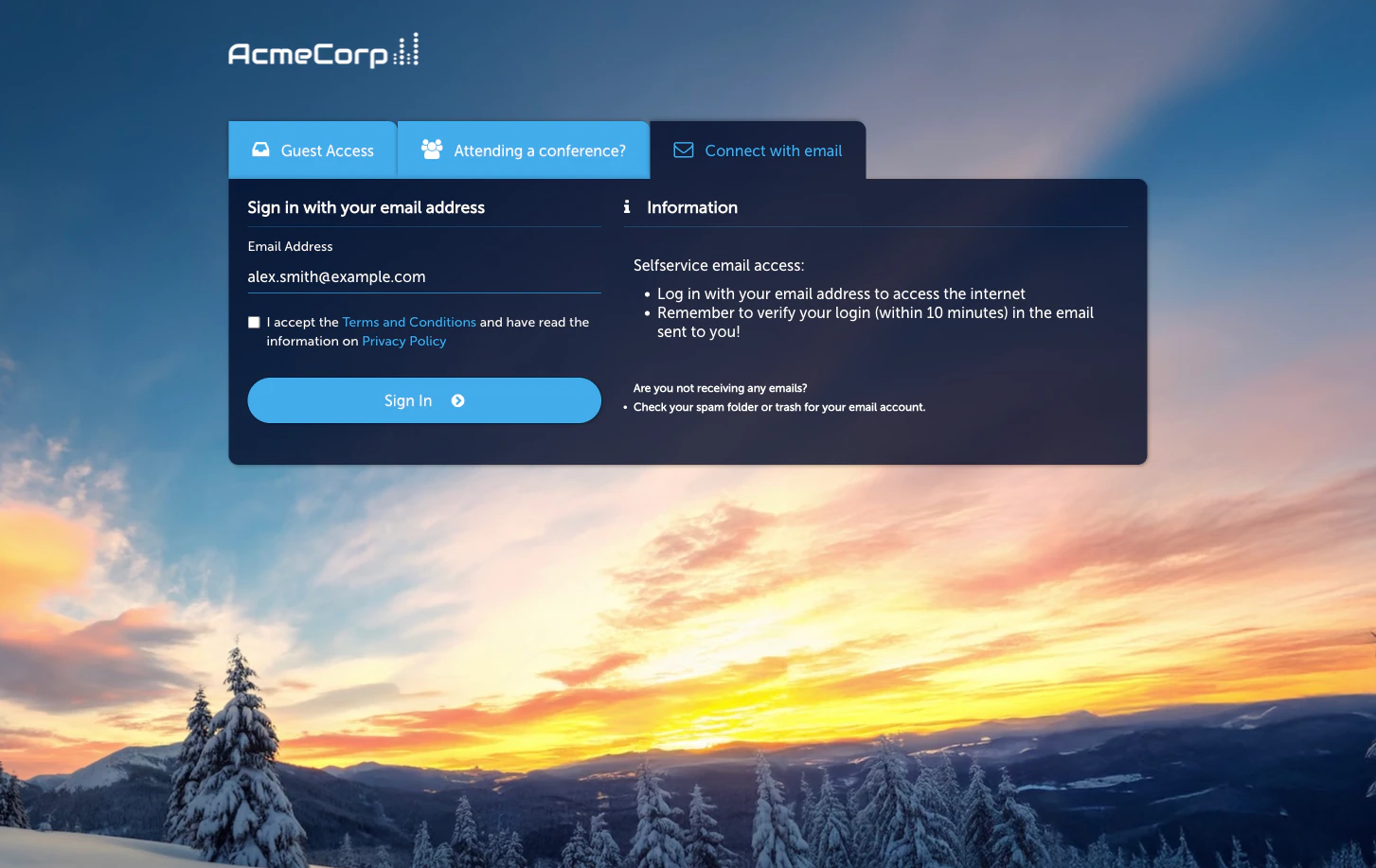
- On the Captive Portal, the guest picks Email and enters their address.
- A temporary access window starts while a verification email is dispatched.
- Whether the guest then needs to click the verification link depends on the applicable Access Policy. When the policy requires verification, clicking the link extends access; skipping it drops the guest back to unauthenticated after the temporary window expires. The length of the unverified and verified windows is configured per policy.
Device quota behaviour
If a guest hits the device limit set by their Access Policy, the system disconnects the device that was last seen online and admits the new device in its place. The guest doesn’t need to intervene — the rotation is automatic.Activate the module
Configuration
The module Configuration tab has four sub-tabs:- Newsletter — optional marketing-consent checkbox added to the portal form and the details collected when a guest opts in.
- Additional Input Fields — build extra fields (for example
Company Name, Room Number) that the guest answers on the
Captive Portal. The same fields also appear as Login Answers
on each guest’s admin detail view, rendered as
<label>: <description> (<value>). - Language Settings — per-language strings shown on the Captive Portal and in the verification email.
- Access Policies — the policies whose Email Self-Provisioning Sign-In Permission is currently on.
Managing guests
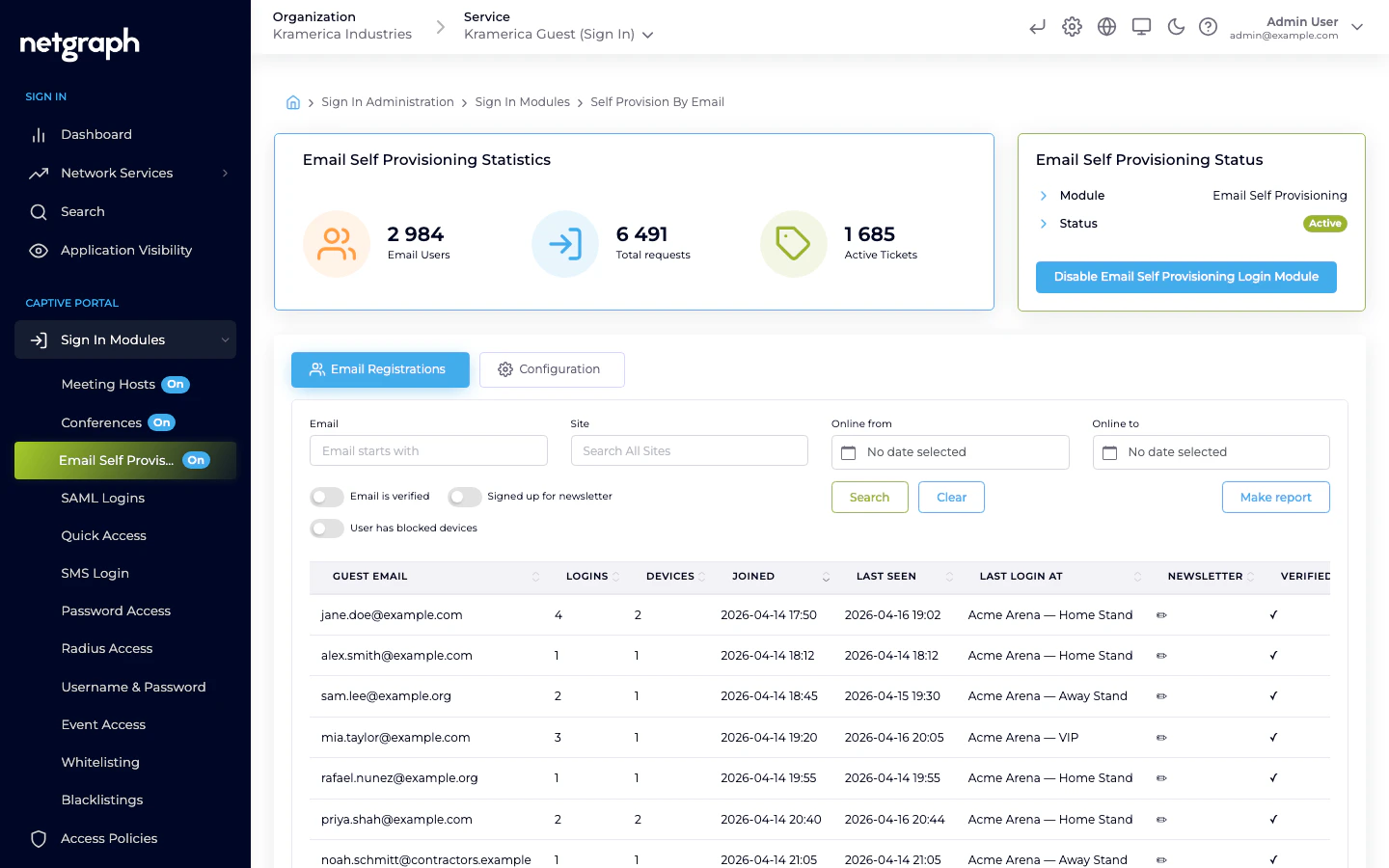
The main tab lists registered email guests with columns for email, first seen, last login, total logins, and devices.- Filter by email.
- Revoke a guest — delete their record; future logins require re-verification.
- Per-guest login history — click a row for device and session details.
Self-Service Portal
Guests who have registered through email self-provisioning can return to the Organization’s Self-Service Portal, authenticating with the same email via magic link — or via SAML, when the Organization has it configured. Under My Devices they see every device they have registered through this module, each with a Revoke action. Revoking disconnects the device immediately; re-registration is a normal Captive Portal sign-in on the next connection. The My Devices card is a single combined list: the email- verified registrations this module contributes plus any whitelistings the user has created under Manage Whitelistings show up side by side, each expandable for status, MAC address, and last-seen timestamp. The card is rendered whenever the Access Policy grants either Self-Provisioning by Email as a Sign-In Permission or Manage Whitelistings as a Self-Service Permission; disabling both hides it entirely. For the combined card’s layout and the self-created-whitelisting surface, see Whitelist → Self-Service Portal. For the surrounding portal — sign-in, the Context picker, the capability-driven rendering of each card — see the Self-Service Portal overview.Access Policy options
On each policy’s Sign-In Permissions → Email Self-Provisioning sub-tab:- Email Self-Provisioning — master flag.
- Applies To email patterns — which email addresses this policy matches in the first place. Email patterns are the policy’s audience criteria, not a per-module filter.
- Device limit — how many devices one email can register.
- New guest redirect / Returning guest redirect / Verification redirect — where the guest lands in each flow.
- Unverified session length / Verified session length — how long an unverified session runs before the verification email must be clicked, and how long a verified session runs afterwards. Can be set as a fixed timeout or a concrete end date.
- New-device behaviour — allow, notify an admin, or require admin approval before a new device is admitted against an existing guest.
- Send verification email / Send new-device notification toggles — control which emails the flow sends.
Related
SMS
Self-service sign-in with SMS verification instead of email.
Meeting Host
Approval-based flow where a host employee vouches for the guest.