

Before you begin
You have administrator access to your Organization and the Admin Portal is open at the Services page (the page heading is Service Contexts). If you don’t yet, ask your Netgraph contact for an invitation; the first invitation lands as an Organization Owner so you can do everything below.1. Orient yourself in the left navigation
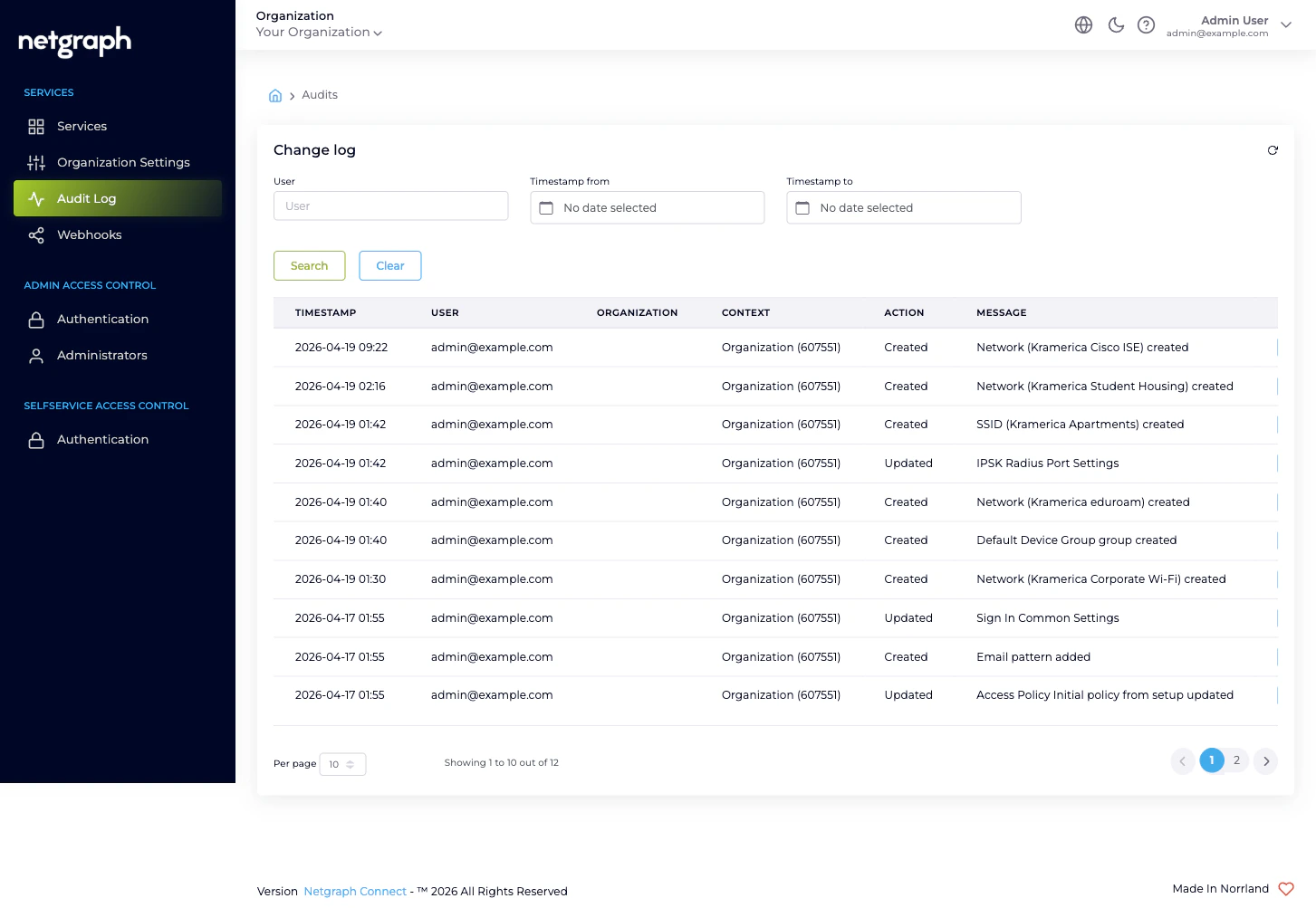
The left navigation groups Organization-scope features under three headers:- Services — the Service Contexts inside your Organization, plus three pages that apply to the whole Organization: Organization Settings, Audit Log, Webhooks.
- Admin Access Control — Authentication (Form Login + SAML 2.0 for the Admin Portal) and Administrators (the people who can sign in to the Admin Portal at all).
- Selfservice Access Control — Authentication for the Self-Service Portal that end users (residents, hosts, group administrators) sign in to.
2. Confirm Organization Settings
Check the Organization name and website
Edit them through the pencil affordance on the Organization
card. The name surfaces throughout the Admin Portal and the
Self-Service Portal landing surfaces.
Pick your Active Languages
Open the Language Settings card and tick every language
your team will use for translatable content. Set the Default
Language as the fallback. Existing Service Contexts keep
their own language configurations; this default applies to
new ones.
(Optional) tighten Admin Dashboard Access
The Admin Dashboard Access card carries one entry by
default —
0.0.0.0/0, allowing sign-in from any network. To
restrict admin sign-in to specific corporate or VPN ranges,
add the ranges with Add Access List Entry, confirm your
current network is covered by at least one new entry, then
remove 0.0.0.0/0.3. Invite your first colleague
Click Add User
Enter the colleague’s email and tick the role they should
hold:
- Organization Owner for someone who is your peer at the Organization level (they can change everything, including adding more administrators).
- Organization Context Manager for someone who’ll run Service Contexts but shouldn’t change Organization Settings or other admins.
- Organization Member for read-only or scope-limited access (combine with Self-Service permissions inside specific Service Contexts).
4. (Optional) Federate sign-in with your IdP
If your team already signs in to enterprise applications through a corporate IdP (Microsoft Entra ID, Okta, Google Workspace, ADFS, PingFederate), federating the Admin Portal saves you from provisioning passwords and integrates Admin Portal sign-in into your existing user lifecycle. Two SAML configurations live at the Organization scope, one per portal-target. Most Organizations set up the Admin Portal first and add the Self-Service Portal once Service Contexts are in production:- Admin Portal authentication — for the administrators who run the platform.
- Self-Service Portal authentication — for the end users (residents, hosts, group administrators) the Service Contexts delegate to.
5. Add your first Service Context
Click Add Service Context
Pick the Service you want to set up. The platform hands you
off to that Service’s setup wizard:
- Sign In quickstart — cloud guest Wi-Fi with self-service captive portals.
- EntryPoint quickstart — RADIUS-as-a-Service for 802.1X, MAB, or iPSK.
- EasyPSK quickstart — Personal Wi-Fi networks on Cisco Meraki.
- Endpoint Manager quickstart — delegated administration on top of Cisco ISE.
6. (Optional) Turn on the audit stream
If you have a SIEM, a change-review workflow, or an on-call notifier you want to feed Organization-configuration changes into, configure a webhook now while the volume is low.Click Create Webhook
Pick Instant Event Delivery (recommended) unless you have
a specific reason to batch. Give it a name (3–125 alphanumeric
characters).
Configure the endpoint
On the next screen, paste your Payload URL, add any
custom Headers your endpoint needs for authentication,
tick the Configuration Change event under Webhook
Events, and tick Webhook Active under the Active card.
What you have now
After these six steps:- Organization Settings are sized to your team.
- A second administrator can sign in.
- (Optionally) administrators authenticate through your IdP.
- One Service Context is live, with the Service’s own quickstart taking over from here.
- (Optionally) every Organization-configuration change is being pushed to your downstream system in real time.
Where to go next
Organization and Services
The two-layer model that frames everything else.
Admin Portal vs Self-Service Portal
The two sign-in surfaces and why each has its own SAML configuration.
Managing Administrators
The full lifecycle: invite, edit, resend, remove.
Audit Log
Every administrative change in your Organization, in one place.