

Email Magic Link (default)
Passwordless sign-in via a one-click link the platform emails to the address the Self-Service User was invited under. Always on by default — the Email Magic Link card on the Authentication page shows Enabled with the toggle disabled. The link is one-shot: click it, you land on the Self-Service Portal already authenticated, no password screen and no MFA prompt. The link’s validity period is set in Organization Settings → Self-Service Portal Settings as Mail Login Token Lifetime (default 300 seconds). This is the right default for the kinds of audiences the Self-Service Portal serves: occasional users who don’t want to manage another password, who already prove control of their email through invitation, and whose access is already scoped tightly by each Service Context’s Self-Service User list.SAML 2.0
If your end users (residents, group administrators, conference hosts) are already in your enterprise IdP, federate the Self-Service Portal with SAML 2.0 so they get the same single sign-on experience they use for everything else. Click Enable on the SAML 2.0 card to open the configuration page. The structure mirrors the Admin Portal SAML configuration in most respects, with two important differences highlighted below.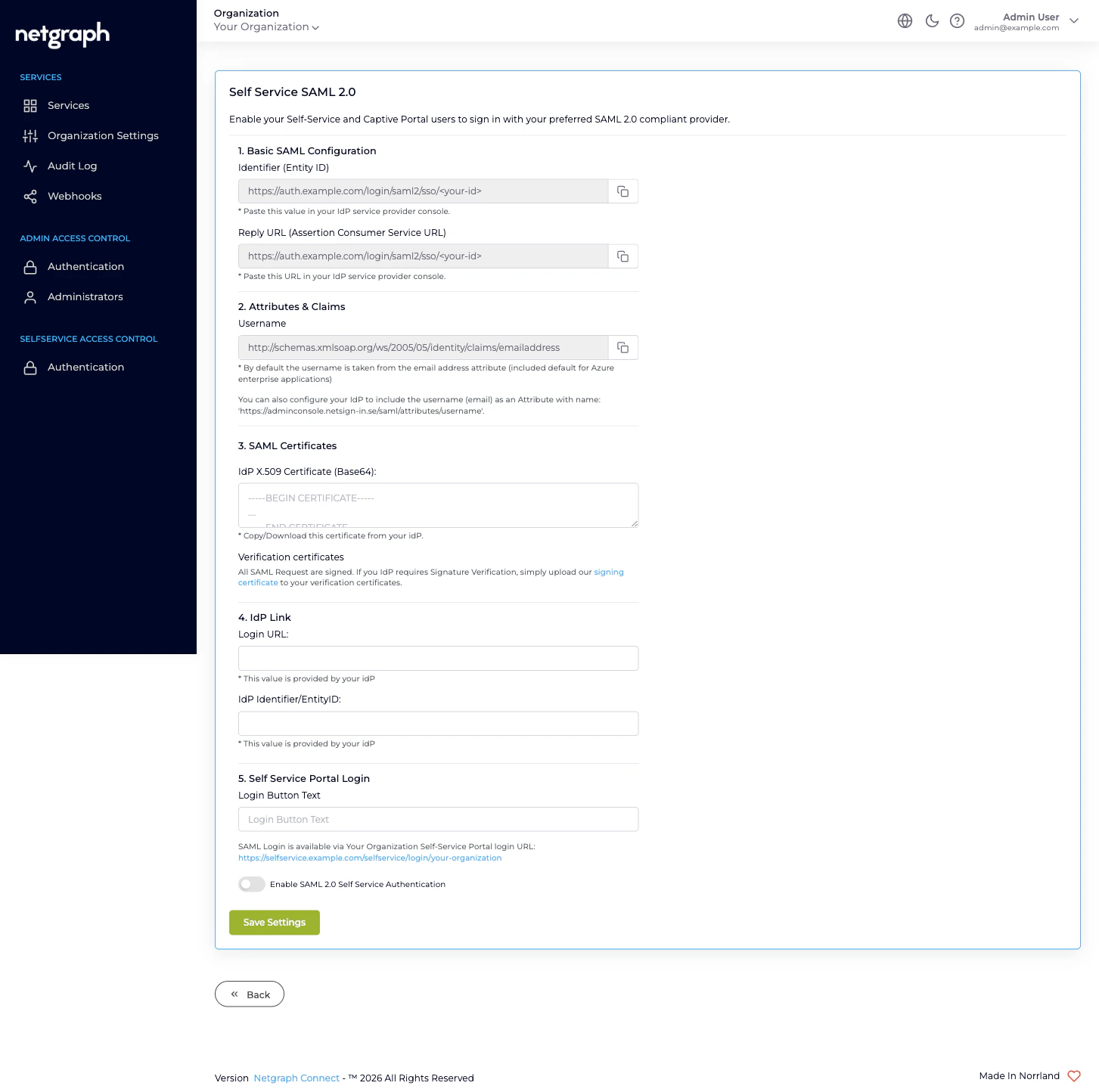
1. Basic SAML Configuration
Two read-only values, both copyable.- Identifier (Entity ID). The platform-side Service Provider identifier for the Self-Service Portal target. The trailing hash is different from the Admin Portal’s; this is a separate SP.
- Reply URL (Assertion Consumer Service URL). The endpoint the IdP POSTs the assertion to. Same value as the Entity ID.
2. Attributes & Claims
Same shape as the Admin Portal: the Username attribute defaults to the standard email-address claim (http://schemas.xmlsoap.org/ws/2005/05/identity/claims/emailaddress),
with an alternative attribute name
(https://adminconsole.netsign-in.se/saml/attributes/username)
available if your IdP can’t be re-configured.
The username the IdP returns must match an email that is a
Self-Service User on at least one Service Context in your
Organization. Authenticated users with no Self-Service User
membership land on a sign-in error — SAML proves who they are,
but the platform decides what they can see by looking at each
Service Context’s Self-Service User list.
No Default Role Mapping
The Self-Service Portal SAML configuration does not include a Default Role Mapping section, and that’s deliberate. Self-Service Users don’t sit in one global permission catalog the way Organization administrators do. What a Self-Service User can do is decided per Service Context, and per resource within a Service Context:- Inside a Sign-In Context, by an Access Policy that grants Self-Service Permissions (Manage Conferences, Manage Whitelistings).
- Inside an EasyPSK Context, by which Wireless Personal Networks the user has been invited to and what role they hold on each (User / Group Administrator).
- Inside an Endpoint Manager Context, by which Endpoint Identity Groups the user has been added to and what permission level (User (default) / Group Administrator).
3. SAML Certificates
Paste your IdP’s signing certificate (Base64 PEM format) into IdP X.509 Certificate (Base64). As with the Admin Portal configuration, the Verification certificates note offers the platform’s own signing certificate as a download for IdPs that require SP signature verification.4. IdP Link
The two IdP-provided values that close the trust:- Login URL — the IdP endpoint the platform redirects to when a Self-Service Portal SAML sign-in starts.
- IdP Identifier/EntityID — the IdP’s identifier as it appears in the SAML Issuer field.
5. Self Service Portal Login
Final controls before saving:- Login Button Text. The label on the SAML sign-in button on the Self-Service Portal sign-in page.
- Self-Service Portal Login URL. A read-only link showing the Self-Service Portal sign-in page for your Organization. Bookmark it; share it; bake it into the welcome emails your operations team sends to new Self-Service Users.
- Enable SAML 2.0 Self Service Authentication. The toggle that activates SAML for end users. Until this is ticked, the configuration is saved but never used.
Running both methods at the same time
Email Magic Link and SAML 2.0 can be enabled together. When both are on, the Self-Service Portal sign-in page presents both options to the user. Email Magic Link continues to work for any Self-Service User regardless of whether they are in your IdP; SAML works for users who are. This is the gentlest migration path: enable SAML alongside the default magic link, communicate the new option to Self-Service Users, and only disable the magic link once you’ve confirmed every end user is reachable through your IdP.What this configuration is not
- Not the place to grant Self-Service access. Inviting a resident to a Wireless Personal Network, a delegated admin to an Endpoint Identity Group, or a host to a conference is done inside each Service Context’s own Self-Service Users tab. SAML here only changes how they sign in once they’ve been invited.
- Not shared with the Admin Portal. Configuring SAML for the Self-Service Portal does not federate the Admin Portal. See Admin Portal authentication for that — it’s a separate SP endpoint, separate IdP application.
- Not used by the Captive Portal SAML Sign-In Module. Sign-In Contexts that publish a SAML Login Module on a Captive Portal reuse this Self-Service Portal SAML configuration as the underlying federation. If you change the certificate or IdP URL here, the Sign-In Module’s SAML logins follow.
Where to go next
Admin Portal authentication
The other portal — different SP endpoint, with Default Role Mapping.
Sign In SAML SSO module
How a Sign-In Captive Portal reuses the Self-Service SAML configuration.
Admin Portal vs Self-Service Portal
Why the two surfaces have separate authentication.
Organization diagnostics
Self-Service SAML sign-in failures and how to fix them.