

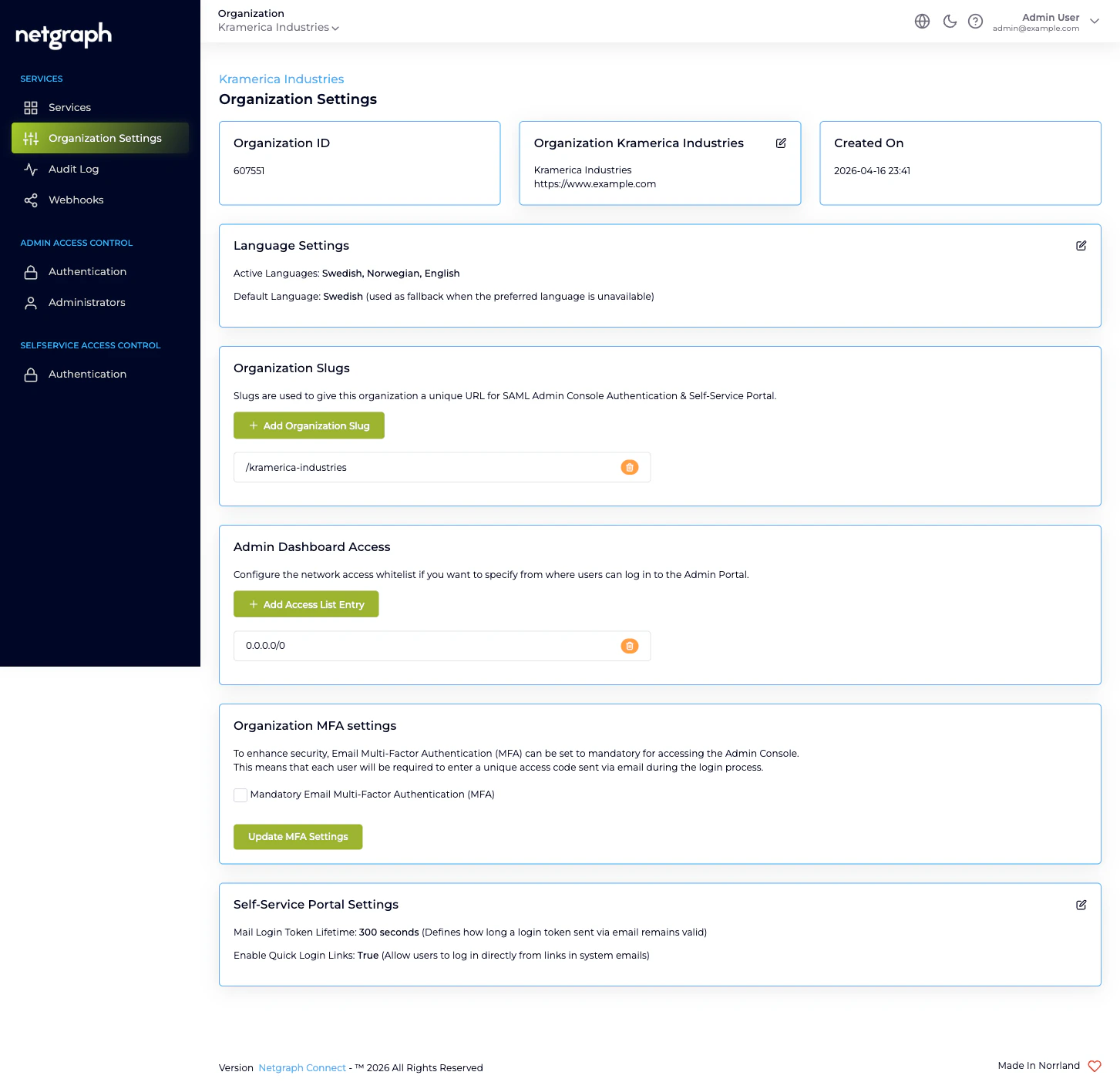
Organization ID
Read-only. The platform assigns a numeric ID when your Organization is provisioned and it never changes. You’ll occasionally need it when filing a support ticket or scripting against the API; otherwise it’s purely informational.Organization name and website
The Organization name appears throughout the Admin Portal and on the Self-Service Portal landing surfaces. The optional website URL is shown alongside the name. Edit either through the pencil affordance on the Organization card. Renaming the Organization here doesn’t rename anything inside existing Service Contexts. Each Sign-In Context, EntryPoint Context, EasyPSK Context, and Endpoint Manager Context keeps its own name and configuration; only the Organization-level surfaces update.Created On
Read-only. The timestamp the Organization was provisioned. Useful when you’re correlating audit history.Language Settings
Two related controls:- Active Languages — the list of languages an admin can pick for translatable content (Sign-In Module copy, conference notices, Self-Service Portal copy). The default is English plus whichever languages your Organization was provisioned with.
- Default Language — the fallback used when a user’s preferred language isn’t in the active list. New Service Contexts created inside this Organization start out using this language as their default, but each Service Context manages its own language configuration after that — changing the Organization-level default never overwrites an existing Context.
Organization Slugs
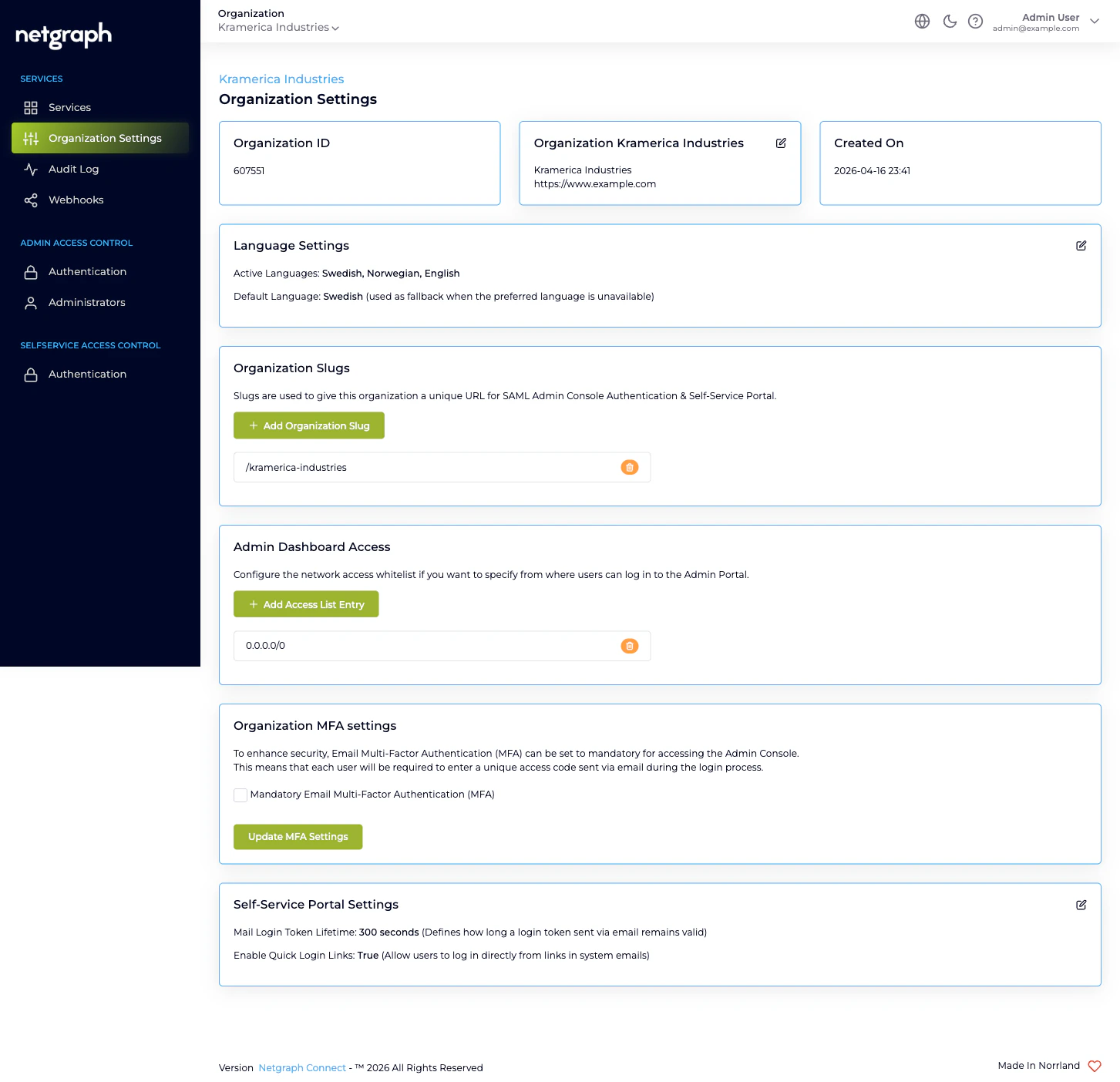
Slugs are the URL-path segments that identify your Organization on the platform’s public surfaces. They appear in:- The Admin Portal SAML sign-in URL for your Organization (when you’ve enabled SAML 2.0 for Admin Portal Authentication).
- The Self-Service Portal magic-link URL that the platform builds for each Service Context’s invitations.
Admin Dashboard Access
Optional network-level whitelist for Admin Portal sign-in. By default this card holds a single entry,0.0.0.0/0, meaning any
network can reach the Admin Portal. To restrict admin sign-in to
specific corporate or VPN ranges, replace 0.0.0.0/0 with the
ranges you want to allow.
The whitelist is a union: an admin sign-in attempt from any IP
that matches any listed CIDR is allowed. Use Add Access List
Entry to add a range; the trash icon removes one.
Organization MFA settings
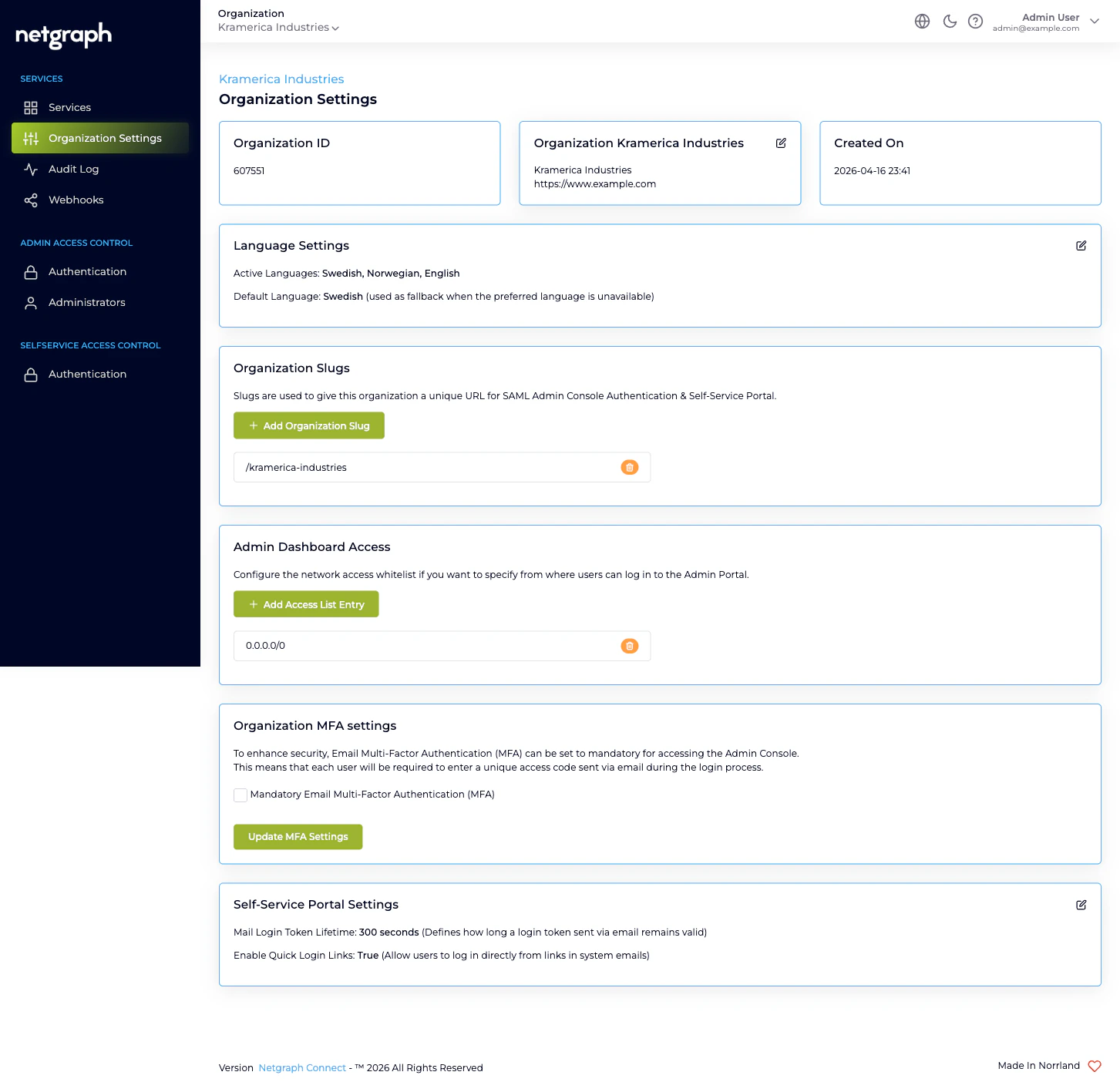
A single checkbox: Mandatory Email Multi-Factor Authentication (MFA). When on, every administrator who signs in via Form Login must enter a one-time code emailed to them after entering their password. The MFA prompt appears between the password screen and the Admin Portal landing page. Click Update MFA Settings to apply.Self-Service Portal Settings
Two values that affect every Self-Service Portal sign-in across every Service Context in your Organization:- Mail Login Token Lifetime — the validity period of the email magic link, in seconds. The default is 300 seconds (5 minutes); raise it for users who collect mail through a slow workflow, lower it for tighter security.
- Enable Quick Login Links — whether system emails sent to Self-Service Users (invitations, password resets, conference notifications) include a one-click sign-in link directly to the relevant page. With this off, users sign in to the Self-Service Portal explicitly first.
What’s audited from this page
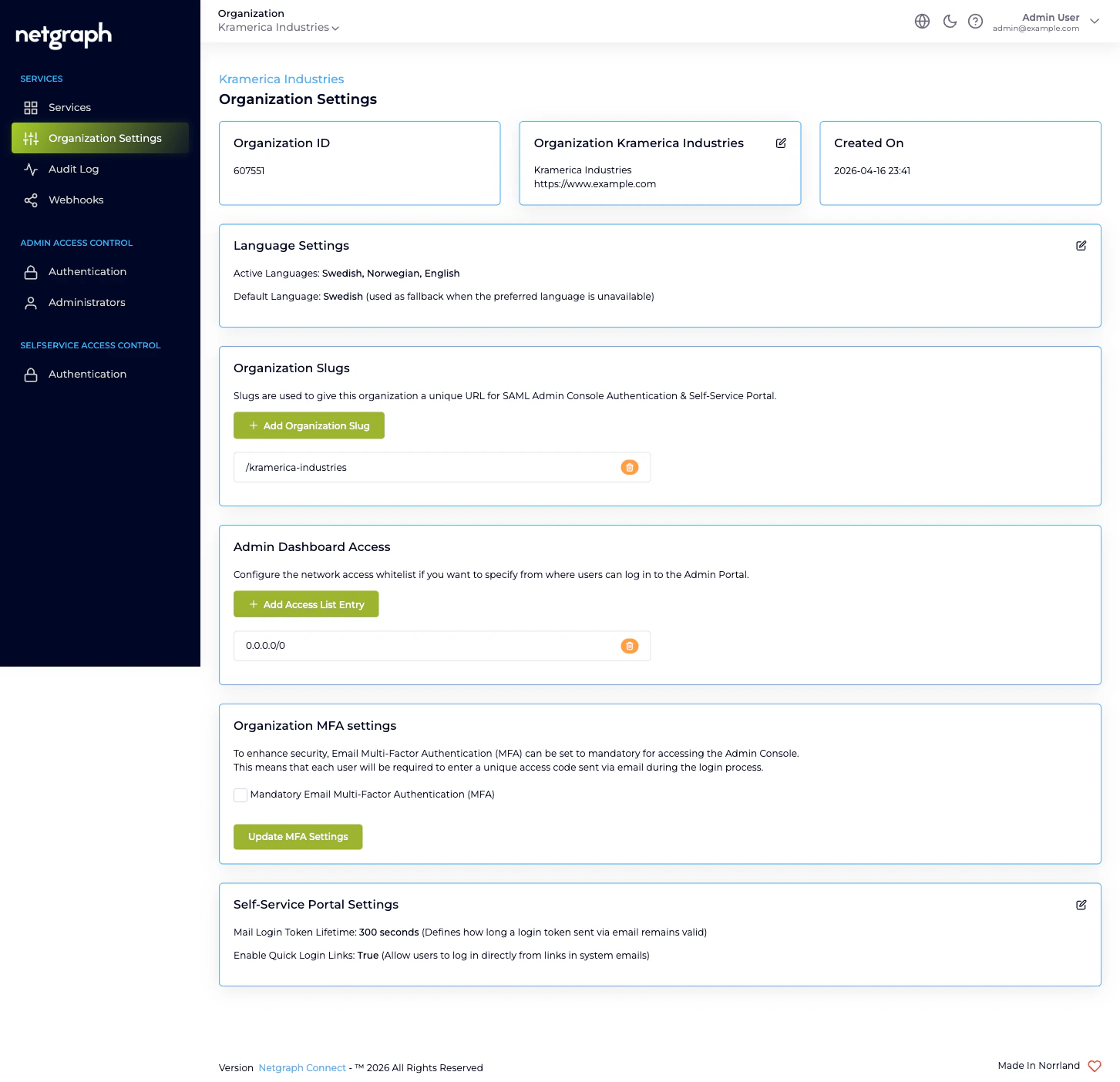
Every change made to any card on this page is captured in the Audit Log under the user who saved it, with a Property / Old Value / New Value drill-down. Mandatory MFA changes, slug additions and removals, Admin Dashboard Access whitelist edits, and Self-Service Portal Settings adjustments all flow into the same Change log.Where to go next
Admin Portal authentication
Form Login plus optional SAML 2.0 for administrators.
Self-Service Portal authentication
Email Magic Link plus optional SAML 2.0 for end users.
Audit Log
Review every administrative change to this page.
Webhooks
Stream Organization configuration changes to your SIEM.