

Before you begin
You have administrator access to the Organization and the Admin Dashboard is open at the Services overview.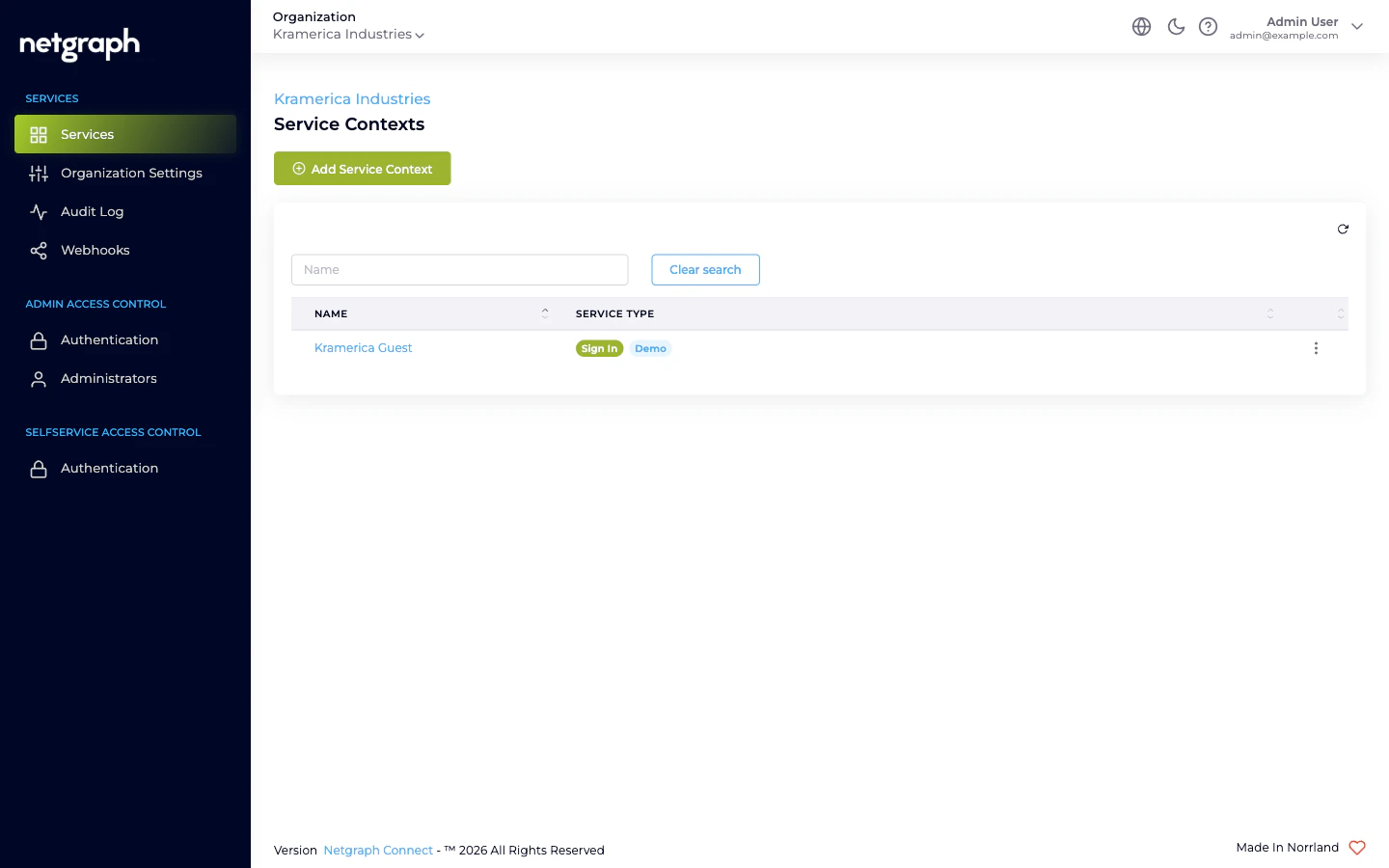
- One SSID (on a WLAN controller or Meraki network) that you can point at a new RADIUS server for testing.
- A client device (laptop or phone) for which you control the 802.1X supplicant settings.
1. Create an EntryPoint Context
Open Add Service Context
From the Services overview click Add Service Context, then pick
the EntryPoint - RADIUSaaS card.
Pick the variant
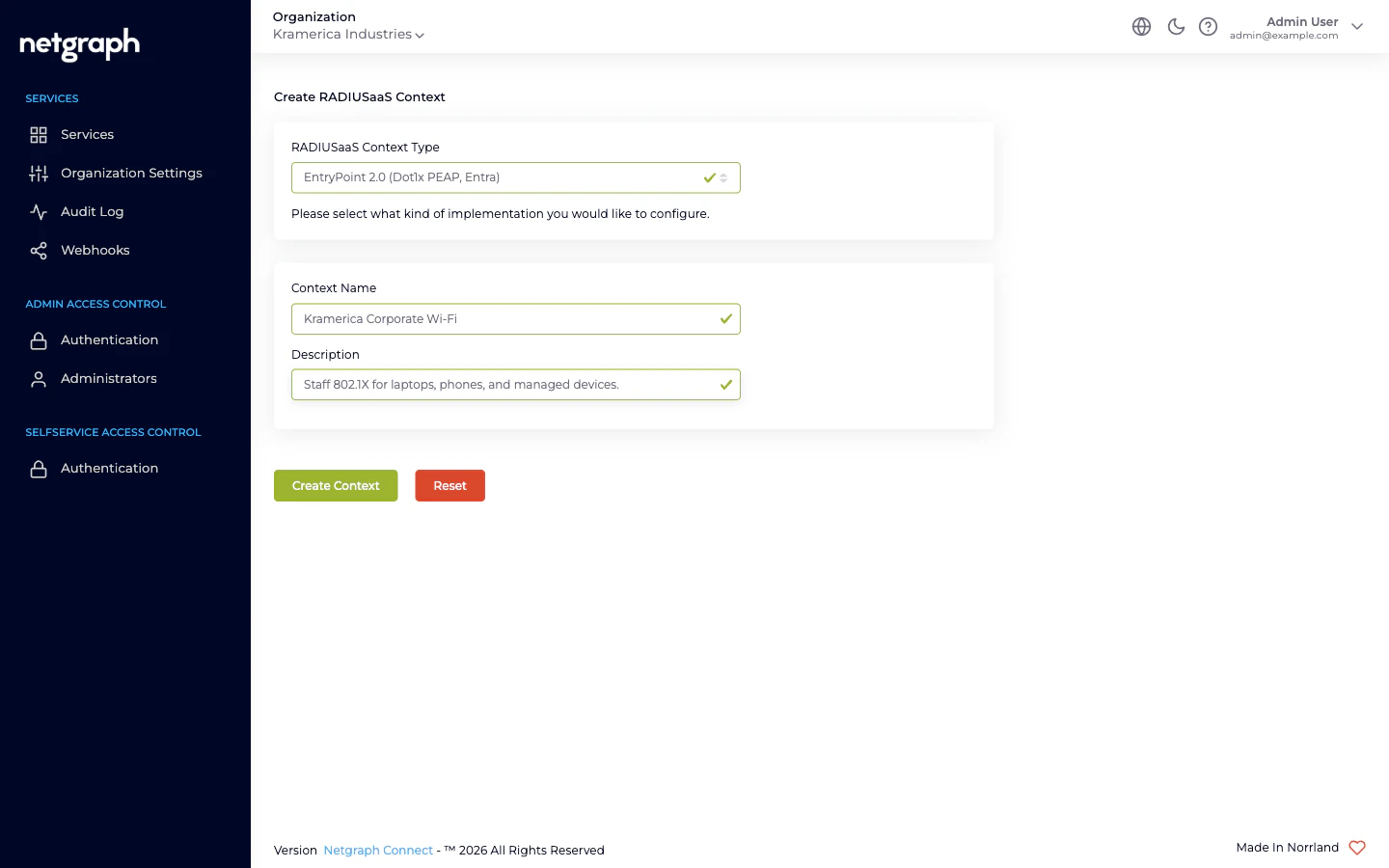
You land on the Create RADIUSaaS Context wizard. Keep the
default EntryPoint 2.0 (Dot1x PEAP, Entra) for this quickstart.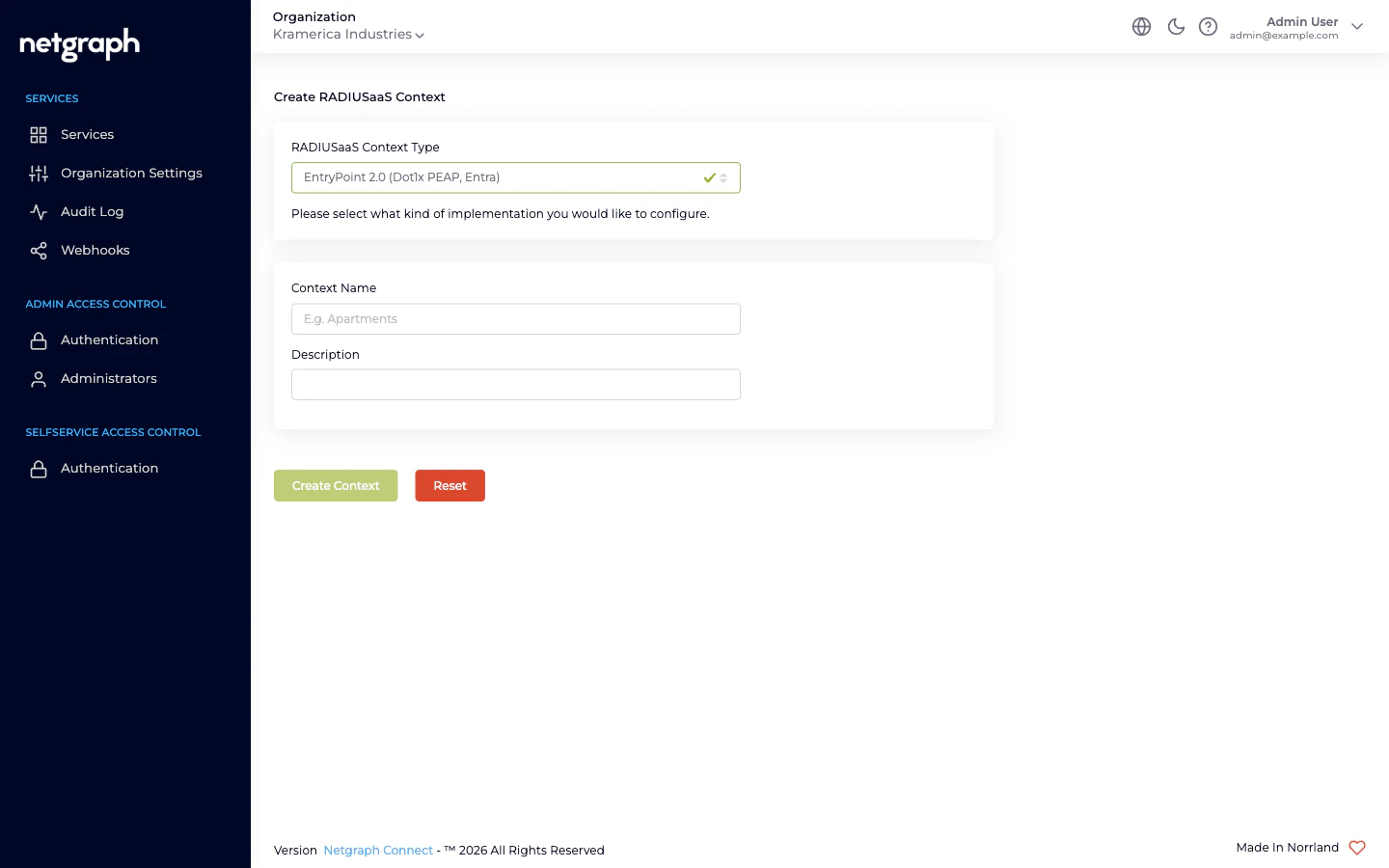
2. Enable an authentication method
Turn on EAP-PEAP
On Configuration → Basic Configuration, toggle EAP-PEAP in
the Client Authentication Methods card and click Update
Authentication Methods.
Keep the default Identity Store
Leave the Identity Store dropdown on --- No Backend Identity
Store --- for now. EntryPoint will store PEAP accounts itself.
You can switch to Microsoft Entra ID later — see
Entra connection.
3. Attach your network equipment
Network equipment becomes a RADIUS client of this Context by pointing at the Context’s hostname and the per-Context shared secret.Grab the RADIUS settings
Open Configuration → Network Integration. Note the Radius
Hostname, Authentication Port, Accounting Port, RadSec Port, and
RADIUS client secret.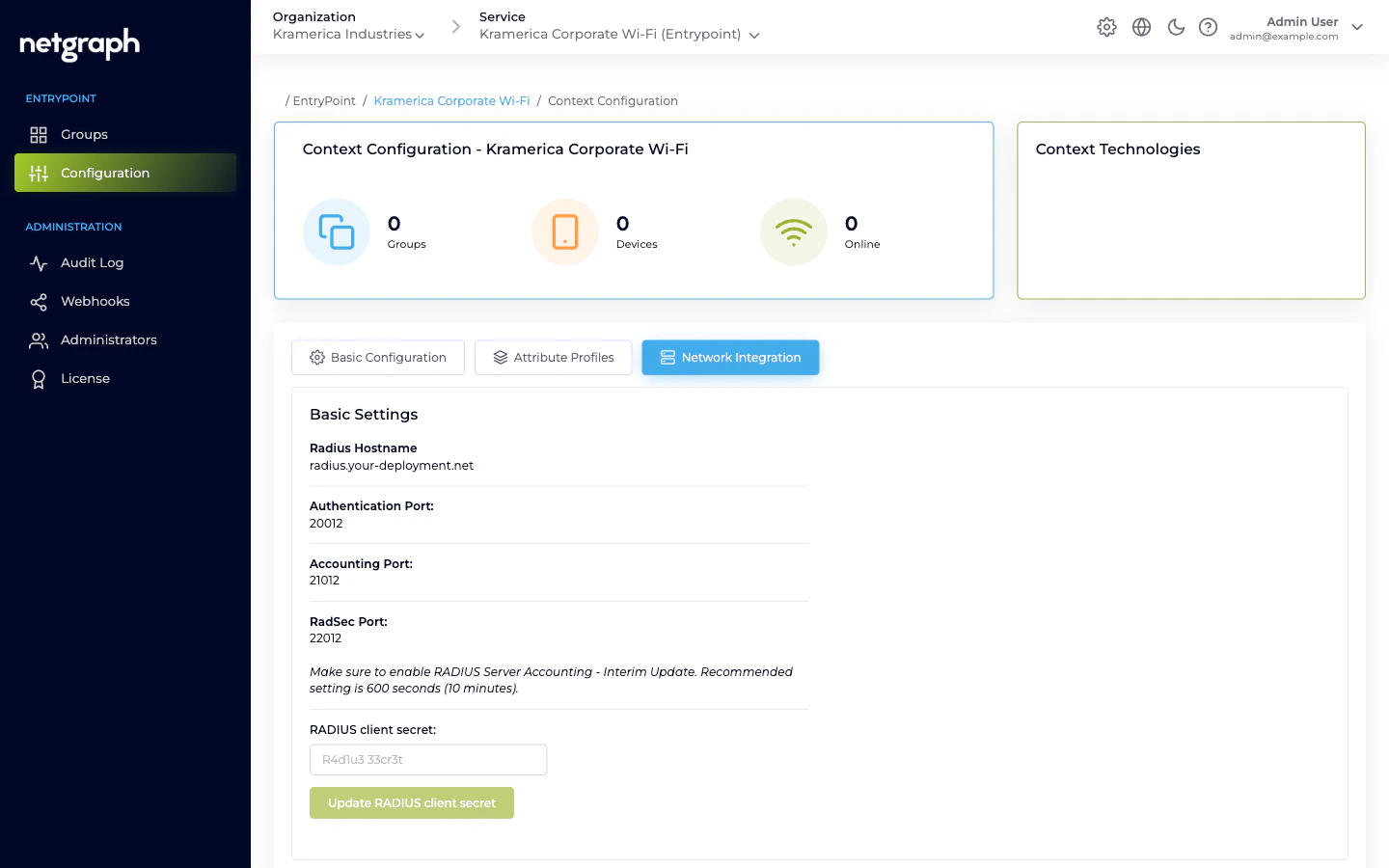
Allow your network range
Still on Network Integration, add the public IP range(s) of your
WLAN controllers / switches to Configure RADIUS Access
Restrictions (CIDR format, e.g.
203.0.113.0/28). Save.4. Add a Group and a PEAP user
Create a Group
Go to Groups → Add Group. Pick 802.1X-PEAP from the
Select Group Type dropdown, name it (e.g. Corporate Staff),
and save.
Add a Self-Service User
Open the Group’s Users tab and invite a Self-Service User with
the default role. They’ll receive an email invitation with a link
to the Self-Service portal.
End-user signs in
The invited user signs in to the Self-Service portal. Their
Personal PEAP Account (username + auto-generated password) is
shown on the Group detail page, along with per-OS setup
instructions for macOS, Windows, iPhone, Android, and Chromebook.
Next steps
Comparing variants
Side-by-side view of PEAP, EAP-TLS, iPSK, and Radius Proxy.
Attribute Profiles
Return VLAN or SGT attributes per Group.
Entra connection
Authenticate PEAP or EAP-TLS against Microsoft Entra ID.
PEAP Self-Service portal
How end-users view credentials and enroll devices.