

Before you begin
You have administrator access to the Organization and the Admin Dashboard is open at the Organization Services overview. This is the starting point for every Sign In workflow.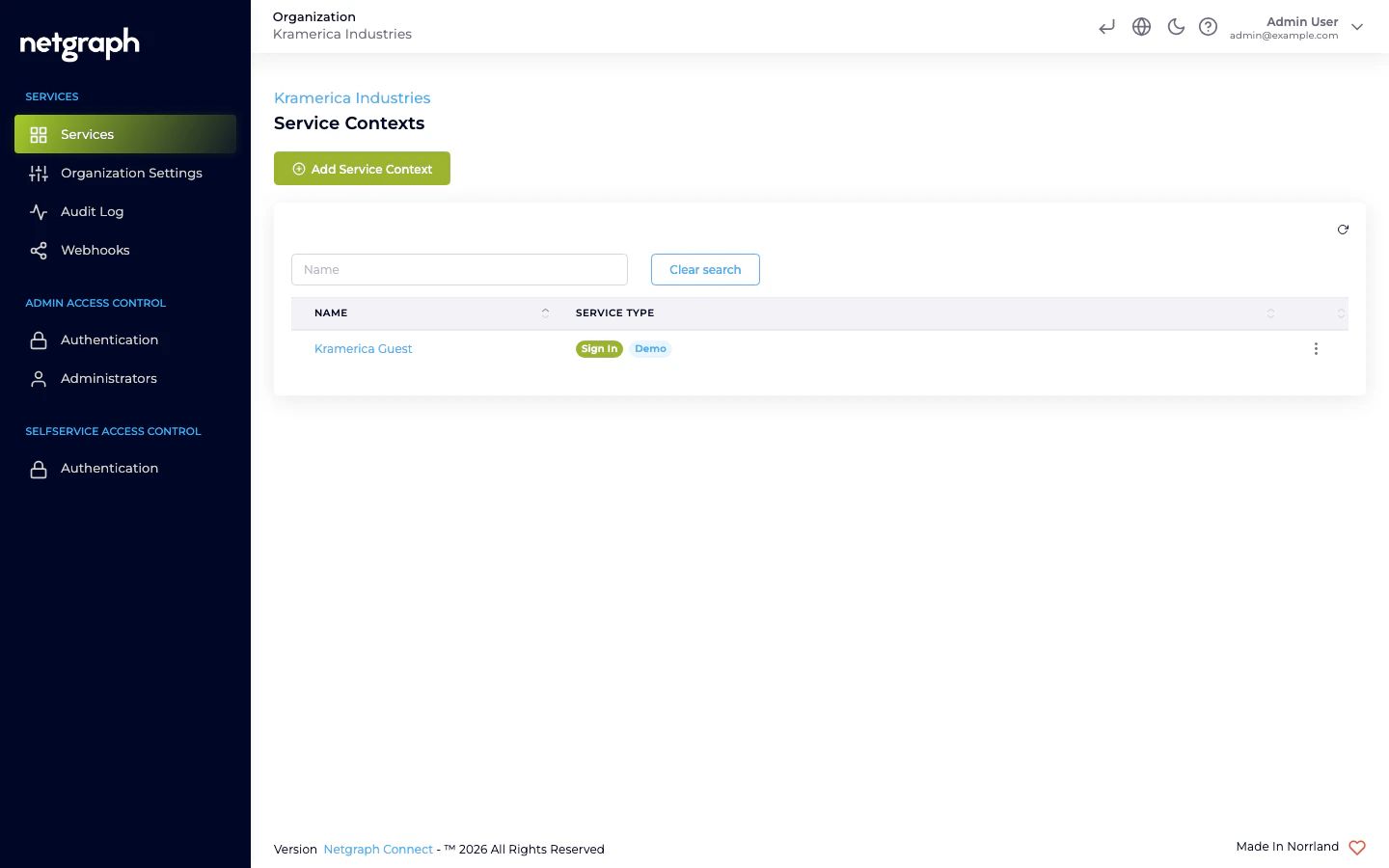
1. Create the Sign-In Context
The Sign-In Context is the instance of Sign In inside this Organization. You can have more than one per Organization (for example, one per venue).Open Add Service Context
From the Services overview, click Add Service Context, then pick
Sign-In on the context-type picker.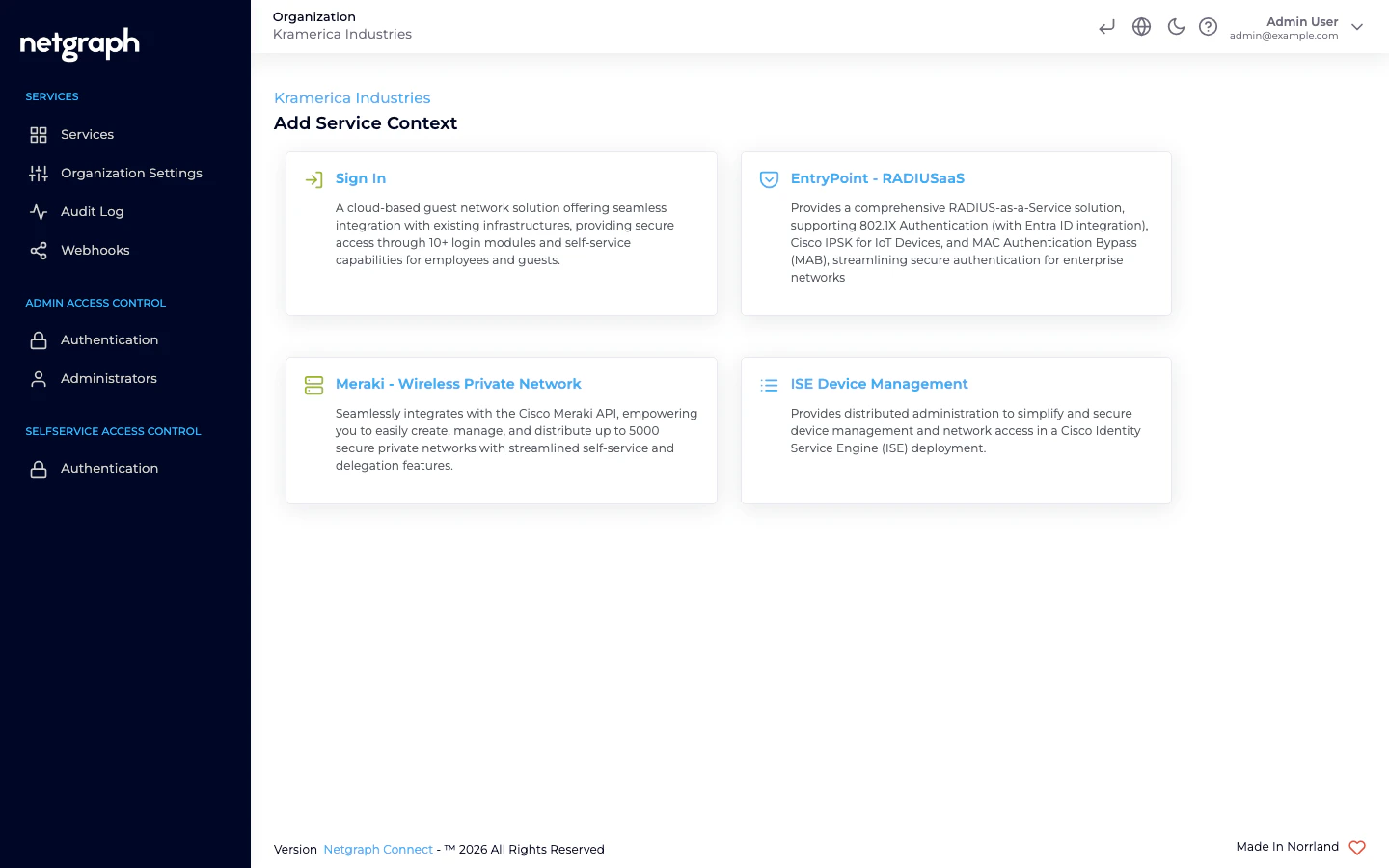
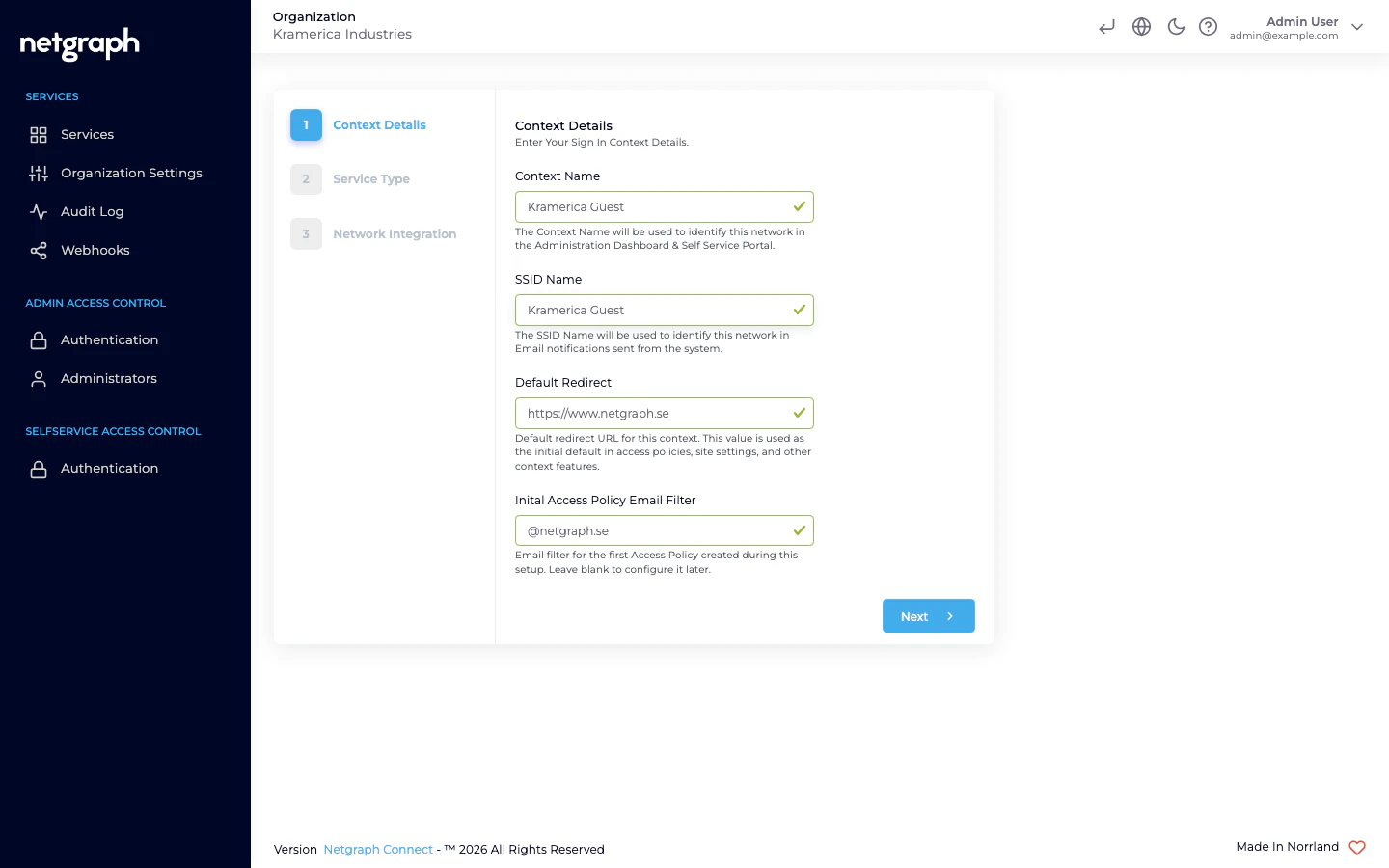
Fill in Context Details
- Context Name — identifies this network in the Administration Dashboard and Self-Service Portal. Example: Guest WiFi — HQ.
- SSID Name — identifies this network in email notifications sent from the system.
- Default Redirect — the default URL used in Access Policies, site settings, and other context features. Auto-populated from the Organization’s website; edit if needed.
- Inital Access Policy Email Filter (optional) — email pattern for the first Access Policy created by this wizard. Leave blank to configure it later.
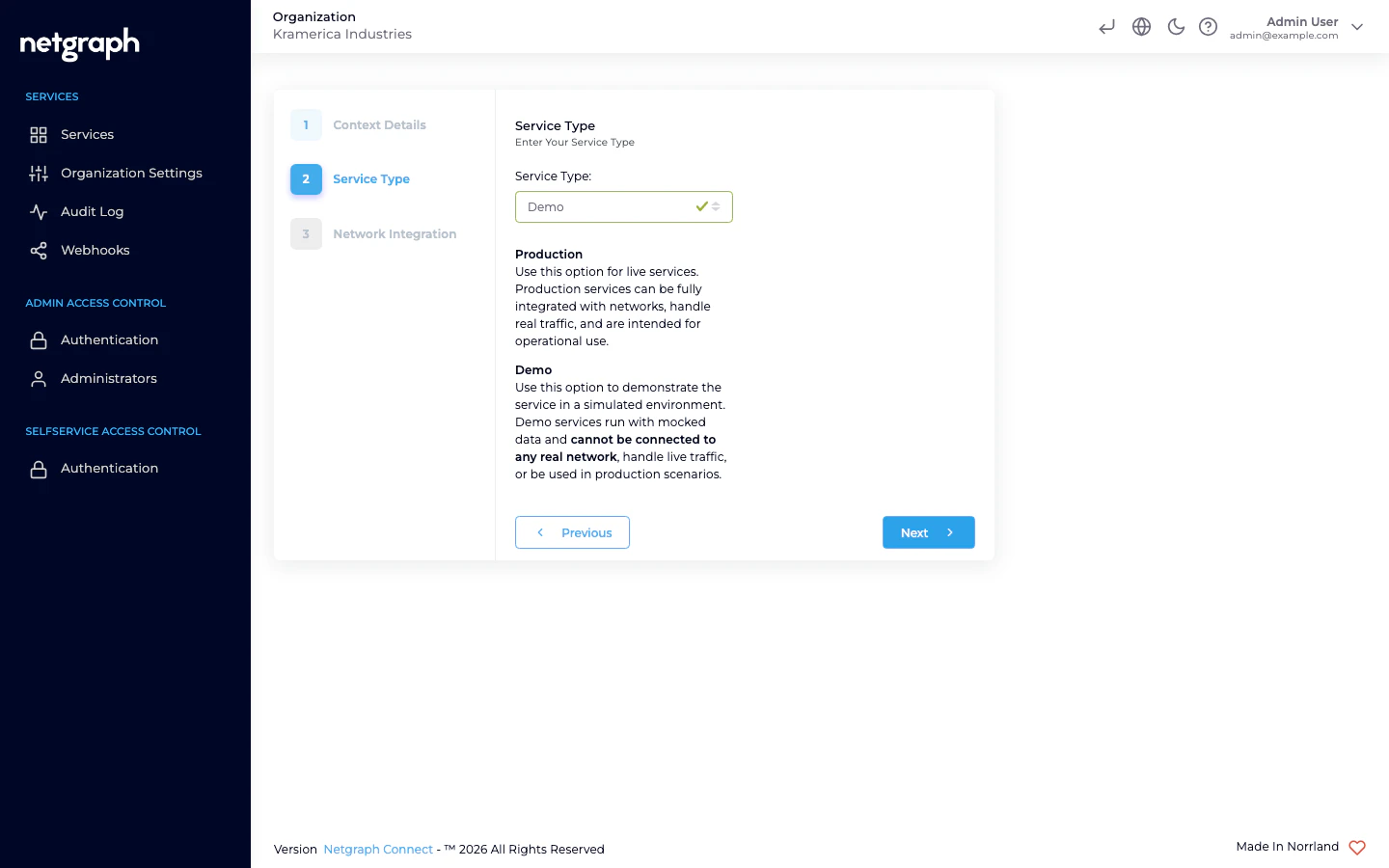
Select Service Type
- Production — for live deployments. Integrates with real networks and handles real traffic.
- Demo — a simulated environment with mocked data. Useful for evaluation and training. Cannot connect to a real network.
Select Network Integration
Choose one or both — you can change this later under Network Settings.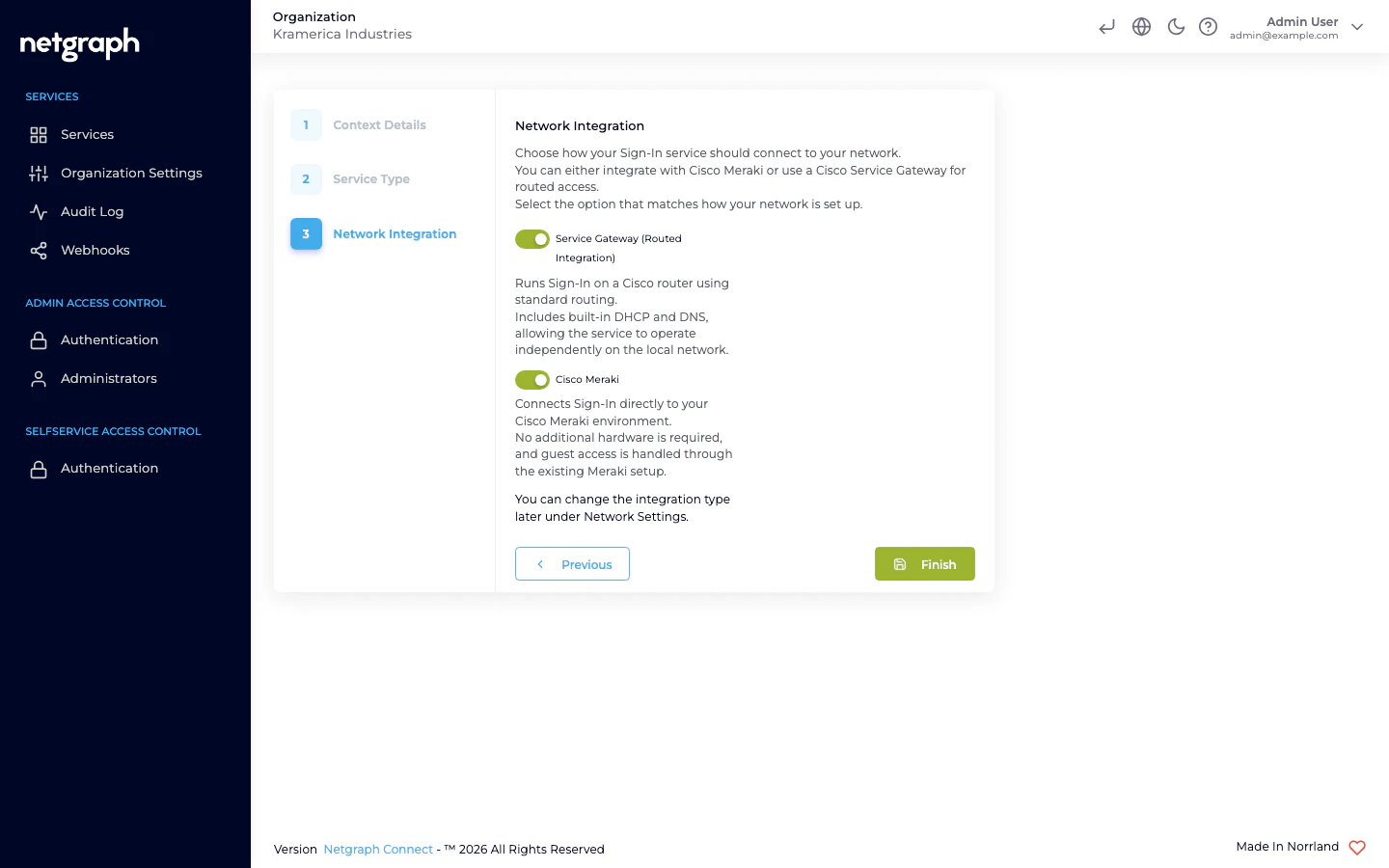
- Service Gateway (Routed Integration) — Sign-In runs on a Cisco router (Catalyst / IOS-XE / SD-WAN) with built-in DHCP and DNS.
- Cisco Meraki — direct integration with your Meraki dashboard; no additional hardware required.
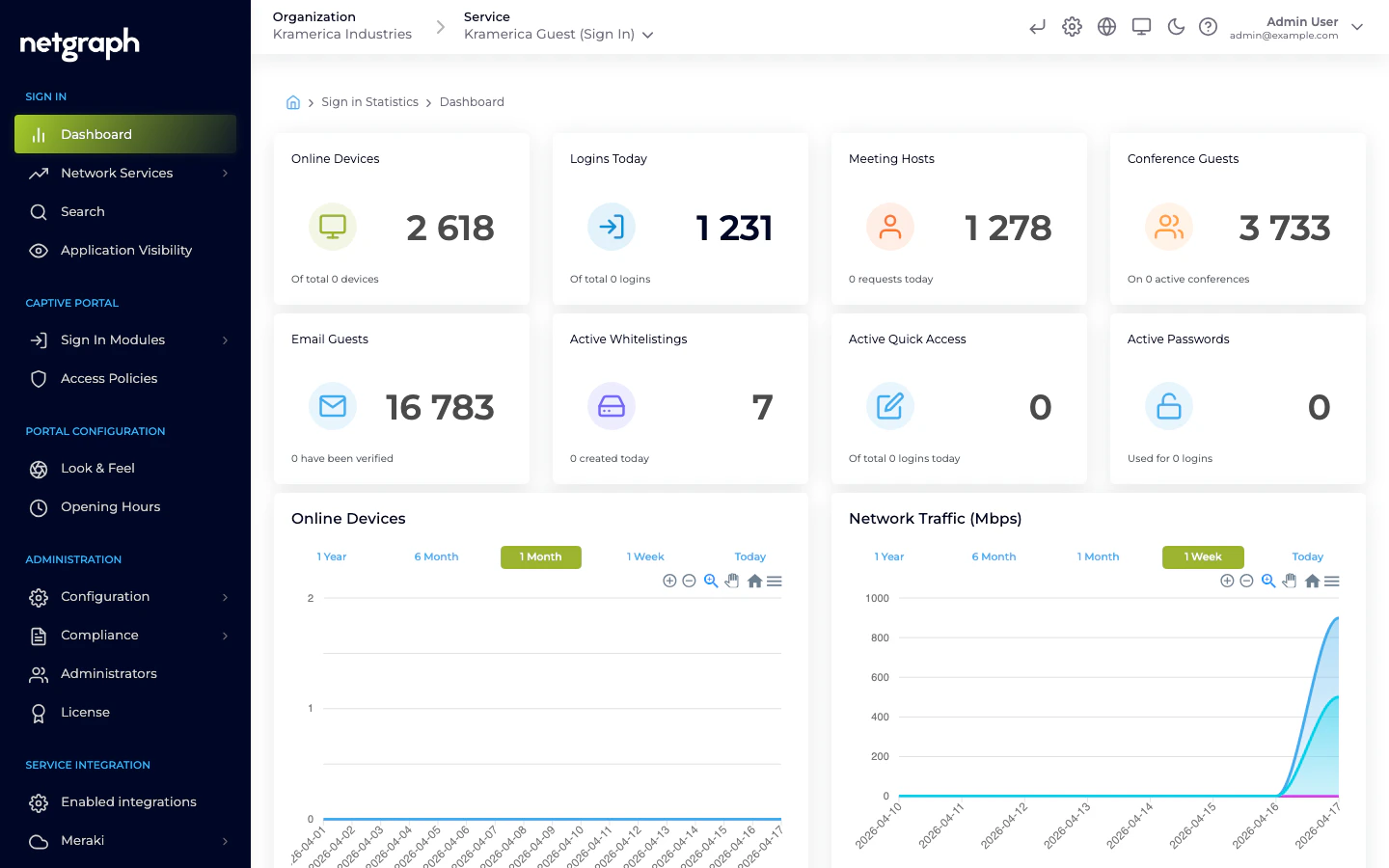
2. Enable a Sign In Module
Every module is configured at Context level and then enabled per Access Policy. For a fast first test, use Email Self Provisioning:Activate the module
The Email Self Provisioning Status card on the top-right shows the
module as Not Active. Click Activate Email Self Provisioning
Login Module to turn it on.
3. Configure look and feel (optional)
From Portal Configuration → Look & Feel you can upload a logo, choose colors and fonts, and add a background image. The portal is responsive by default. For translating the portal to additional languages or overriding specific strings, see the Languages setup guide.4. Test as a guest
Open the Captive Portal preview
The Captive Portal link sits at the top of the header of the
Sign-In Context admin — it opens the real portal in a new tab.
Sign in through the module you enabled
In this guide you enabled Self-Provisioning by Email. Enter an email
and follow the verification flow.
Next steps
Access Policies
Learn how policies control module enablement, session length, and
device limits.
Meraki integration
Full setup with a Cisco Meraki dashboard.
SAML SSO
Set up BYOD sign-in with Entra ID, Google, or Okta.
Webhooks
Subscribe to Sign-In events from your own systems.