

Before you begin
You have administrator access to the Organization and the Admin Dashboard is open at the Services overview. You’ll also need:- A Cisco ISE deployment reachable over HTTPS from the platform’s egress FQDN (you’ll see that FQDN during API Configuration).
- An API username and password for that ISE.
- The email address of the first person you’ll appoint as a Group Administrator.
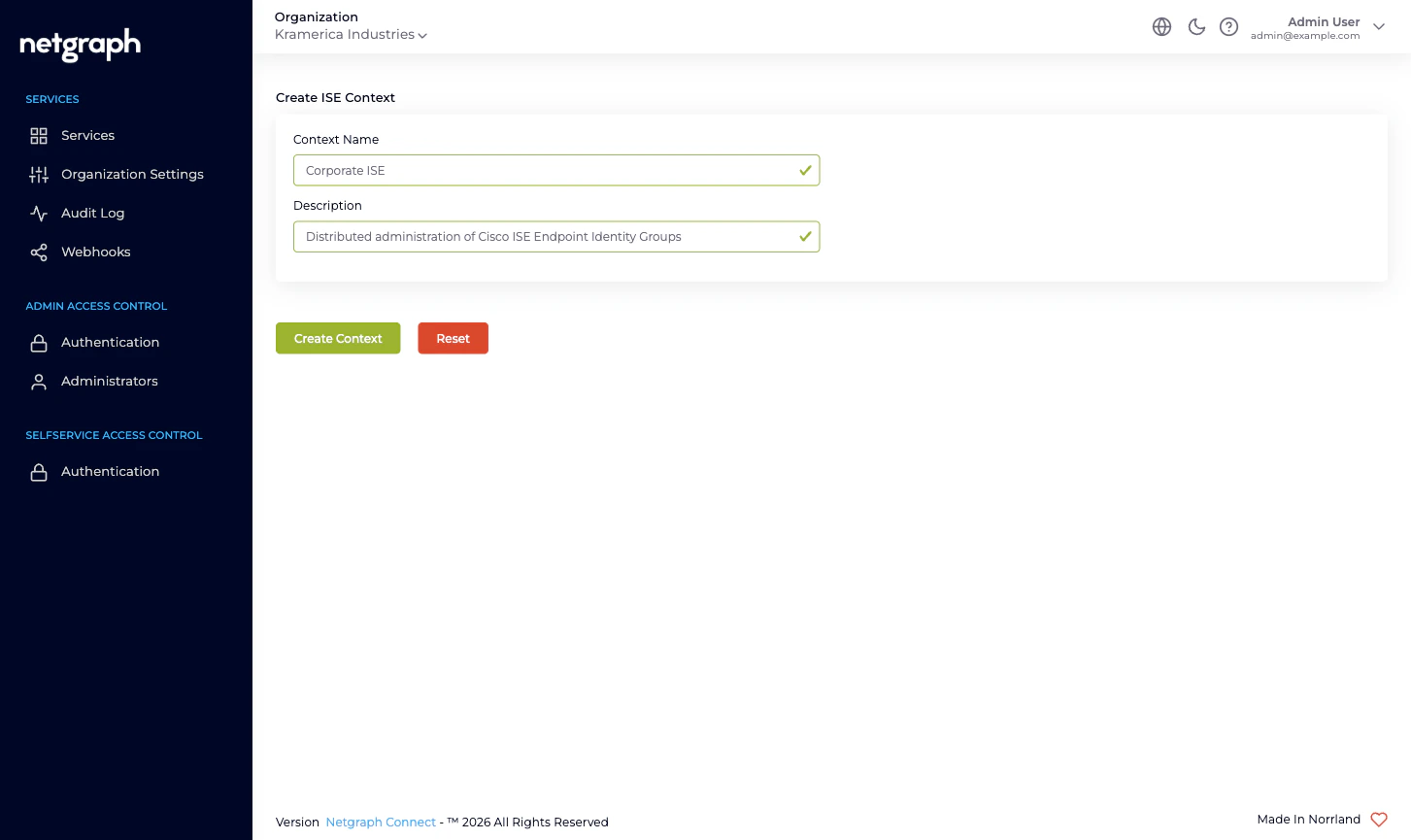
1. Add the ISE Device Management Context
Open the Add Service Context picker
From the Organization’s Services overview, click Add Service Context.
2. Connect to Cisco ISE
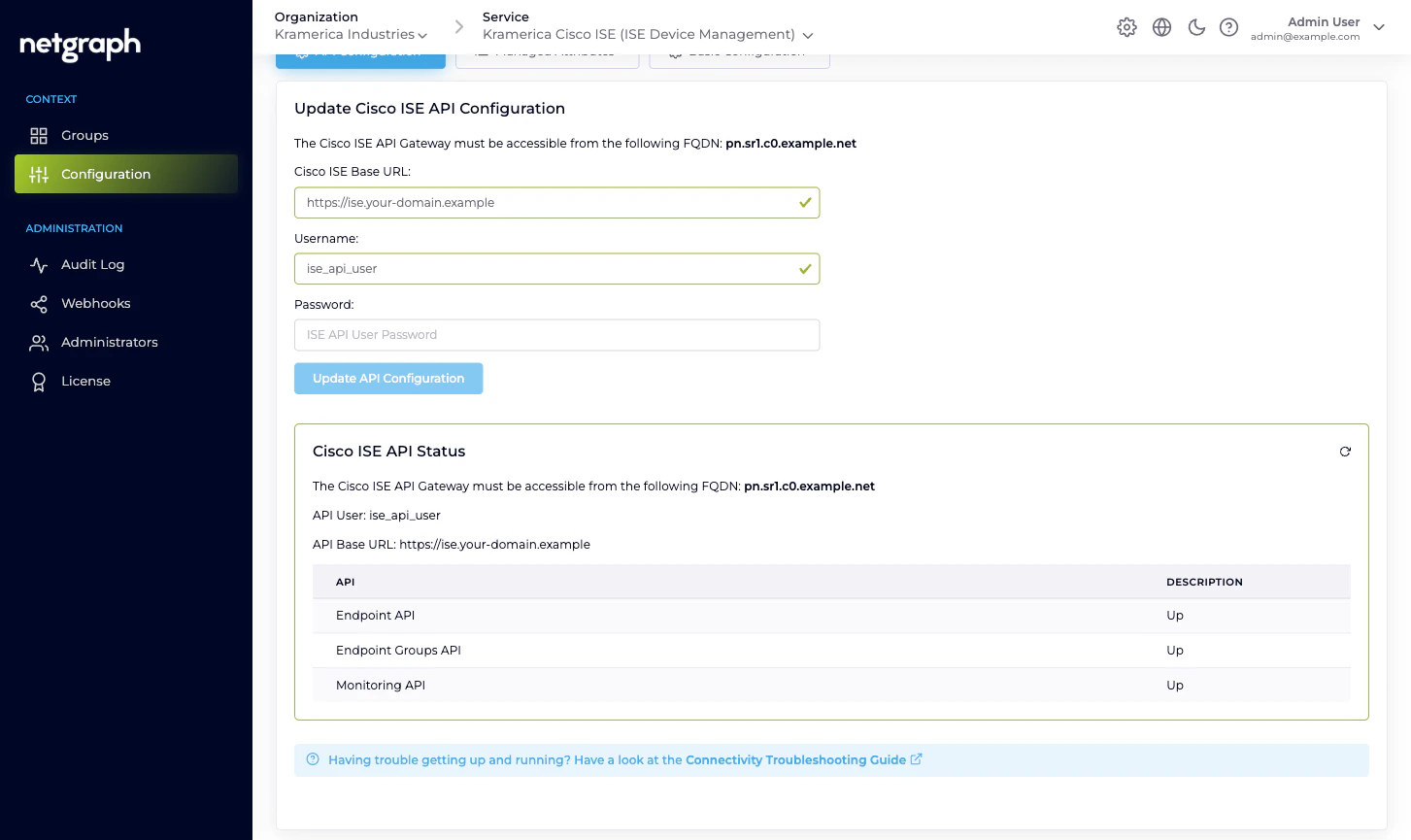
Note the egress FQDN
The API Configuration card shows the FQDN your Cisco ISE
must accept connections from. Allow it through any firewall or
ACL sitting in front of ISE before you paste credentials.
Enter the Cisco ISE Base URL
The HTTPS URL of your ISE deployment, for example
https://ise.your-domain.example. The platform will talk to
this URL for all three API families (ERS, Open API,
Monitoring).Click Update API Configuration
The platform immediately exercises the credentials against all
three API families and shows a Cisco ISE API Status table.
All three rows — Endpoint API, Endpoint Groups API,
Monitoring API — must read Up before the Context can
manage groups. If one is down, fix the ISE-side API enablement
or the API user’s permissions and retry.
3. Manage the first Endpoint Identity Group
With the API Configuration verified, click Groups in the left navigation. The list shows every Endpoint Identity Group in your ISE — some of them already there, some you can create from this screen.Click New ISE Endpoint Identity Group
The platform opens a dialog asking for a Name and Description.
Enter the name you want in Cisco ISE — for example
IP_Phones — and a short description. Click Create new
ISE Endpoint Group.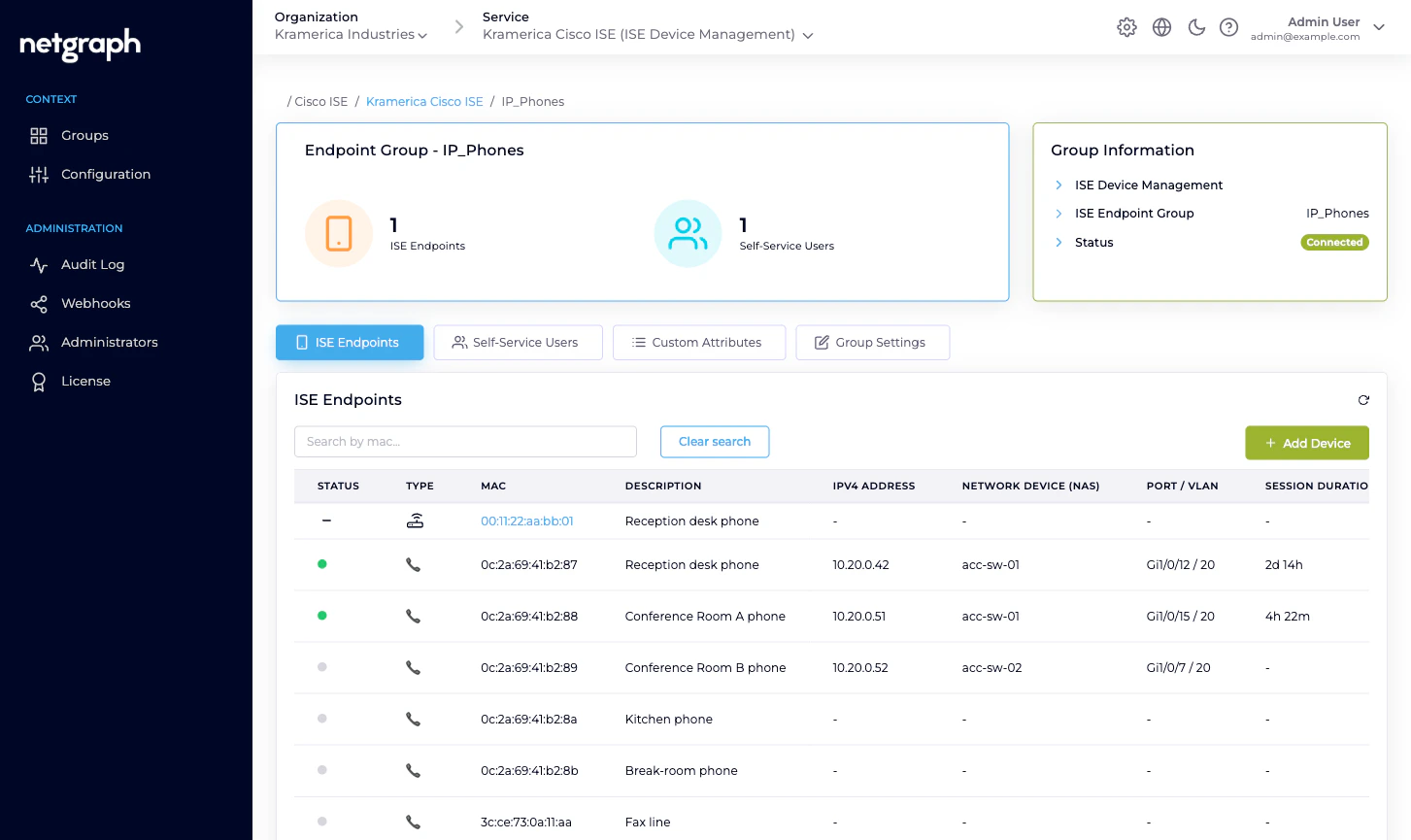
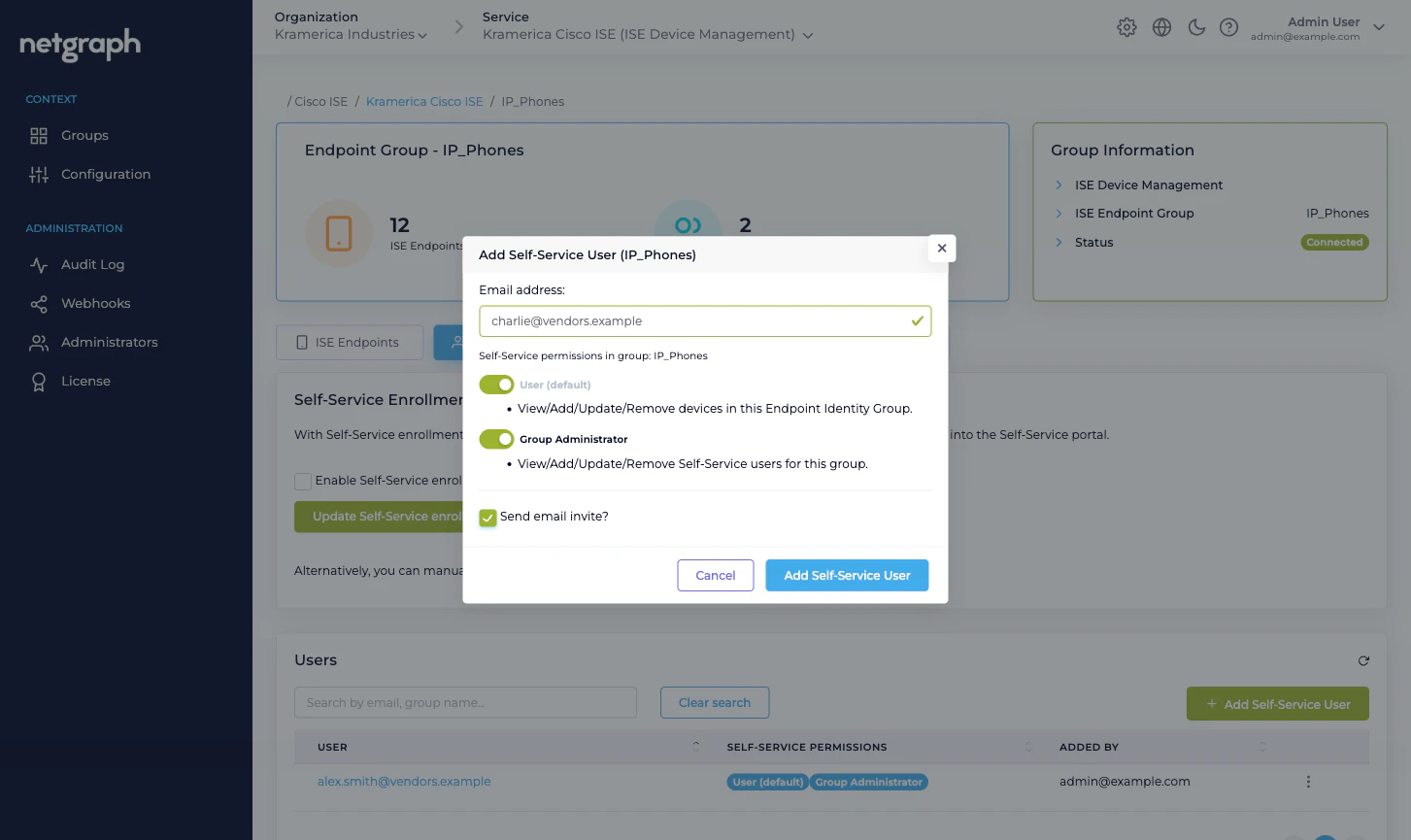
4. Invite the Group Administrator
The invitee receives a Self-Service portal login email. When they
click the link they land on their own group’s detail view, with
Devices, Group Users, and Batch Add Devices cards to
work from.
5. Add the first endpoint
From the Self-Service portal, the Group Administrator can add endpoints one at a time or upload a CSV. For the quickstart, one is enough:
Back on the admin side, under the group’s ISE Endpoints tab,
the endpoint appears within moments. If the endpoint is online
and its Cisco ISE session is live, you’ll see its NAS, port, VLAN,
session duration and data usage here. If it’s offline, those
columns show a dash until the endpoint next authenticates.
Next
Endpoint Identity Groups
The managed-reflection model in depth.
Delegated administration
Scaling from one group to many, and who does what.
Managing endpoints
Add, edit, move, delete, and Change of Authorization.
Batch adding endpoints
CSV upload — from the admin side and the Self-Service portal.