

Form Login (default)
Email and password against the platform’s identity store. Always on by default — the Form Login card on the Authentication page shows Enabled with the toggle disabled, because Form Login is the platform’s baseline authentication method. A few useful properties of Form Login:- It works the day you provision the Organization, before you’ve set up federation. Your first invitation email contains a link that lets the new administrator set their password and sign in.
- It can be hardened with Mandatory Email MFA in Organization Settings. Once on, every Form Login attempt requires a one-time code emailed to the user before completing sign-in.
- It is the break-glass path when SAML federation breaks (expired IdP cert, IdP outage, mis-configured role mapping). Keep at least one Organization Owner who can use Form Login when the rest of the team relies on SAML.
SAML 2.0
Federate Admin Portal sign-in with your organization’s Identity Provider — Microsoft Entra ID, Okta, Google Workspace, ADFS, PingFederate, anything that speaks SAML 2.0. Click Enable on the SAML 2.0 card to open the configuration page. The configuration page is laid out as five numbered sections. Work through them top to bottom; the platform-side values you need to paste into your IdP are revealed in the first section, and the IdP-side values you need to paste into the platform are collected in section 4.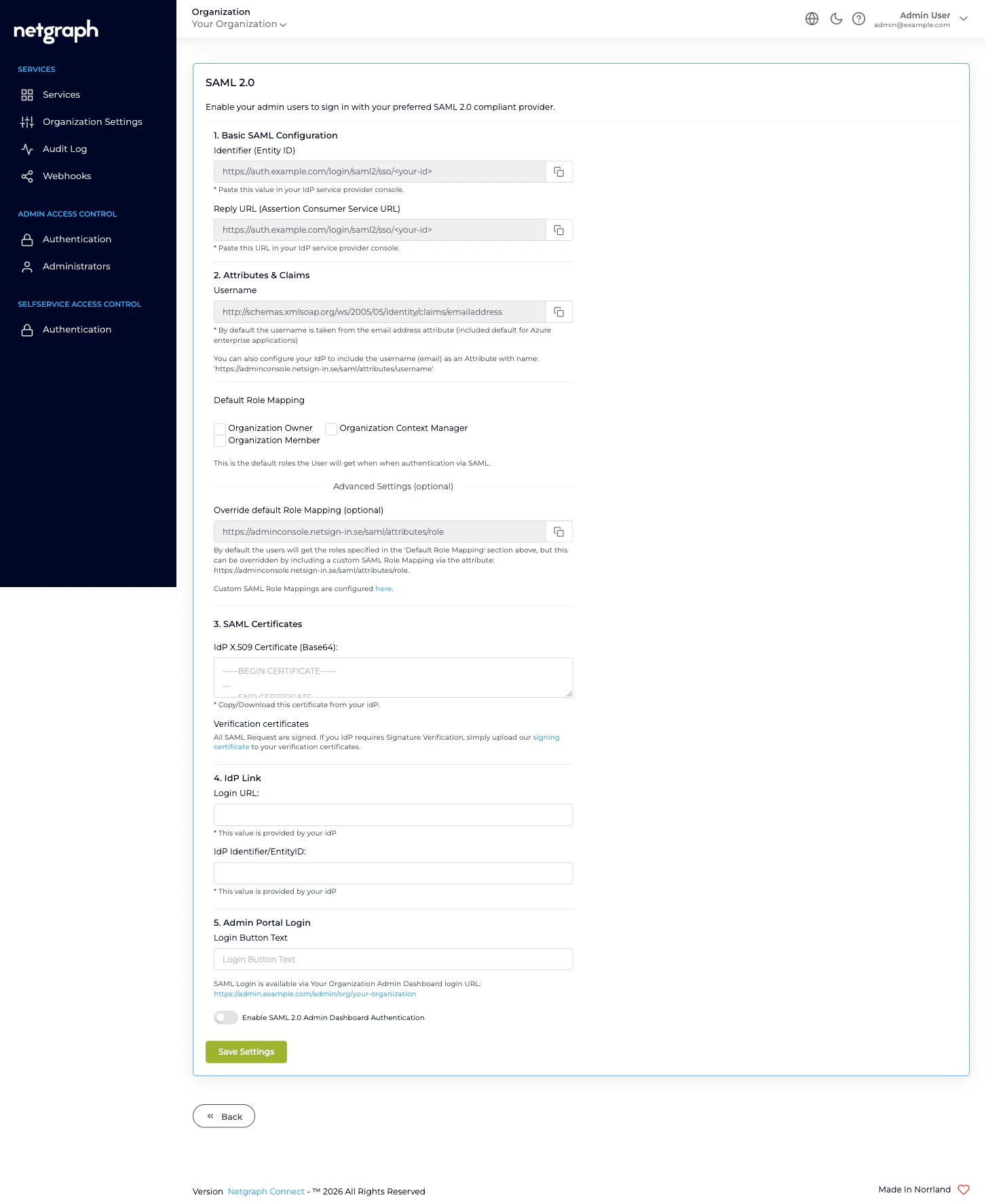
1. Basic SAML Configuration
Two read-only values, both copyable. Paste these into your IdP’s service-provider console.- Identifier (Entity ID). The platform-side identifier of this SAML Service Provider. The URL ends in a short hash that’s unique to your Organization and to the Admin Portal target.
- Reply URL (Assertion Consumer Service URL). The endpoint your IdP POSTs the SAML assertion to. Same value as the Entity ID for this configuration.
2. Attributes & Claims
Tells the platform which SAML attribute carries the user’s identity.- Username — the default value is
http://schemas.xmlsoap.org/ws/2005/05/identity/claims/emailaddress, which is what Microsoft Entra ID enterprise applications include out of the box. Most IdPs map the user’s email to this claim automatically. If your IdP uses a different attribute name, copy the platform’s alternative attribute,https://adminconsole.netsign-in.se/saml/attributes/username, into your IdP and have it carry the user’s email there. Either works — the platform reads whichever it finds.
ConnectUser identity. If the user has previously
signed in via Form Login, that account is reused; otherwise the
platform creates a new identity on first SAML sign-in.
3. Default Role Mapping
The set of Organization-scope roles every SAML-authenticated user is granted unless the IdP explicitly overrides per user. Three checkboxes:- Organization Owner
- Organization Context Manager
- Organization Member
Override default Role Mapping (optional)
Have your IdP include the role attribute namedhttps://adminconsole.netsign-in.se/saml/attributes/role. Whatever
string the IdP sends as the value of that attribute is looked up
in Custom SAML Role Mappings, which is reached through the
here link beneath the Default Role Mapping card.
A Custom SAML Role Mapping is a name you choose (e.g. nac-team-lead)
mapped to one or more of the three Organization-scope roles. The
moment a user signs in via SAML and the IdP includes that role
attribute, they’re auto-provisioned with the mapped roles instead
of the Default Role Mapping.
This is the right place to encode “members of this AD group are
Organization Owners” without granting Owner to every IdP user.
4. SAML Certificates
Paste your IdP’s signing certificate (Base64 PEM format with-----BEGIN CERTIFICATE----- / -----END CERTIFICATE-----
delimiters) into IdP X.509 Certificate (Base64). The platform
uses this to verify SAML assertions are signed by your IdP.
Below it, the Verification certificates note offers a download
link for the platform’s signing certificate — the one the
platform uses to sign outgoing SAML requests. If your IdP requires
SP-side signature verification (some do, most don’t by default),
upload the platform’s signing certificate to your IdP under
verification certificates.
5. IdP Link
The two IdP-provided values that complete the trust:- Login URL — the IdP endpoint the platform redirects users to when they start a SAML sign-in. Your IdP provides this when you finish setting up the application.
- IdP Identifier/EntityID — the IdP’s identifier as it appears in the SAML Issuer field. Also IdP-provided.
6. Admin Portal Login
Two final controls:- Login Button Text. The label that appears on the SAML sign-in button on the Admin Portal sign-in page (e.g. Sign in with Entra ID).
- SAML Login URL. A read-only link showing the public URL for signing in to your Organization via SAML. This is the URL you share with your team — bookmarked, baked into your IdP’s application catalogue, or sent to admins.
- Enable SAML 2.0 Admin Dashboard Authentication. The toggle that turns SAML on. Until this is ticked, all the configuration above is saved but never used — handy when you want to stage the configuration before going live.
Saving and verification
After saving, sign in once via SAML from a private window or a secondary browser, while staying signed in via Form Login in your main session. If something is misconfigured, you can fix it without losing access. Common problems and fixes are covered in Organization diagnostics.Break-glass access
Even with SAML enabled, always keep at least one Organization Owner who can sign in via Form Login. The reason is mechanical: the only way to fix a broken SAML configuration is to sign in as an Organization Owner and edit it. If the only Owner relies on SAML and SAML is broken, no one can fix it. The simplest pattern:- Create a dedicated break-glass account (e.g.
breakglass@yourcompany.example) with Organization Owner and Mandatory Email MFA enabled. - Don’t enrol that account in your IdP, so SAML never claims it.
- Lock its password in your password manager and document the recovery email account.
Where to go next
Self-Service Portal authentication
Configure SAML 2.0 for the second portal — different SP endpoint, different rules.
Managing Administrators
Pre-stage administrators before SAML, or audit who’s signed in via SAML.
Administrator roles
What each role grants, when to use which.
Organization diagnostics
SAML sign-in failures and how to fix them.