

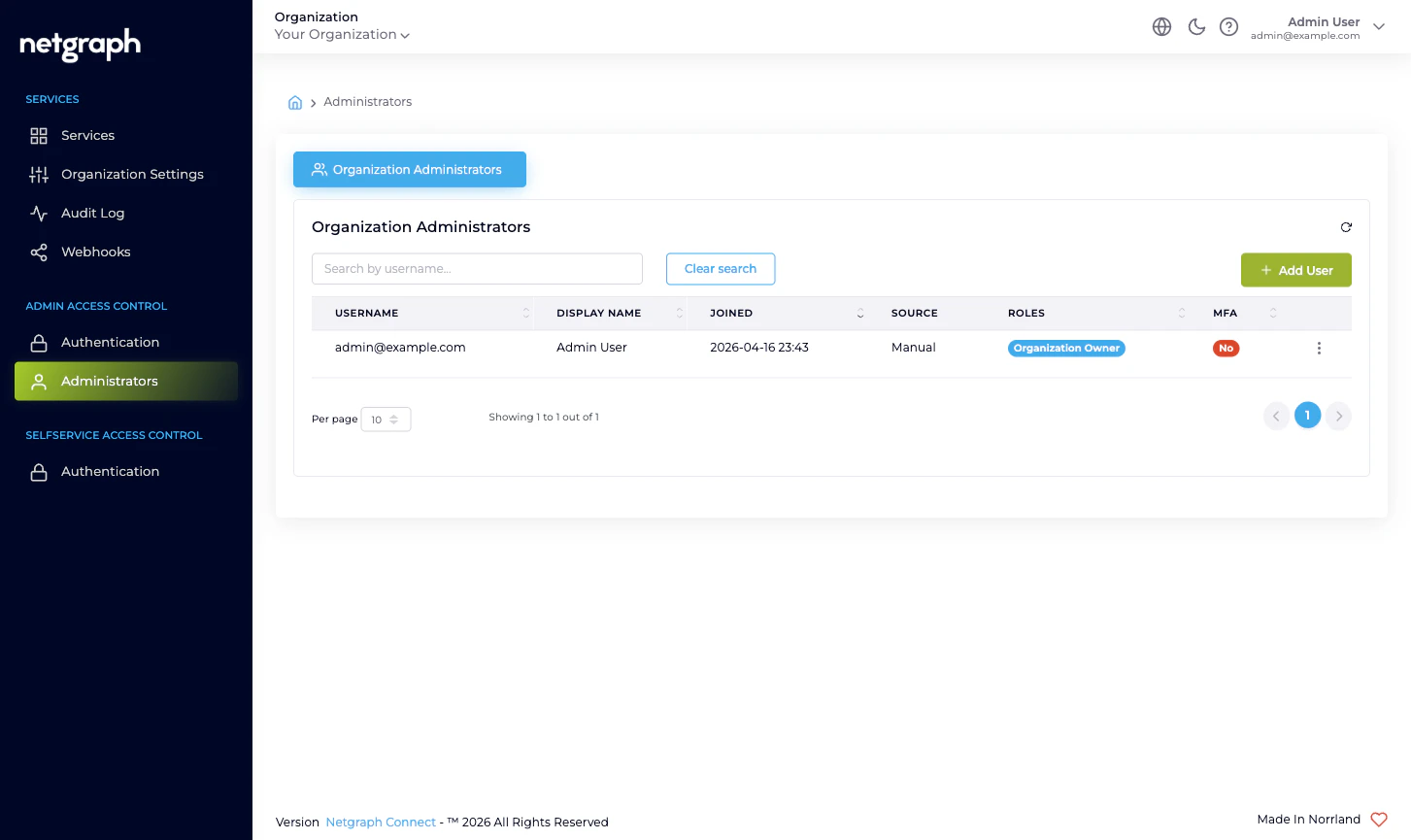
What each column tells you
| Column | What it means |
|---|---|
| Username | The email the administrator signs in under. Unique per platform identity. |
| Display Name | The name the administrator chose for themselves. Empty for not-yet-accepted invitations. |
| Joined | The timestamp the administrator first accepted their invitation and signed in. For pending invitations the cell instead shows Invite expires: and the expiry date. |
| Source | How the platform learned about this administrator — Manual for an invited account, SAML for a user auto-provisioned on first SAML sign-in. |
| Roles | Pills for each Organization-scope role the administrator holds. See Administrator roles. |
| MFA | Pill showing whether the administrator has multi-factor authentication active. Yes when an authenticator app is enrolled or Mandatory Email MFA applies; No otherwise. |
| Action | Per-row menu — Resend invitation (Pending Invite rows only), Modify roles, Remove. |
Inviting an administrator
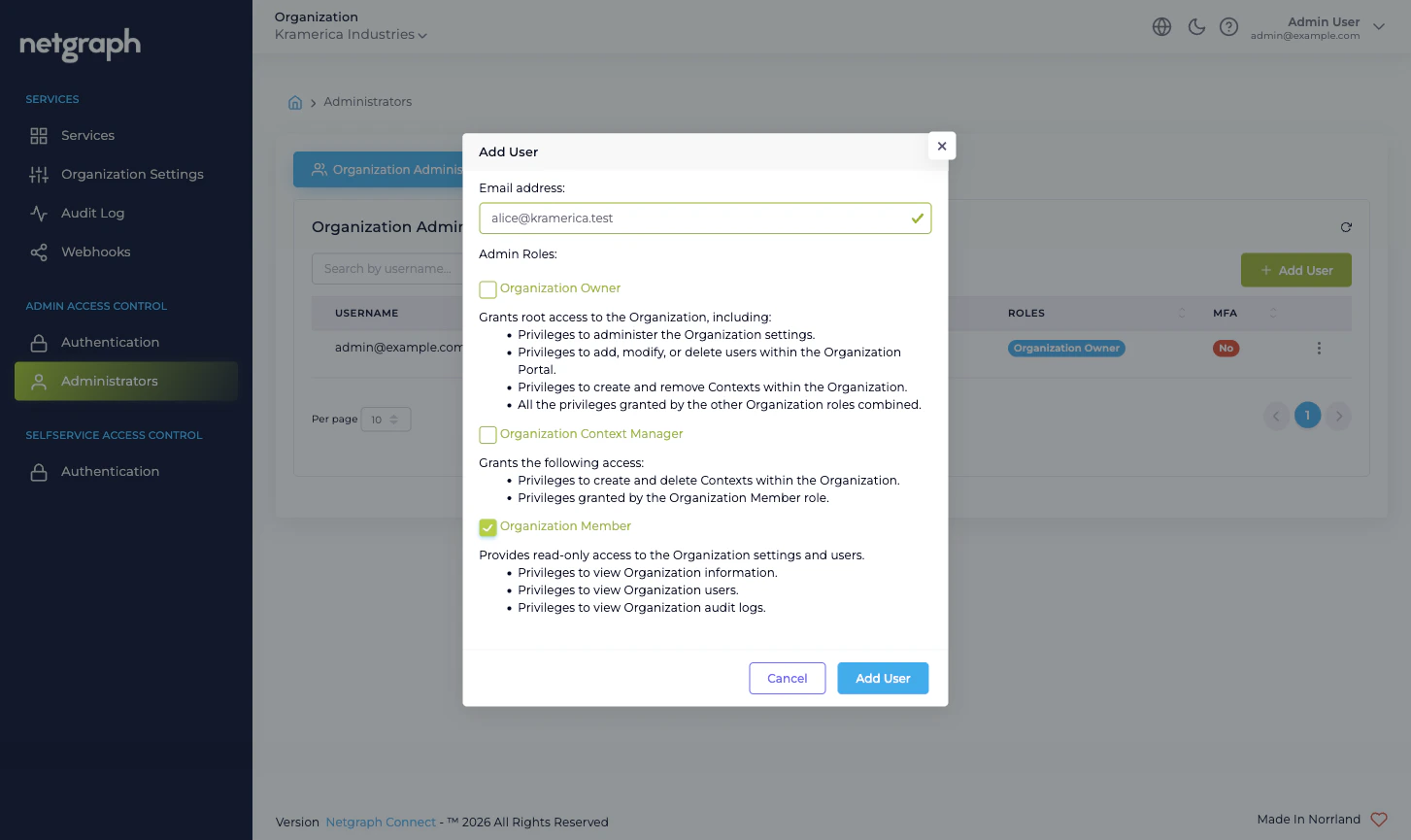
Use Add User to invite a colleague. The form has two fields:- Email address. The address the invitation will be sent to. This becomes the administrator’s username and is unique across the platform.
- Admin Roles. A checkbox group of Organization-scope roles. Tick at least one. Each checkbox carries a description of what that role grants — see Administrator roles.
What if the invitation expires before they accept?
Open the action menu on the row and pick Resend invitation. The platform issues a fresh link and resets the expiry. The old link stops working immediately.Why some accounts skip the invitation entirely
When the Admin Portal is federated with SAML, anyone who authenticates successfully through your IdP and matches the configured Default Role Mapping is auto-provisioned as an administrator on first sign-in. They never receive an invitation email — their row simply appears in the table with the SAML source the first time they sign in. If you’d rather review SAML-provisioned accounts before they get in, drop the Default Role Mapping to Organization Member only and use the Custom SAML Role Mappings to elevate specific IdP groups. Members can sign in but can’t change anything.Modifying roles
Pick Modify from a row’s action menu to open the same checkbox-group used for invitations, pre-filled with the administrator’s current roles. Tick or untick to add or remove roles, then save.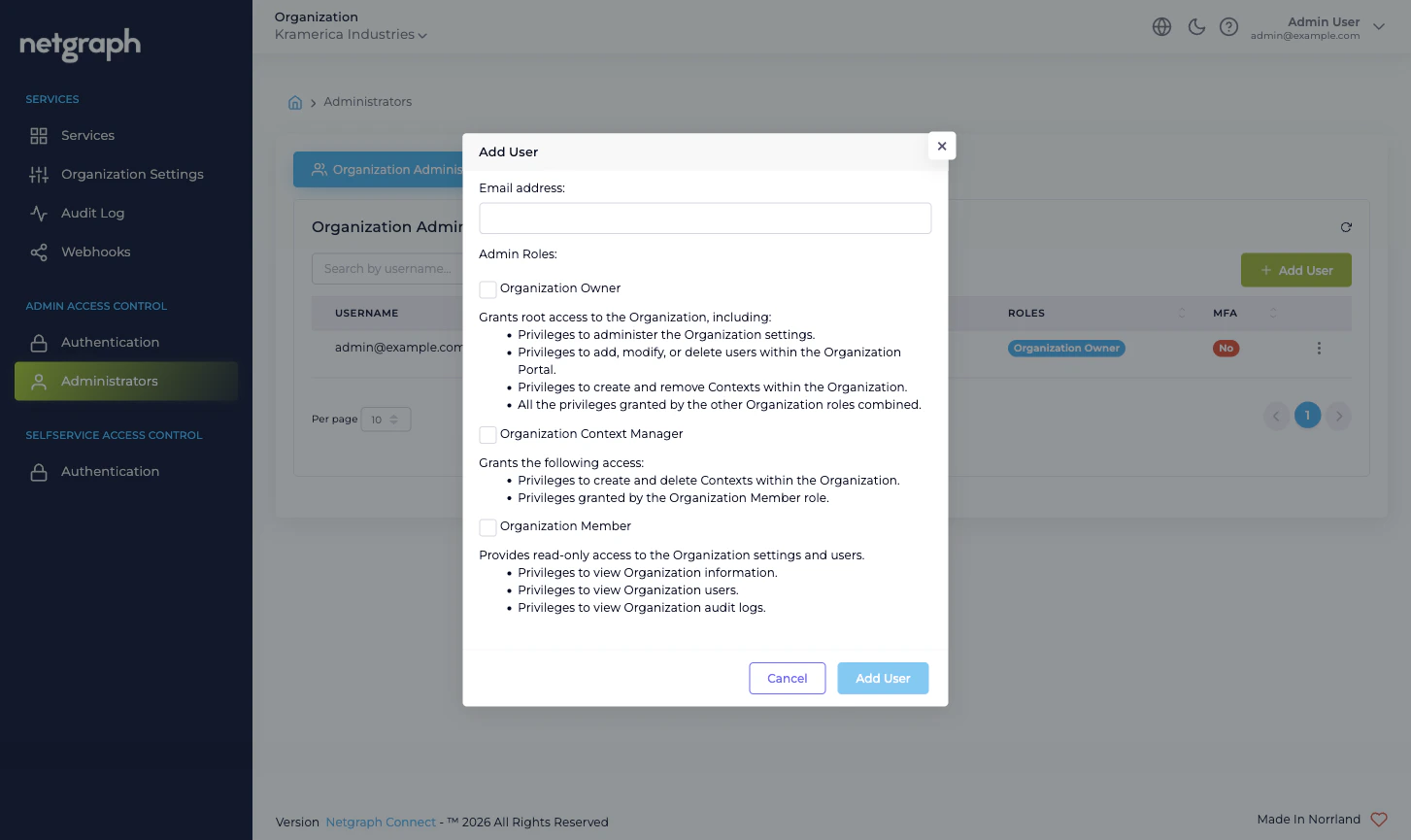
- An administrator who needs to read everything but change nothing at the Organization level should hold only Organization Member.
- An administrator who needs to operate every Service Context but never touch Organization Settings or other admins should hold only Organization Context Manager.
- An administrator who’s a co-pilot for the whole Organization should hold Organization Owner. Always keep at least two such accounts (see the break-glass advice in Admin Portal authentication).
Removing an administrator
Pick Remove from a row’s action menu. The platform asks for confirmation, then revokes access immediately. The row disappears from the table; the administrator’s audit trail is preserved. A few things to know about removal:- An administrator who is currently signed in is signed out the next time their session checks in (typically within a minute). Remove them as soon as you decide — don’t wait.
- If the administrator is the only Organization Owner, the platform will not let you remove them. Promote a second Owner first.
- A removed administrator’s email can be re-invited later. The
new invitation generates a fresh
Joinedtimestamp and a new Source value (Manual on re-invite, SAML if they next sign in via SAML).
What about Context-scope administration?
The Administrators page shows only the Organization-scope identities — the people who can sign in to the Admin Portal at all. Each Service Context has its own administrator surface inside that Context, and the people listed there are the ones who run that Sign-In, EntryPoint, EasyPSK, or Endpoint Manager Context day-to-day. Often they overlap with this list (an Organization Context Manager is implicitly an admin inside every Context); sometimes they don’t (a Context Manager-style admin who’s been delegated only one venue). To delegate a single venue / property / fleet to someone without giving them Organization-wide reach, the right pattern is:- Invite them here as Organization Member (Admin Portal visibility, no Organization-level write).
- Open the relevant Service Context’s own admin tab and add them there as the Context-scope admin role you want them to have, or as a Self-Service User on the specific resource (Wireless Personal Network, Endpoint Identity Group, Access Policy) they should manage.
What’s audited from this page
Every action — invitation sent, invitation re-sent, roles updated, administrator removed — emits anUpdated or Removed audit
event scoped to the Organization. The administrator who took the
action and the affected username appear in the row’s drill-down.
See Audit Log.
Where to go next
Administrator roles
The three roles in detail and when to combine them.
Admin Portal authentication
Form Login plus optional SAML 2.0 with auto-provisioning.
Audit Log
Review every administrator change with property-level diff.
Organization diagnostics
“I can’t sign in” and similar admin-side issues.