

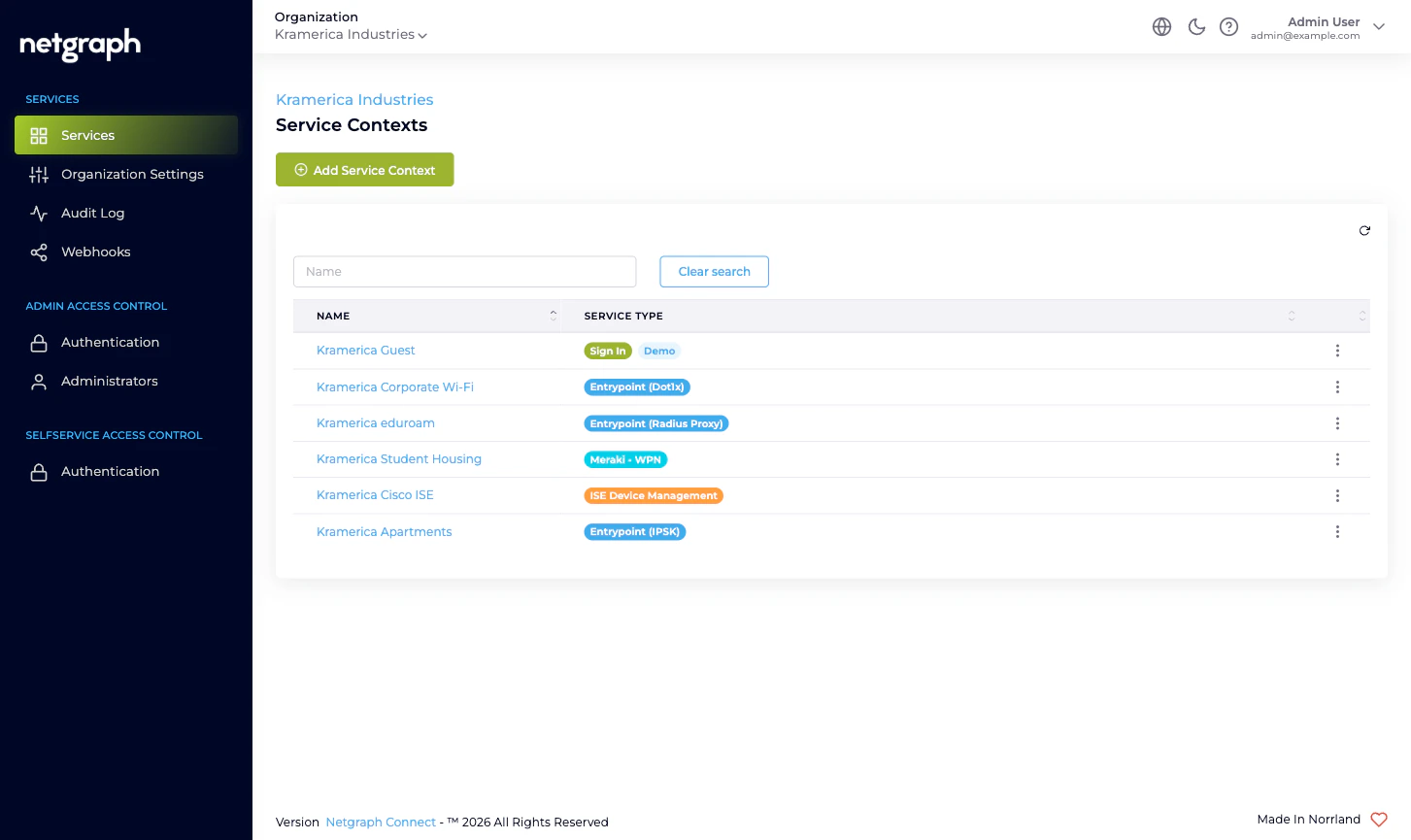
What each column tells you
| Column | What it means |
|---|---|
| Name | The Context’s display name. Click to open that Context’s own admin. |
| Service Type | Which Service this Context is — Sign In, EntryPoint (with variant), Meraki - WPN, ISE Device Management. |
| Action | Per-row menu — Remove <context name> (only available to admins with Organization Owner or Organization Context Manager). |
Adding a Service Context
Click Add Service Context to open the Service-card picker. You see four cards, one per Service: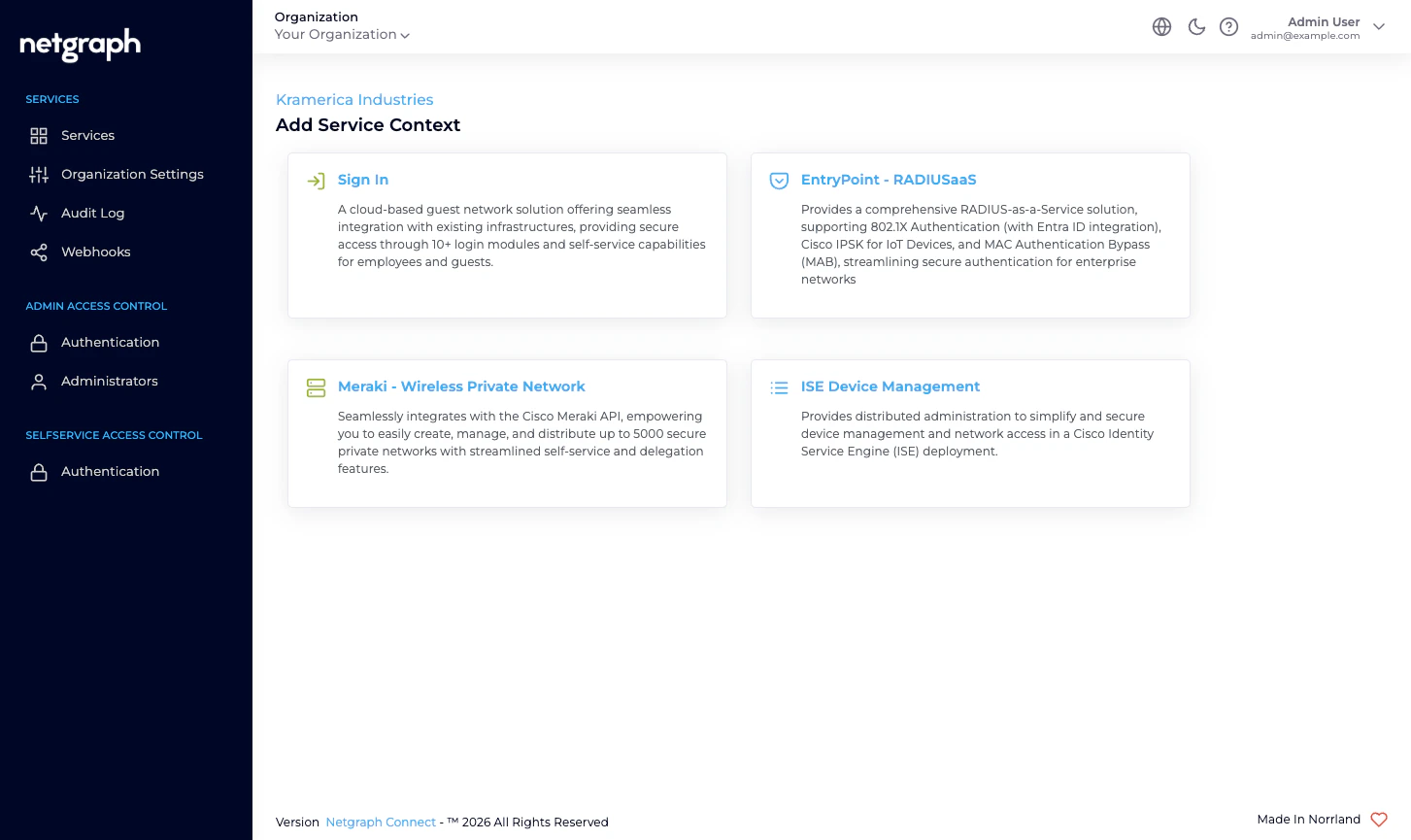
Sign In quickstart
Set up cloud guest Wi-Fi with self-service captive portals.
EntryPoint quickstart
Set up RADIUS-as-a-Service for 802.1X, MAB, or iPSK.
EasyPSK quickstart
Set up Personal Wi-Fi networks on Cisco Meraki.
Endpoint Manager quickstart
Set up delegated administration on top of Cisco ISE.
- There is no platform limit on how many Contexts of each Service you can have. Most Organizations end up with multiple Sign-In Contexts (one per venue) and one or two of each other Service.
- A new Context inherits very little from the Organization itself. Settings like Active Languages and the Self-Service Portal token lifetime apply broadly, but each Service Context configures its own branding, modules, and operational policy independently.
- Adding a Service Context is audited at the Organization scope
with a
Createdaction — see Audit Log.
Opening a Service Context
Click the Context’s name in the Services list to navigate into its own admin. The left navigation changes to that Service’s surface (Sign-In Modules, EntryPoint Groups, Meraki - WPN tabs, etc.) and the breadcrumb shows the Organization → Context path. The Organization-level navigation (Organization Settings, Audit Log, Webhooks, Authentication, Administrators) stays accessible through the Organization picker at the top of the left navigation; switch back to Organization scope from there.Removing a Service Context
Pick Remove <context name> from the row’s action menu. The platform asks for confirmation before deleting the Context. Practical guidance before removing:- Tell the Context’s day-to-day admins first. The Context’s own administrators and Self-Service Users lose access the moment the Context is deleted; they should know what’s coming.
- Disable any webhook subscriptions inside the Context first. Webhook subscriptions configured at the Context scope are removed with the Context, but if a downstream system was relying on the stream you’ll want a clean shutdown.
- Capture anything you’ll want as a record. There is no CSV export from the Audit Log, so if you want a snapshot of what was in the Context (Sign-In Modules, Wireless Personal Networks, etc.), use the Service’s own export surfaces or the REST API before removing the Context.
Renaming a Service Context
A Context’s name is changed inside the Context itself, not from this list. Open the Context, find its own settings page (typically Configuration at the Service level), and update the name there. The change is reflected in the Services list on the next refresh and audited at both the Organization scope and the Context scope.Where to go next
Organization and Services
The two-layer model — Organization-scope vs Context-scope work.
Audit Log
Review every Context creation, configuration, and removal.
Webhooks
Stream Organization-scope events; per-Context webhooks live inside each Context.
Managing Administrators
Decide who can add or remove Contexts.