

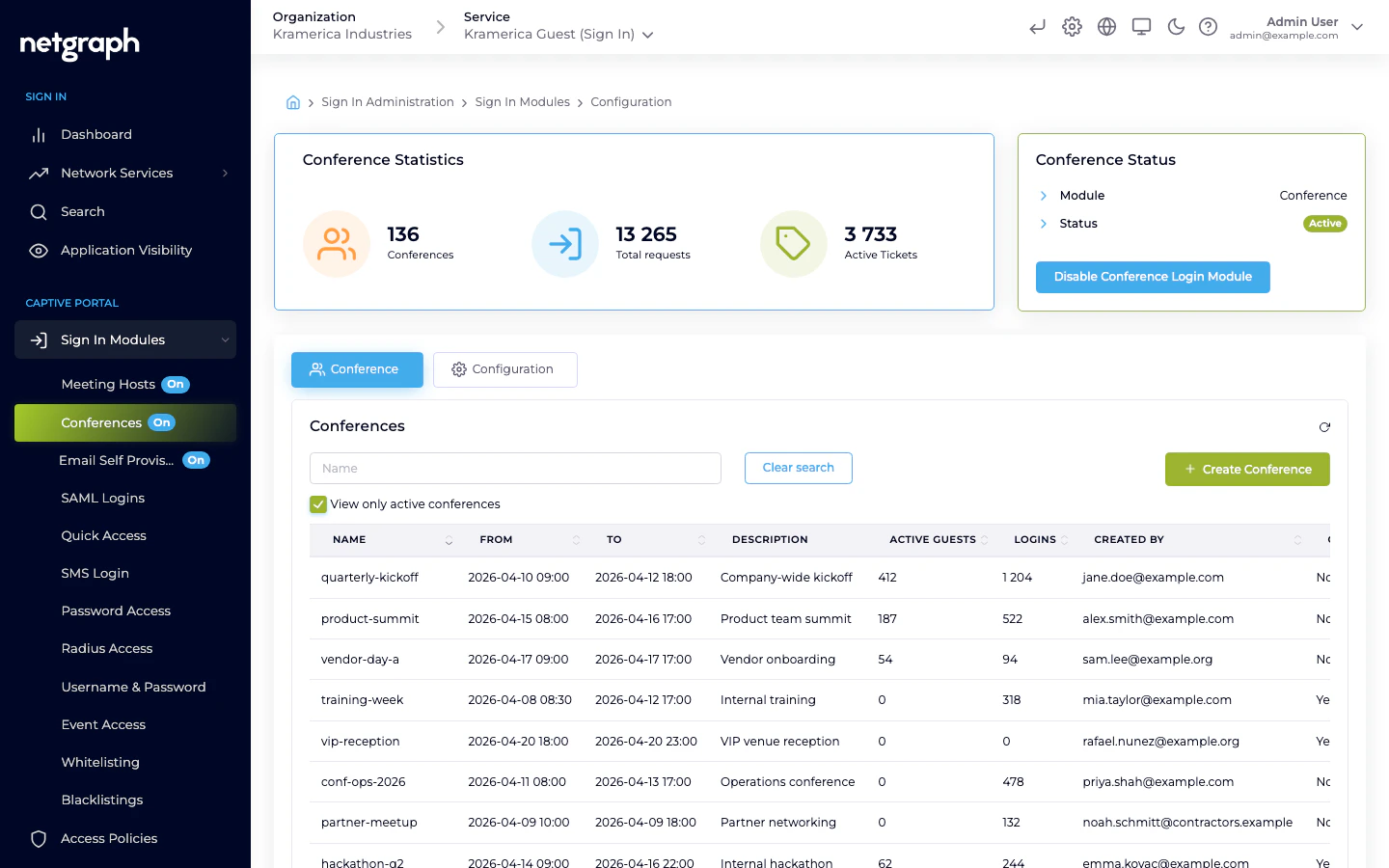
How a guest signs in
- The guest picks Conference on the Captive Portal.
- They enter the conference code shared by the owner of the conference.
- If the code matches an active conference and the guest’s Access Policy allows the module, access is granted. The login is tagged with the conference.
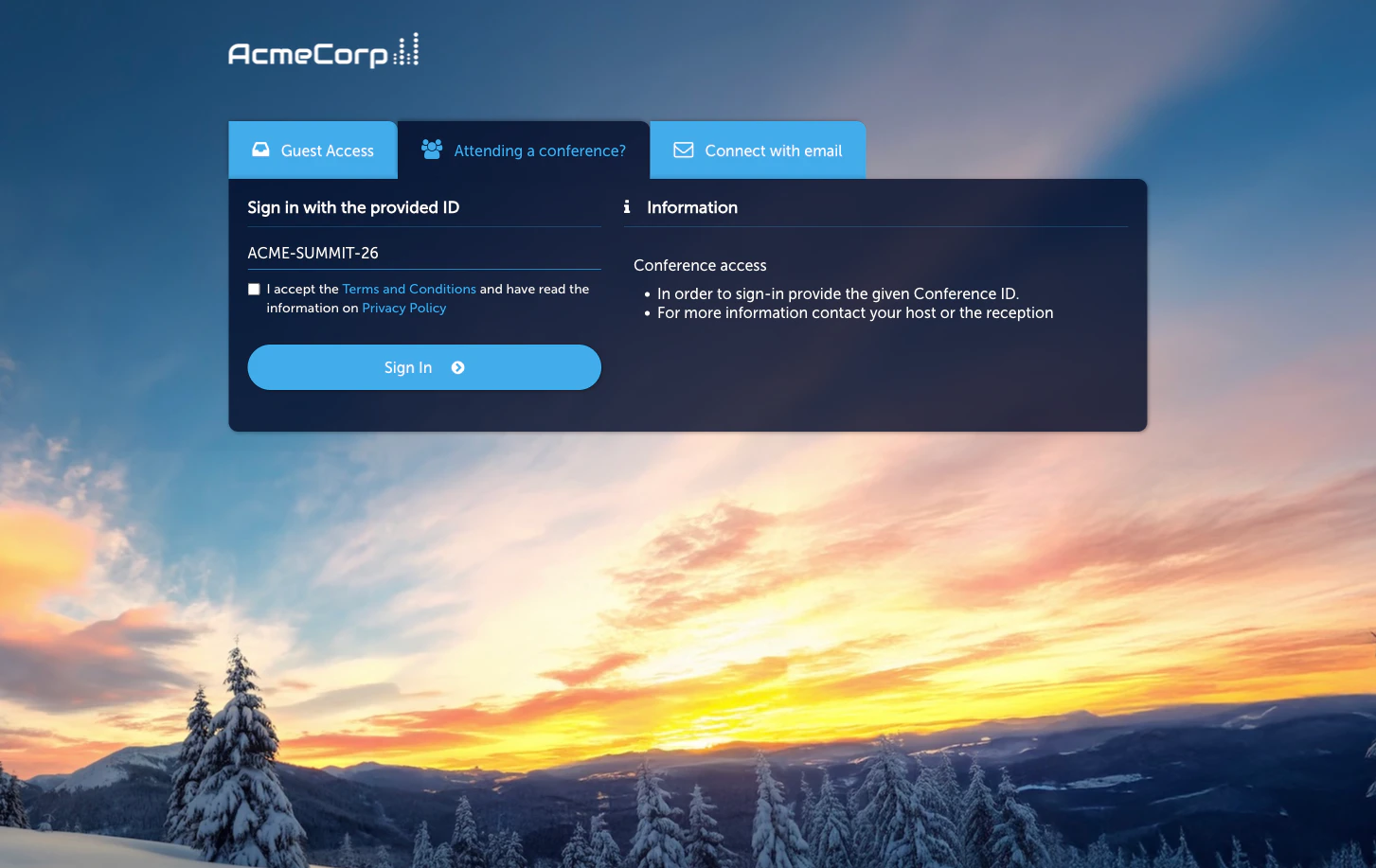
Activate the module
Creating a conference
Each conference has:- Name — admin-only label.
- Code — what attendees type. Keep codes easy to read; avoid
characters that look alike (
O/0,l/1). - Active window — start and end dates. Recurring conferences typically reopen each session.
- Visitor limit — cap on simultaneous connected visitors for this conference. Defaults to unlimited.
- Conference URL — optional redirect destination for attendees (often the meeting platform or agenda).
- Length limits — session duration per attendee.
- Optional Attendee Form — when enabled, collects information from each attendee before granting access (see below).
Optional Attendee Form
Enable the form when you want to capture attendee details alongside the sign-in. Configurable fields typically include name, email address, and phone number, each independently set to required or optional. All submissions can be exported as CSV from the Admin Portal — useful for attendance reporting and post-event follow-up.Distributing the code
The conference owner decides how to share the code. Common patterns:- Included in the meeting invite.
- Shown on a slide in the presentation deck.
- Posted on lobby or room signage.
- Read aloud at the start of the session.
Self-Service Portal
Employees whose Access Policy grants Manage Conferences can create and manage conferences themselves from the Organization’s Self-Service Portal, without admin intervention.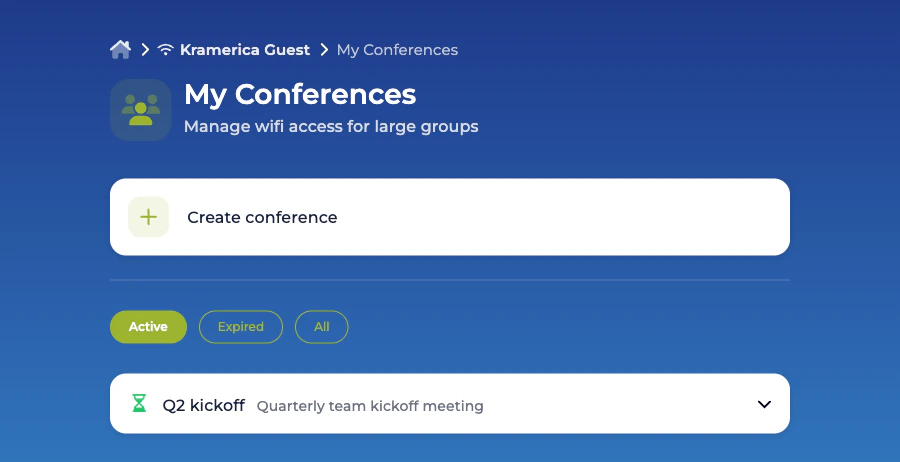
Creating a conference
The Create conference button opens a single form covering the same fields available to administrators, capped by the organiser’s Access Policy: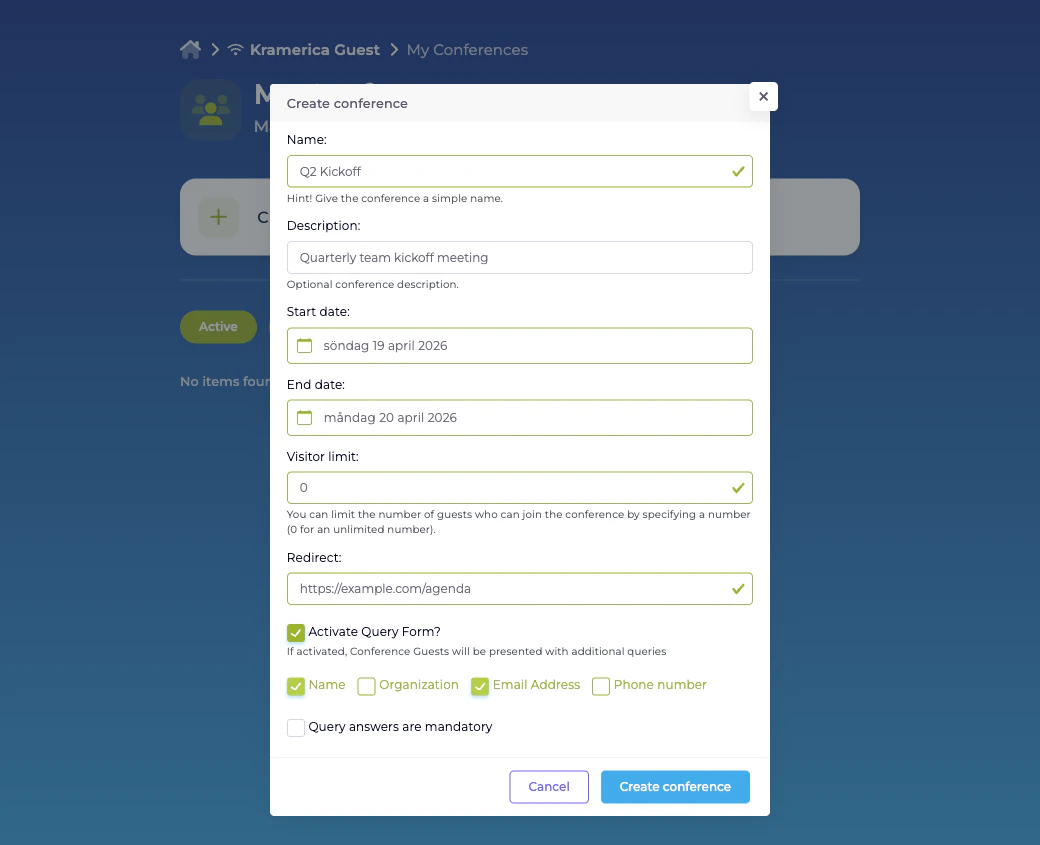
- Name — required; shown in the organiser’s list and on admin reports.
- Description — optional.
- Start date and End date — the window in which the conference code is active. The end date is bounded by the Access Policy’s per-user maximum conference length.
- Visitor limit — caps simultaneously connected attendees.
0means no limit. The Access Policy’s per-conference visitor cap overrides a higher number submitted here. - Redirect — the URL attendees are sent to after sign-in. Defaults to the Access Policy’s configured conference URL.
- Activate Query Form? — when enabled, attendees complete a short form covering any combination of Name, Organization, Email Address, and Phone number before access is granted. Tick Query answers are mandatory to refuse sign-in unless the form is completed.
Managing a running conference
Expanding a conference row reveals its status (Pending before the start date, Active during, Expired after), the query fields configured for it, and two actions: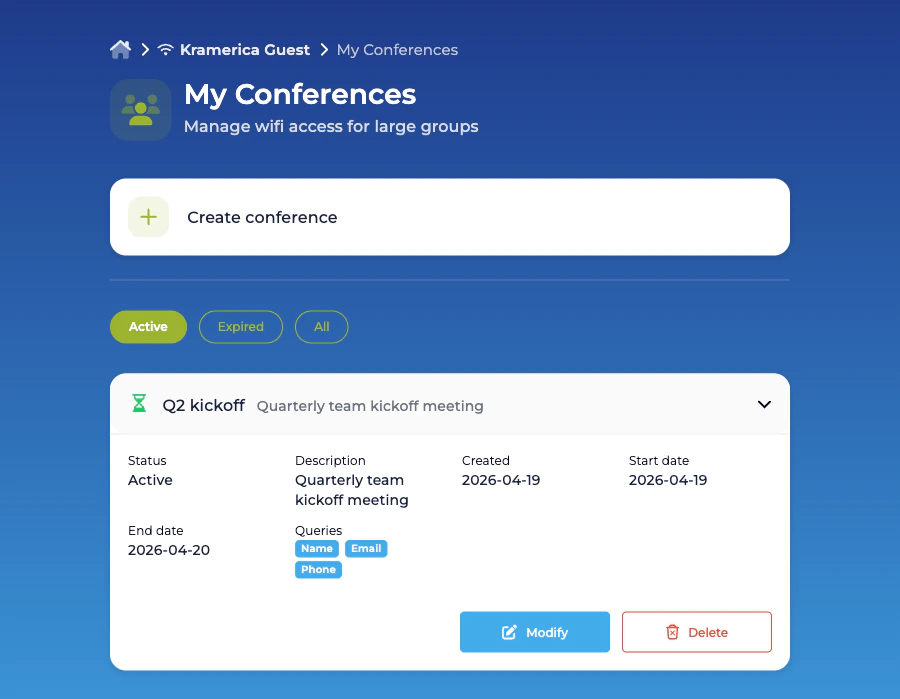
- Modify reopens the form pre-populated with the current values. Useful for extending a conference that has run past its scheduled end date, or raising the visitor cap.
- Delete removes the conference. Attendees currently connected through it lose access immediately.
Access Policy options
Self-Service conference creation is gated by the policy’s Self-Service Permissions → Manage Conferences sub-tab. The sub-tab configures:- Manage Conferences — master flag. When on, Self-Service users matched by this policy can create and manage conferences.
- Default conference URL — pre-fills the Redirect field when the organiser creates a conference.
- Default conference length / Max conference length — the pre-filled value and upper bound enforced on end dates chosen by non-lobby-admin organisers.
- Max visitors per conference / Default visitor limit — the upper bound and pre-filled value for the Visitor limit field.
Related
Meeting Host
When individual visitors should be approved by an employee host.
Password
Static or rotating shared passwords — simpler than per-conference
codes.