

How a guest signs in
The request flow spans three surfaces: the Captive Portal form the visitor completes, the confirmation screen shown while the host is being notified, and the notification email delivered to the host.1. The visitor submits the request
On the Captive Portal the visitor selects Meeting Host and enters their name, optionally their company, and the host’s email address. Submitting the form creates a pending request against the Sign-In Context.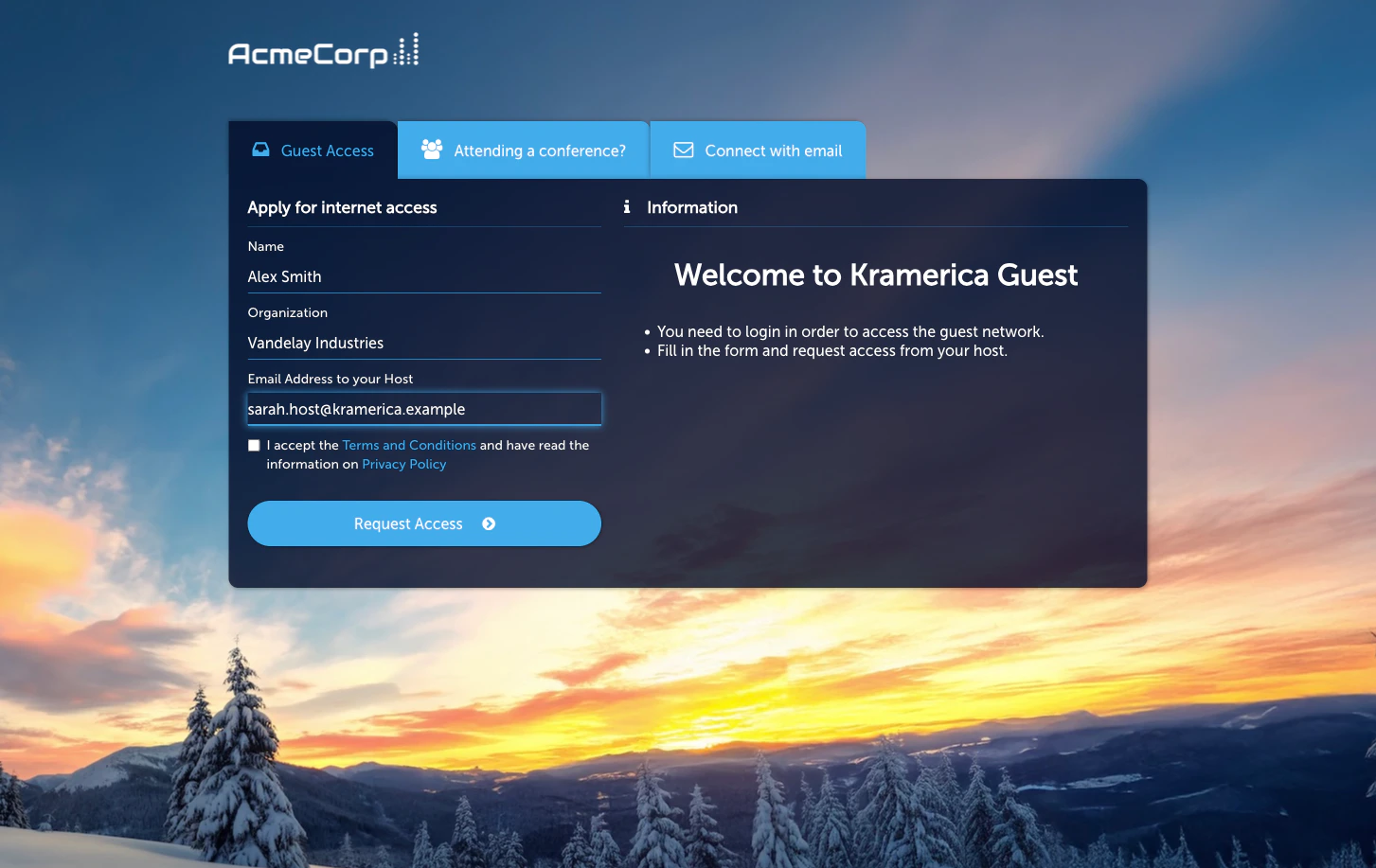
2. The visitor waits for a response
The Captive Portal then displays a confirmation screen that identifies the host the request has been sent to. The visitor remains on this screen — without network access — until the host responds. If the host approves, access is granted and the visitor is redirected according to the Access Policy. If the host denies the request, or does not respond within the session window, access is refused.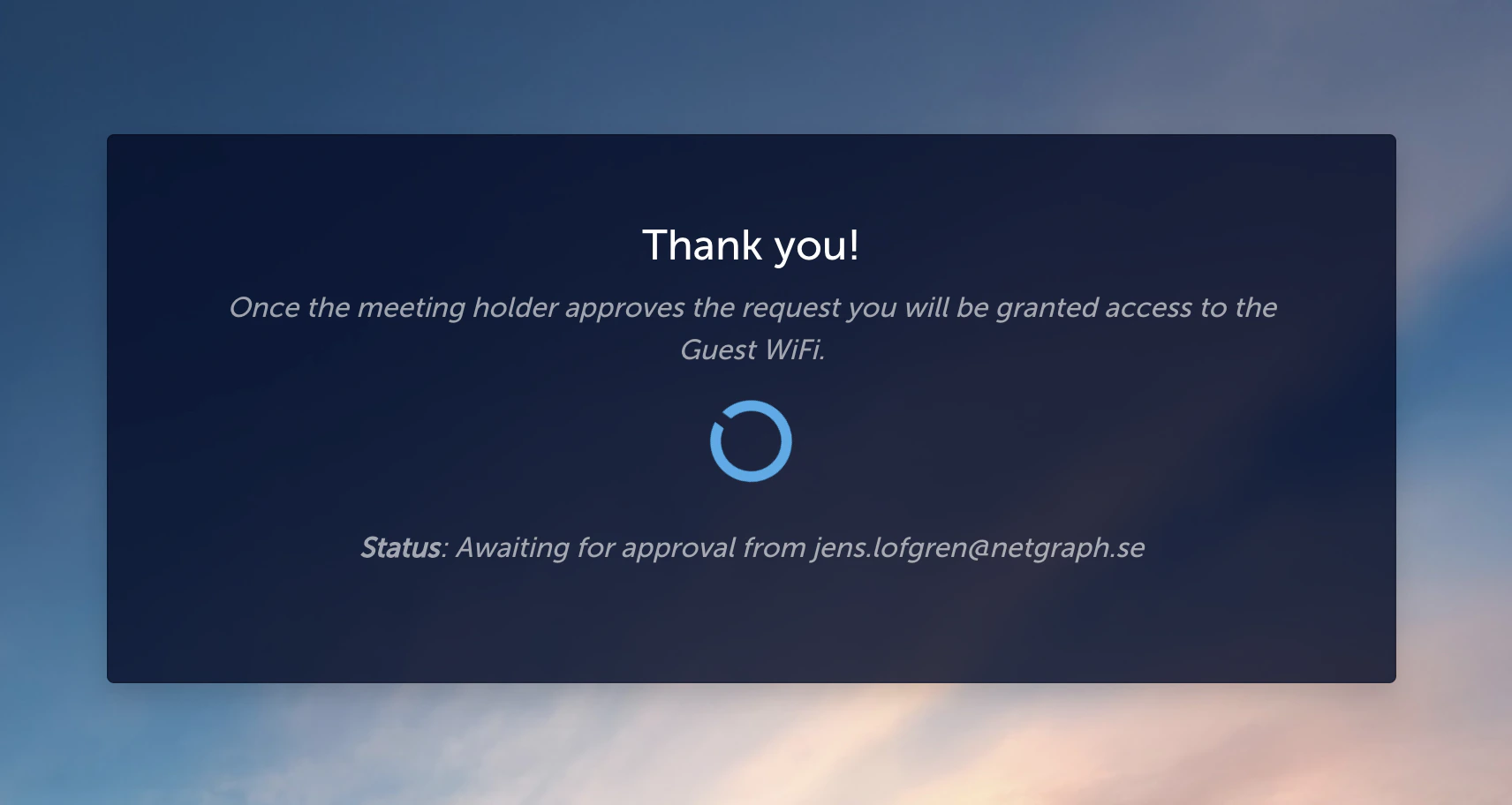
3. The host responds from email or the portal
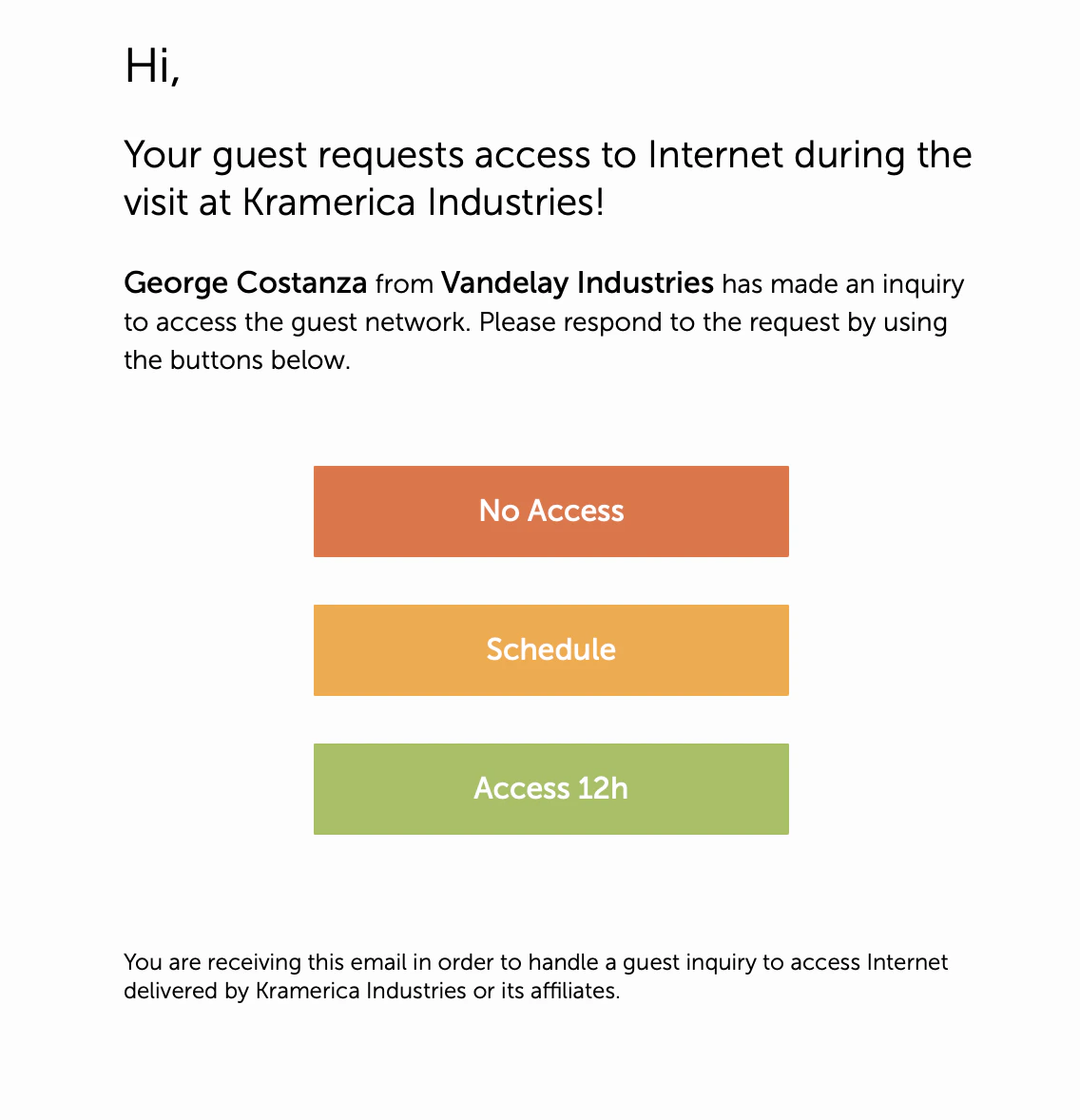
The host receives a notification email identifying the visitor and offering three one-click actions:- No Access — deny the request.
- Schedule — open a form that lets the host set a custom end date, bounded by the Access Policy’s Max schedule advance.
- Access Nh — quick-approve for the Access Policy’s default visit duration. N is the configured number of hours; the example below shows Access 12h.
Activate the module
Configure Meeting Host autocomplete
On the Configuration tab’s Meeting Host Autocomplete sub-tab,
pick how the visitor’s host-email typeahead should behave.
Enable the module on an Access Policy
From the Configuration tab’s Access Policies sub-tab, open the
Access Policy you want Meeting Host on and turn on the Meeting
Host Sign-In Permission. The per-policy defaults (redirect URL,
default visit duration, maximum schedule advance) live on the
policy, not on the module.
Configuration
The module Configuration tab has three sub-tabs:- Meeting Host Autocomplete — typeahead that suggests known employee addresses as the visitor types. Recommended when your Organization has a directory; disable on consumer-facing venues.
- Language Settings — per-language overrides for the Captive Portal Meeting Host strings.
- Access Policies — the policies whose Meeting Host Sign-In Permission is currently on.
Managing meeting hosts
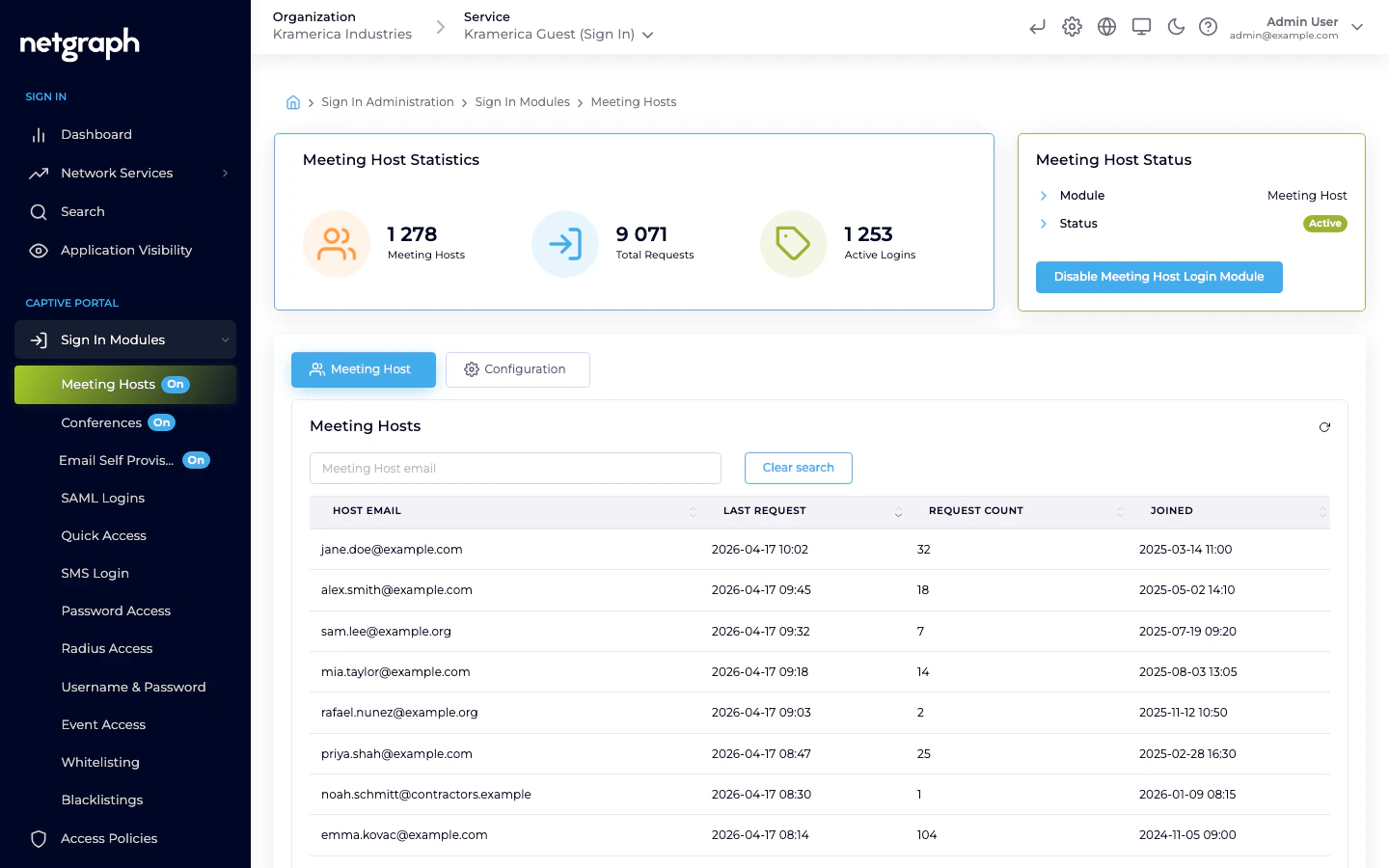
The main tab lists recent visits with columns for visitor, host, request time, status (pending / approved / denied), and session details.- Filter by visitor or host to narrow the list.
- Manual override — admins can approve or deny a pending request on behalf of the host. Useful when the host is unavailable.
- Revoke an active session — terminates a visitor’s access immediately.
Access Policy options
On each policy’s Sign-In Permissions → Meeting Host sub-tab:- Meeting Host — master flag. When on, visitors matched by this policy can use the Meeting Host flow.
- Redirect URL — where the host lands after clicking Approve or Deny.
- Default visit duration — how long an approved visit lasts by default. Shown as the Access Nh button in the approval email.
- Max schedule advance — the furthest-ahead end date the host can pick through the Schedule action.
Self-Service Portal
A Meeting Host does not need Organization-admin access to manage their visitors. Alongside the email-based flow above, the same outcomes are available under My Guests in the Self-Service Portal — plus the filters, history, and scheduling surfaces that don’t fit in a single email.The My Guests list
My Guests is the host’s filterable list of every visitor who has requested access under their name. Filter pills split it into Active (already approved), Waiting (pending the host’s decision), Expired, and All.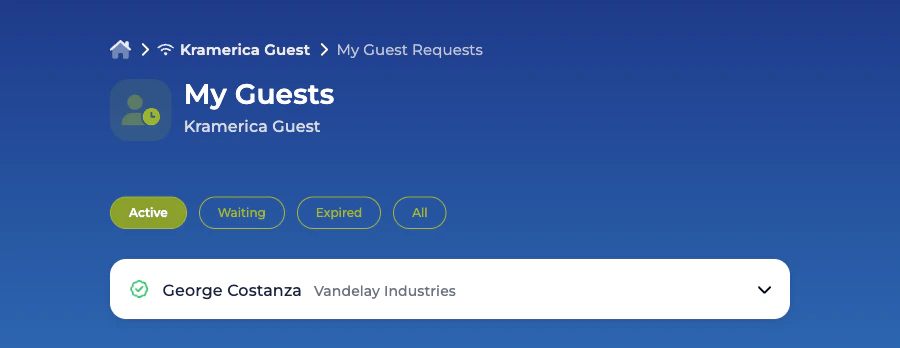
Adjusting an already-approved visit
Once a visit is approved, the host can extend or revoke access from the same row: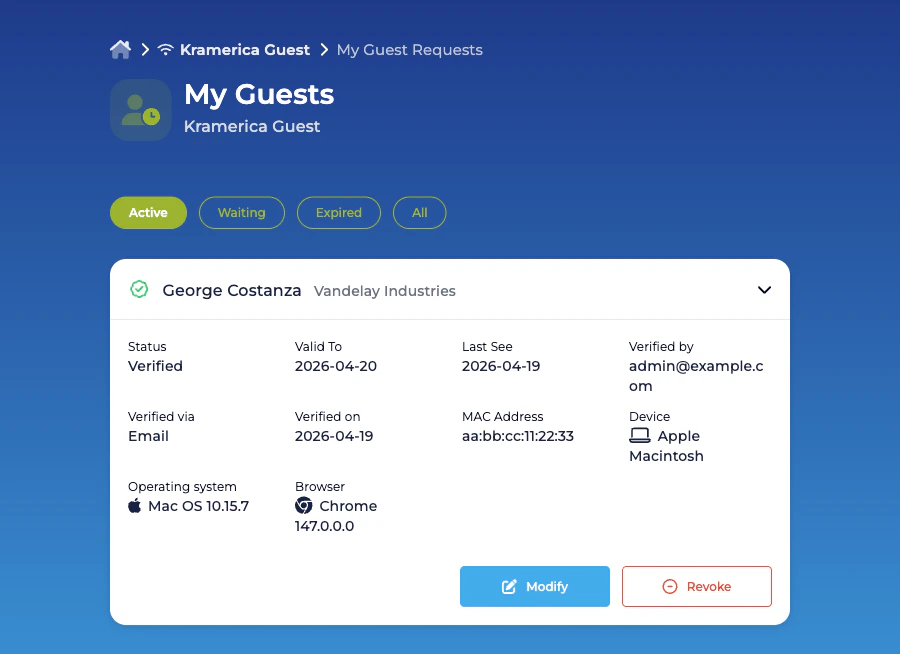
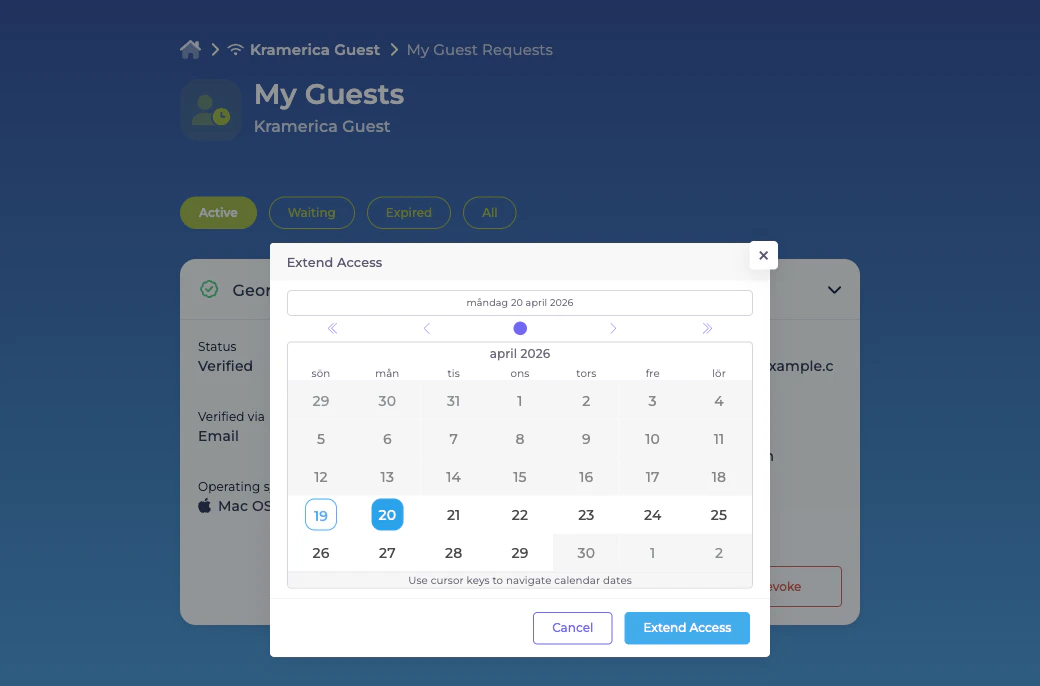
- Modify opens a date picker and sets a new end date for the visit, bounded by the Access Policy’s Max schedule advance.
- Revoke terminates access immediately.
Admin override
An Organization admin can approve or deny a pending request on the host’s behalf from the admin listing above. Any such decision is reflected in the host’s My Guests view. For the surrounding portal — sign-in, the Context picker, the capability-driven rendering of each card — see the Self-Service Portal overview.Related
Self-Provisioning by Email
No-approval email flow — suited to casual guest access.
Conference
Group-code sign-in for recurring meetings and conferences.