

- Static — a fixed password that doesn’t rotate. It changes only when an admin edits it.
- Subscription — a rotating password that advances automatically on a set interval (day, week, month, or year). When the interval elapses, yesterday’s password stops working and today’s takes over.
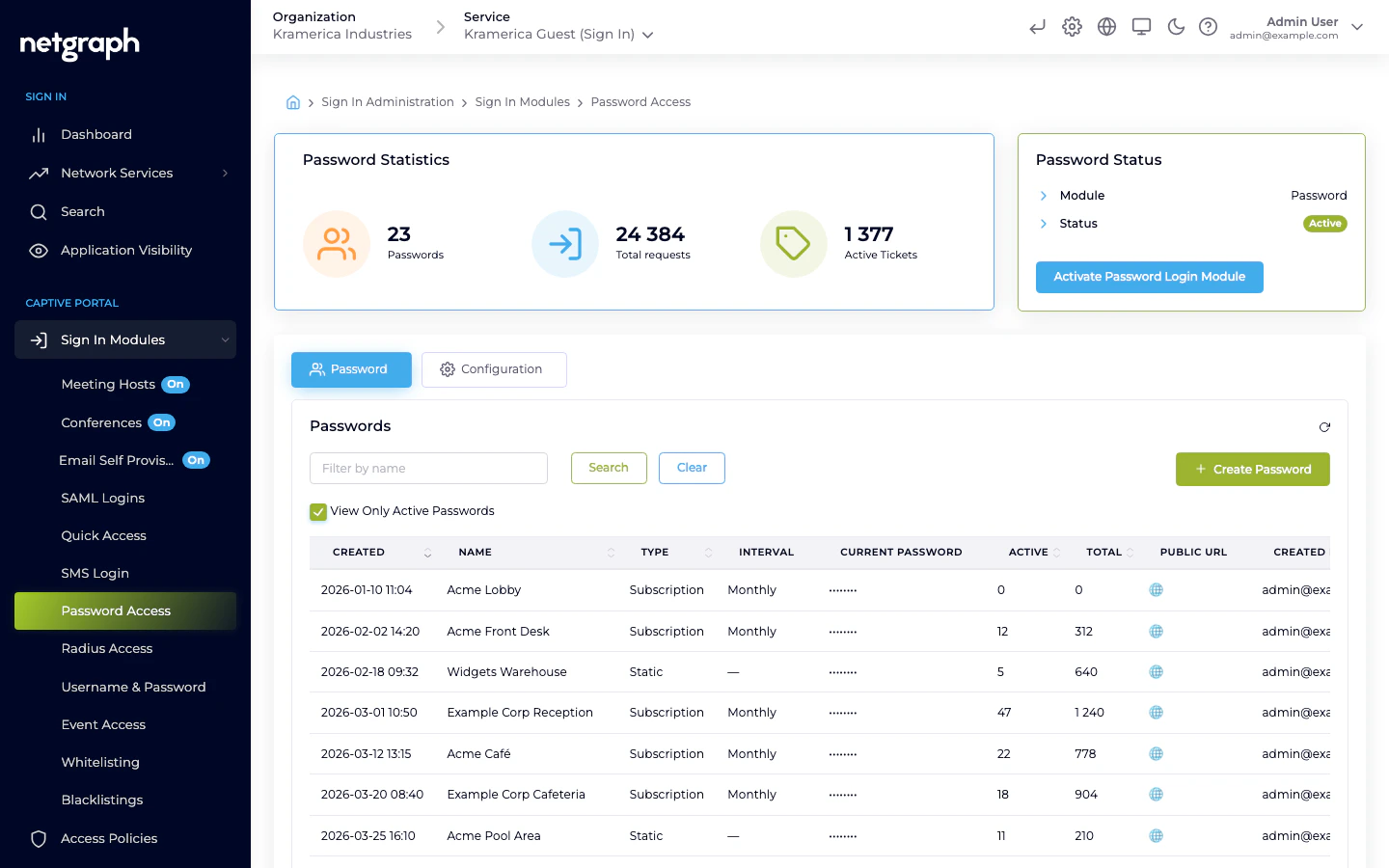
How a guest signs in
- The guest is handed the current password — printed card, reception screen, digital signage, or a Public URL that displays the current password automatically.
- On the Captive Portal, they pick Password and enter it.
- If the password is active and the guest’s Access Policy allows the module, access is granted.
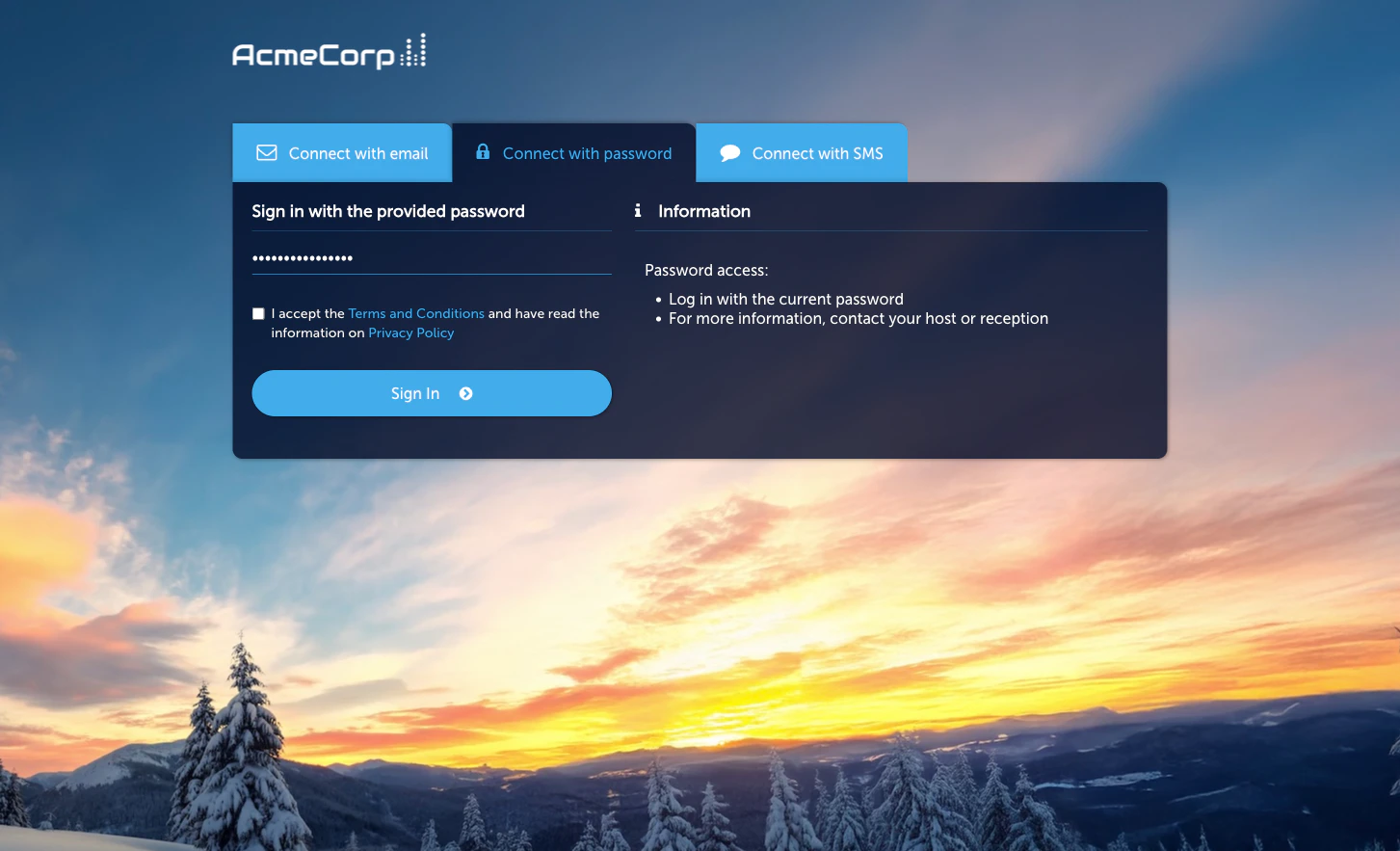
Activate the module
The password list
Each row in the Passwords table is one entry. The columns:| Column | Meaning |
|---|---|
| Name | Admin-only label. |
| Type | Static or Subscription. |
| Interval | Rotation interval for Subscription (day / week / month / year). Blank for Static. |
| Current password | The password that works right now. |
| Active | Validity window — the date range during which this entry is usable. |
| Total | Running count of logins that used this entry. |
| Public URL | Optional shareable URL that displays the current password. Useful for digital signage or a lobby screen. |
| Created by | The admin who set up the entry. |
Choosing Static vs Subscription
- Static — for audiences that stay the same for an extended period (a leased office floor, a long-running campaign) and admins are fine rotating the password manually when needed.
- Subscription — for audiences that refresh on a predictable cadence (daily conferences, weekly events, monthly resident turnover) and the password should cycle without admin intervention.
Subscription variant in depth
A Subscription entry has two moving parts the Static variant doesn’t:- The rotation interval — how often the password changes (day, week, month, year).
- The subscriber list — the people who should know about the upcoming password before it takes effect so they can relay it to guests.
Subscribers
Add an email address to the Subscribers list on the Subscription entry. Each subscriber receives an email ahead of every rotation telling them the new password that’s about to take effect and the exact time it takes over. After the rotation they also get the fresh current password in a follow-up — same template, confirming what is now live. Typical subscribers:- Reception staff who hand the password to arriving guests.
- A school class or seminar group that needs to hand out the next weekly code before Monday morning.
- Duty managers at a venue with evening or weekend handovers — so whoever’s on shift always has the password ready without checking the admin UI.
- Shared mailboxes (e.g.
frontdesk@example.com) so the list survives staff turnover.
- Add email subscriber — a single email-address input that appends to the list. Validates that the address looks well-formed before accepting it.
- Subscribers — the current list. Each entry has a Remove action, and a Resend action that re-sends the current password to that one subscriber on demand — useful when someone reports they never received the latest email.
Notification Heads Up
Notification Heads Up (hours) controls how far before the rotation the notification goes out. Pick a value that matches how much lead-time subscribers need:- 1–2 hours — last-minute reminder for staff who’ll be on shift at handover.
- 24 hours — typical for daily or weekly rotations so tomorrow’s code lands the evening before.
- One interval’s worth — e.g. a 168-hour heads-up on a weekly rotation gives a full week’s lead time; good for print-ahead use cases.
Lifecycle of a Subscription rotation
For a weekly Subscription with a 24-hour heads-up:- Sunday evening — all subscribers receive an email: “Next password for <name> takes effect Monday morning. The new password is …”
- Monday morning — the password rotates. The previous password stops working. Every connected guest on the previous password is signed out.
- Monday morning, shortly after the rotation — subscribers receive a second email confirming the new current password.
- The cycle repeats for the next rotation.
Displaying the current password
Three common patterns:- Public URL on a signage screen — point a lobby or break-room display at the Public URL; the shown password stays up-to-date automatically. Works for both Static and Subscription entries.
- Printed cards — fine for Static entries and long-interval Subscriptions (weekly, monthly).
- Staff briefing / reception — operations staff relay the current password to guests on demand. Adding them as subscribers on a Subscription entry means they always have tomorrow’s code before guests ask.
Access Policies
Password is not gated by an Access Policy — if the module is active at Context level, every entry is available to any guest who reaches the Captive Portal. Validity windows are controlled on each password entry (Static validity dates, or Subscription interval and notification lead time).Related
Username & Password
Individual user accounts instead of shared passwords.
Quick Access
Token-based quick sign-in — similar idea, different flow.