

- The Personal PEAP Account each user gets auto-generated on first sign-in, and what the portal renders for them.
- The two-role matrix (User (default) vs Group Administrator) that decides who can invite or revoke whom.
The Personal PEAP Account
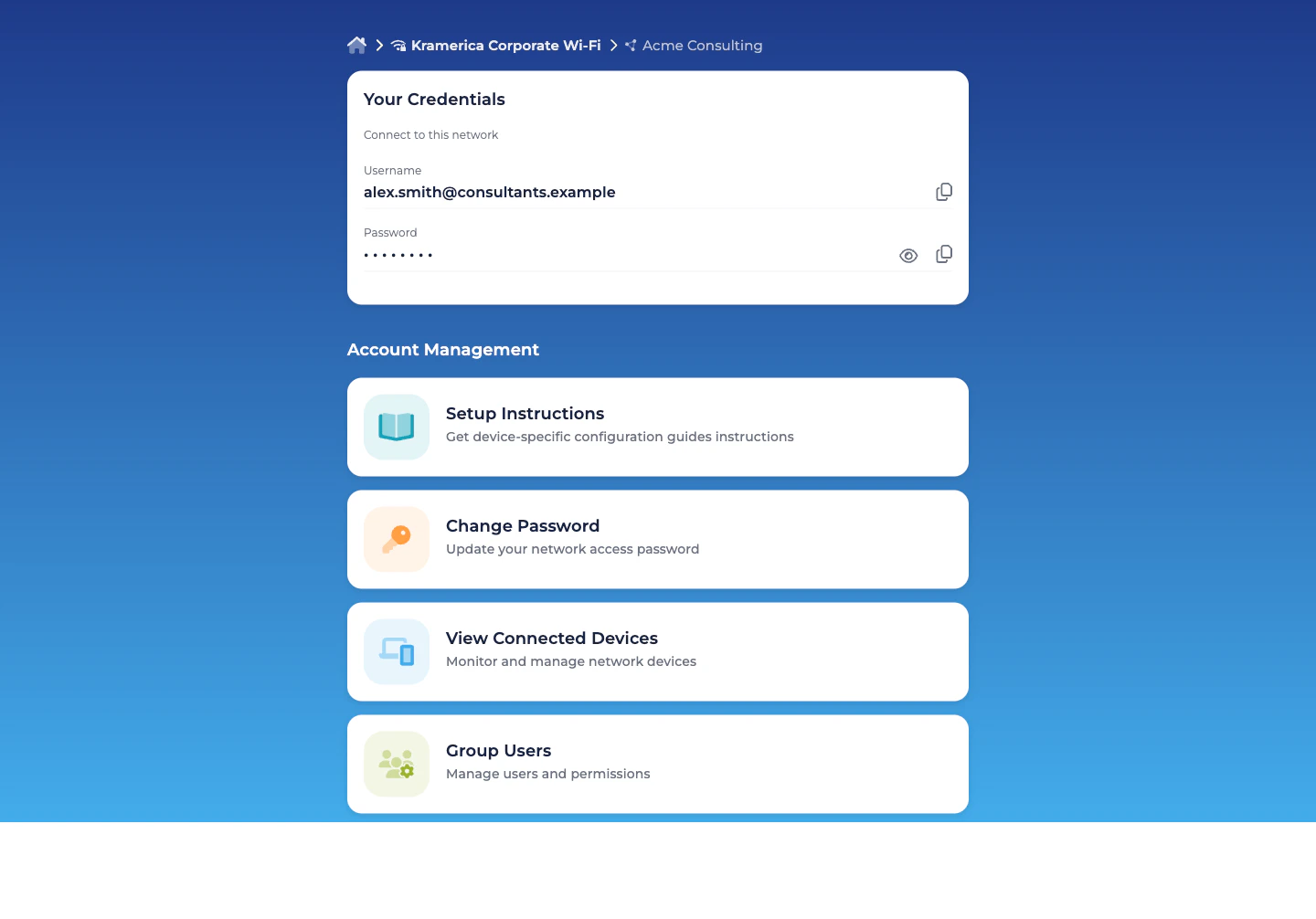
When a user accepts a Self-Service invitation and signs into the portal, EntryPoint provisions their Personal PEAP Account — the username + password the user types into their 802.1X supplicant to join the SSID. The account is visible only to the user, in the portal’s Your Credentials card:- Username — the user’s own email address, used as the PEAP identity on the wire.
- Password — a long random value, masked by default with reveal and copy-to-clipboard controls. Admins never see it; if the user loses it, they rotate it themselves from the Change Password card.
What the user sees in the portal
The common case is a user who belongs to exactly one Group (the audience’s Group — their employer, their consulting firm, their vendor team, their project cohort). The portal lands them on that Group’s detail view directly. Users who are members of more than one Group see a quick picker first and then drill into the Group. On the Group detail, the Your Credentials card is always at the top; below it, an Account Management section lists four cards that take the user to the right action:| Card | What it does |
|---|---|
| Setup Instructions | Opens a per-OS step-by-step guide — macOS, Windows, iPhone, Android, Chromebook. Each guide walks through the native 802.1X supplicant and references the user’s Personal PEAP Account. |
| Change Password | Rotate the Personal PEAP Account password. Takes effect on the next authentication. |
| View Connected Devices | The list of devices that have authenticated with this account — MAC, OS, browser, last seen online, connection info. |
| Group Users | Only renders for users with the Group Administrator role. Lists every Self-Service User in the Group; from here Group Administrators invite, modify, and revoke other members. |
The two roles
Every Self-Service User in a PEAP Group has User (default). It’s always on and cannot be removed. On top of that, any user can additionally hold Group Administrator.| Role | Scope | Authority |
|---|---|---|
| User (default) | Their own account in one Group. | View and update their Personal PEAP Account (username + password). View their own Connected Devices. |
| Group Administrator | One Group. | Everything a User does, plus view all Connected Devices in the Group and add / modify / revoke other Self-Service Users. |
How a user gets invited
Two paths:- From the admin dashboard. Organization admins invite the audience’s lead — typically with both User (default) and Group Administrator permissions — from the Group’s Users tab.
- From the Self-Service portal. A Group Administrator invites everyone else — their own team members, a second lead for redundancy. Same Add Self-Service User dialog, same two-role matrix, scoped to their own Group.
- The platform auto-generates their Personal PEAP Account for this Group.
- The portal renders Your Credentials with the username and (masked) password.
- The user copies the credentials into their 802.1X supplicant following the Setup Instructions for their OS, and connects to the Wi-Fi.
Rotating a password
End-users rotate their own Personal PEAP Account password from the portal’s Change Password card. The new password takes effect on the next authentication; devices currently connected stay up until they try to re-associate and then fail with the old password (and get prompted by the supplicant to re-enter the new one). Admins cannot reset a user’s password — they can only revoke the user entirely, which destroys the account. This is deliberate: the password never leaves the user’s own session. Common rotation triggers:- Password exposure (shoulder-surfed, shared inadvertently, pasted into a screenshot).
- Suspected device compromise where the PEAP credentials may have been extracted.
- Organisation hygiene policy — some audiences (employees, a specific contractor firm, a regulated project cohort) rotate on a cadence set by their own policy.
Revoking a user
Group Administrators revoke members from the Self-Service portal’s Group Users card; Organization admins revoke from the admin dashboard’s Users tab on the Group. Either way:- The user’s Personal PEAP Account is deleted.
- Active sessions survive until the next re-auth, at which point they fail.
- The user loses portal access to the Group immediately; if they were a member of another Group, they retain access to that one.
- Historical records (audit log, Connected Devices list) remain for the Group’s operational history.
This action will immediately revoke access for all devices connected by this user.
What an Organization admin is still responsible for
Most per-user work happens inside the audience’s own Group. The admin-side role shrinks to:- Onboarding the first lead per audience. You invite the Group Administrator the first time; they bootstrap the rest.
- Managing the lead lifecycle. If the audience’s lead moves on, promote another Self-Service User to Group Administrator from the admin side, then (optionally) revoke the outgoing lead.
- Handling exception requests. A member has lost phone and email access; only you can confirm their identity out-of-band and reset their enrolment.
- Reviewing audits. See Audit Log for every invite, revocation, password rotation, and configuration change.
Self-Service Enrollment (SAML-driven)
If the Organization is configured with SAML for Self-Service authentication (see Organization SAML authentication), PEAP Groups can additionally turn on Self-Service Enrollment. When enabled, any user who signs in with a valid SAML assertion and matches the Group’s enrollment rules is auto-attached as a User (default) on first login — no admin-side invite necessary. For small audiences (a consulting firm, a vendor team, an event crew) this is usually overkill — the lead invites the rest directly. Self-Service Enrollment pays off when the audience is large and already driven by a SAML IdP: employees on the corporate Wi-Fi Group, student cohorts scoped by a claim attribute, flex-workforce and staff-augmentation pools where the authoritative roster lives outside EntryPoint.Related
Groups per audience
The admin-side flow that creates and delegates each Group.
Combining with EAP-TLS & MAB
When to pair per-audience PEAP Groups with other methods on the same Context.
Organization SAML authentication
IdP wiring for the Self-Service portal.
Audit Log
Every Self-Service action, timestamped and diffed.