

Prerequisites
- The Context is an EntryPoint 2.0 (Dot1x PEAP, Entra) variant.
- EAP-PEAP is toggled on under Configuration → Basic Configuration → Client Authentication Methods and saved.
- A Backend Identity Store is picked — either No Backend Identity Store (local Personal PEAP Accounts — the usual choice for audiences outside your Entra tenant) or Microsoft Entra ID (for audiences that live in Entra). See Entra connection.
- At least one Attribute Profile exists on the Context if you want per-audience VLAN or Security Group Tag assignment. See Attribute Profiles.
Create a PEAP Group
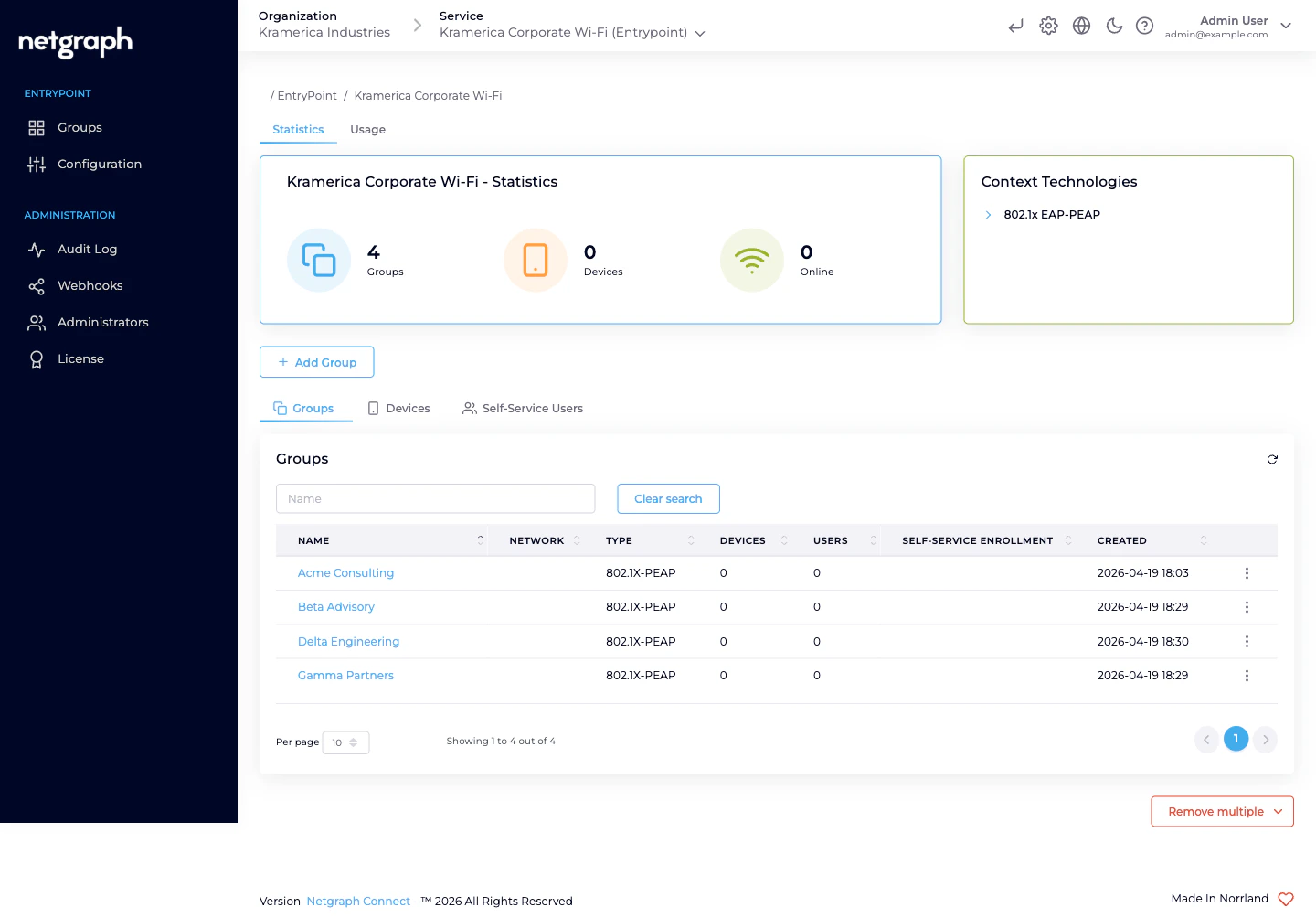
Click Add Group
Opens the Create Group dialog. When only EAP-PEAP is enabled
on the Context, the form is short: Group Name and one checkbox.
Name the Group after the audience
The name shows up in breadcrumbs, on the Context’s Groups list,
and in the Self-Service portal for every user of the Group. Pick
the name the audience itself uses — a firm’s trading name, a
team’s internal label, the event’s title. Examples:
- Corporate Staff (employees on corporate Wi-Fi)
- Acme Consulting / Beta Advisory / Gamma Partners (consulting firms on-site)
- HVAC Contractors / AV Contractors (vendor teams)
- Summer Interns 2026 (timeboxed cohort)
- Lab 4 — Thermal Imaging Project (research cohort)
Tick Personal PEAP accounts
The Personal PEAP accounts checkbox gives every Self-Service
User in the Group an auto-generated Personal PEAP Account
(Entra users get their Entra credentials instead). Keep it on
for any audience that isn’t exclusively managed via Entra group
mapping. Leave it off only if the Group’s members are all in an
Entra group and you want authentication to resolve purely
through Entra.
What’s on the Group detail page
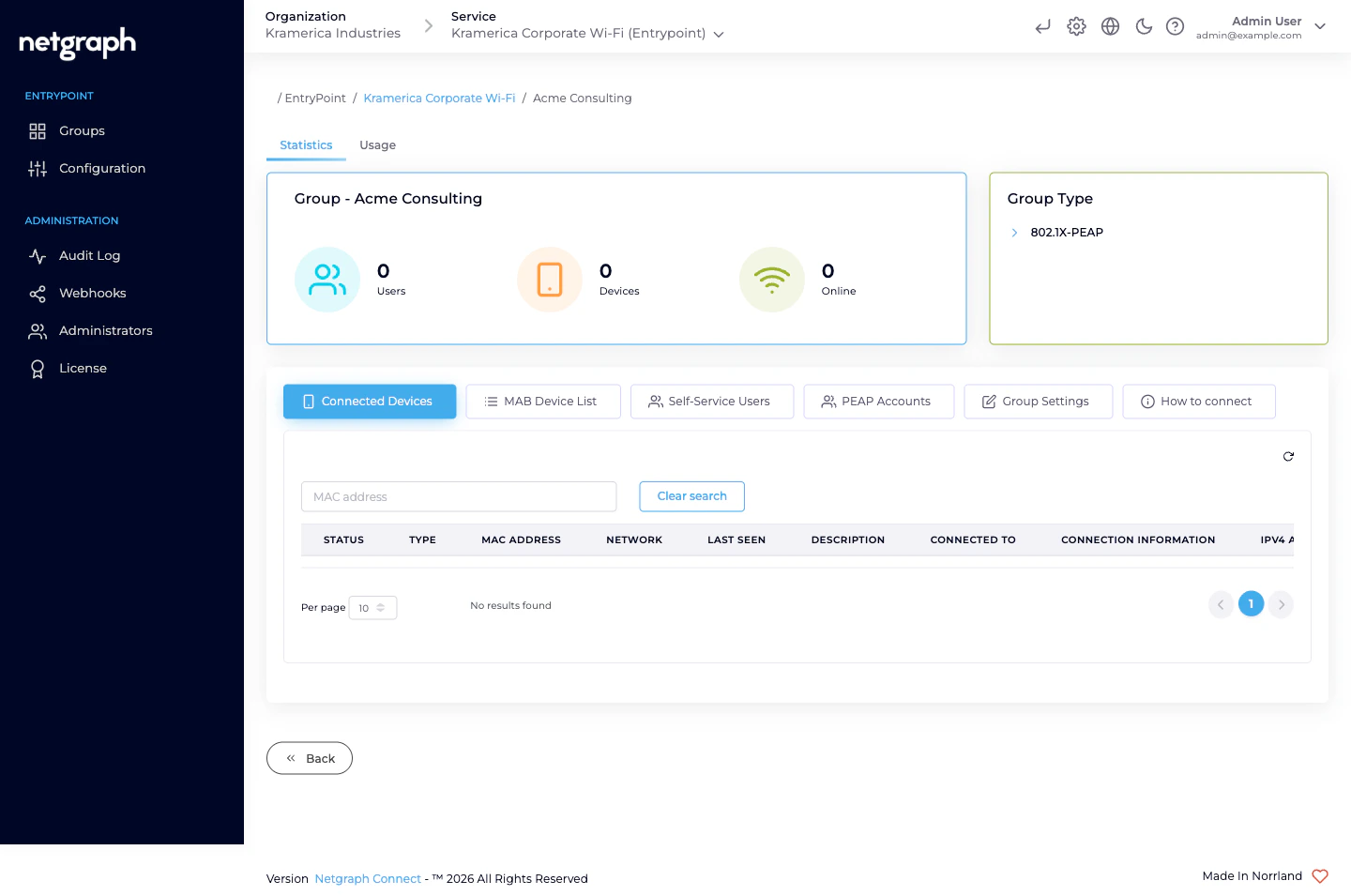
A PEAP Group detail carries a Group statistics card up top (Users / Devices / Online counters) and a Group Type card on the right (802.1X-PEAP), plus six tabs:
| Tab | What it’s for |
|---|---|
| Connected Devices | Devices that have authenticated with this Group’s PEAP accounts. Columns cover MAC, OS, browser, last seen online, network, connection info. |
| MAB Device List | A per-Group fallback list for headless gear that can’t do 802.1X — printers, phones, sensors — that should land on the same VLAN as this Group’s PEAP users. See Combining with EAP-TLS & MAB. |
| Self-Service Users | The audience’s roster — see Self-Service & Personal PEAP Accounts. |
| PEAP Accounts | The Personal PEAP Accounts auto-generated for this Group’s Self-Service Users. Admins see usernames here; passwords remain visible only to the user in the Self-Service portal. |
| Group Settings | Rename, attach an Attribute Profile, (optionally) configure Entra group mapping, delete the Group. |
| How to connect | Admin-side summary of the connection details end-users will see in the portal — SSID, masked credentials, step-by-step per-OS instructions. |
Attach the audience’s Attribute Profile
Per-audience VLAN or Security Group Tag assignment is where the shape of “one Group per audience” pays off. Staff land on a staff VLAN; a contractor firm lands on a contractor VLAN with tighter egress; the HVAC vendor team lands on the operational-technology VLAN; event staff land on a time-limited VLAN. You arrange this by creating one Attribute Profile per policy and attaching it to each Group’s Dot1x settings card on Group Settings.Create the Profile first, if it doesn't exist
On the Context, Configuration → Attribute Profiles → Add
attribute profile. Name it for the treatment (VLAN 210 —
Staff, VLAN 810 — External Contractors), add the three
tunnel attributes that assign the VLAN. See
Attribute Profiles.
Open the Group's Settings tab
The Dot1x settings card lists the Attribute Profiles attached
to the Group.
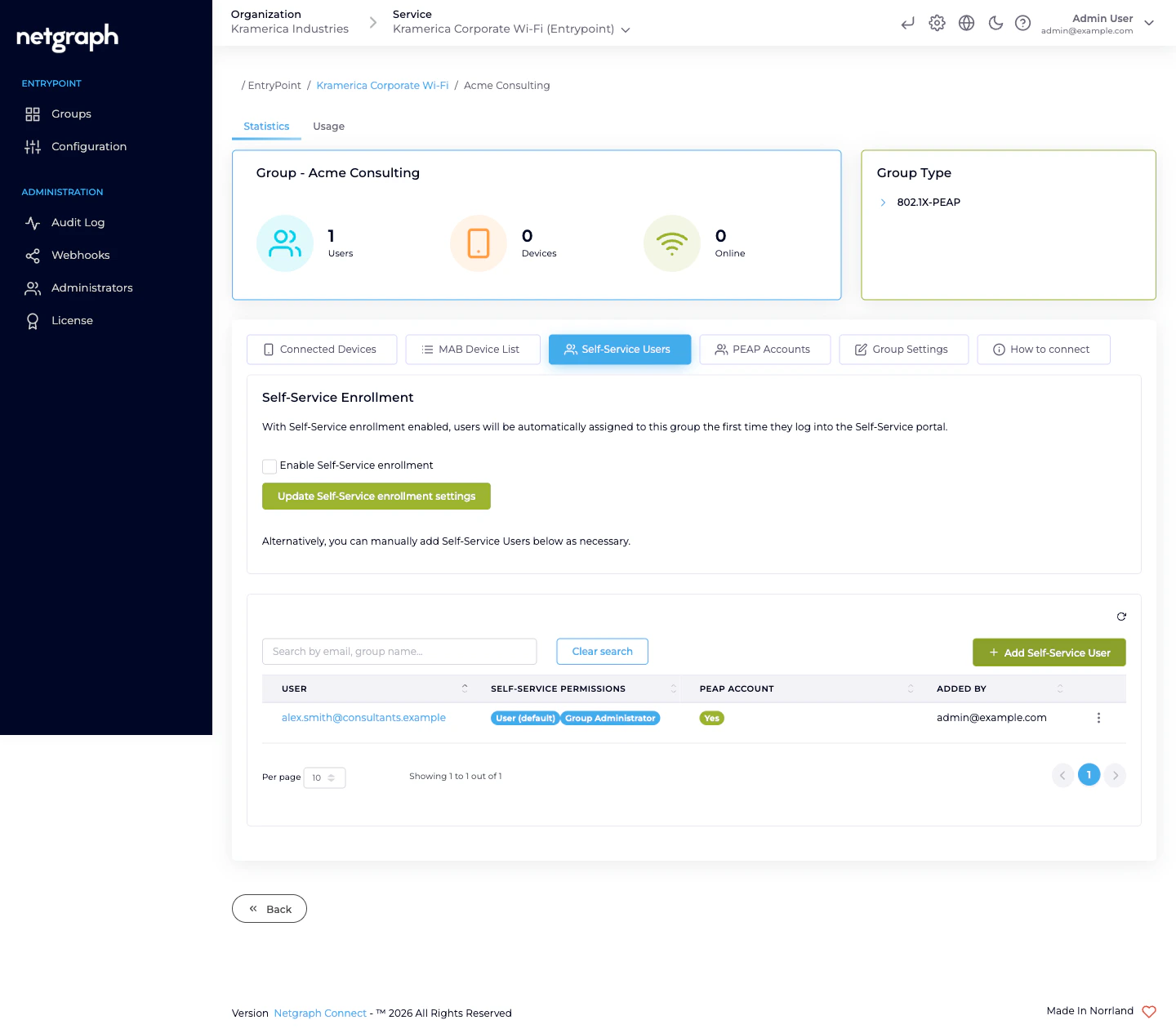
Invite the audience’s lead as a Group Administrator
Self-Service is what turns “one Group per audience” from a naming convention into real delegation. You invite one person per audience as a Group Administrator Self-Service User; they then invite their own colleagues.Click Add Self-Service User
Enter the lead’s email, check Group Administrator (the
User (default) permission is always on and cannot be
removed), and leave Send email invite? checked.
Entra-backed PEAP Groups (optional)
If the Context’s Identity Store is set to Microsoft Entra ID, a PEAP Group can also be mapped to an Entra group. The mapping lives on the Group’s Dot1x settings card — pick the Entra group from the Entra Group selector. Users in that Entra group authenticate with their Entra credentials; EntryPoint validates against Entra at authentication time rather than against the local Personal PEAP Accounts. Even with Entra backing, the Self-Service portal still renders a Personal PEAP Account record for each Self-Service User in the Group — the portal surfaces per-OS setup instructions and the Connected Devices list from there. PEAP authentication itself goes to Entra.Audiences that already live in your Entra tenant (employees,
subsidiaries that share the tenant) are the typical target for
Entra-backed PEAP Groups. Audiences outside the tenant —
contractor firms, event staff, visiting researchers — use local
Personal PEAP Accounts instead.
Day-to-day: the audience runs itself
After the first invite, the audience’s Group Administrator does the day-to-day work. From the Self-Service portal they:- Add a member. Enter the new user’s email; the platform sends a portal invitation. On first sign-in the member sees their auto-generated Personal PEAP Account and per-OS setup instructions.
- Revoke a member. Remove them from the Group Users card. Their Personal PEAP Account is deleted and their devices drop off at the next re-auth.
- See who’s connected. The Connected Devices card on the Self-Service portal renders the same list the admin side does — filtered to this Group.
- Promote a second lead. Group Administrators can invite additional Group Administrators for redundancy. Two-admin coverage matters when the primary lead is on vacation and a member needs removing urgently.
Retiring a Group
When the audience no longer needs access — the project ends, the engagement closes, the event is over:Confirm the lead is done
Ideally they revoke their own team first from the Self-Service
portal so audits show the audience tidying up after themselves.
Operational tips
- One Group per audience, not per person or per sub-team. The delegation model depends on the audience’s own lead managing the roster. Splitting further than the audience boundary breaks that.
- Rename Groups as audiences change. Mergers, acquisitions, rebrands, team renamings — renaming a Group is free and keeps audits readable.
- Two Group Administrators per audience is a resilient default. When the primary lead leaves or goes on vacation, the secondary keeps things moving until a new primary is appointed.
- Attribute Profile per policy, not per Group. If three audiences share the same VLAN treatment (say, all external contractor Groups), one Profile attached to all three Groups is correct — Profiles don’t have to mirror Group count.
Related
Self-Service & Personal PEAP Accounts
Role matrix, per-OS setup, password rotation.
Combining with EAP-TLS & MAB
Run PEAP alongside certificate-auth’d Groups on the same Context.
Attribute Profiles
VLAN, SGT, tunnel attributes — reusable across Groups.
Entra connection
Wire PEAP up to Microsoft Entra ID for employee-backed Groups.