

Landing
When a resident clicks the invite link they first sign into the portal. If they’re a member of more than one Context (some organisations give the same person access to a guest Sign-In Context and their apartment), they see a card picker first. Otherwise they land straight on their Wireless Personal Network detail page.The WPN detail page
Every Wireless Personal Network detail page shows the same set of cards, gated by permission.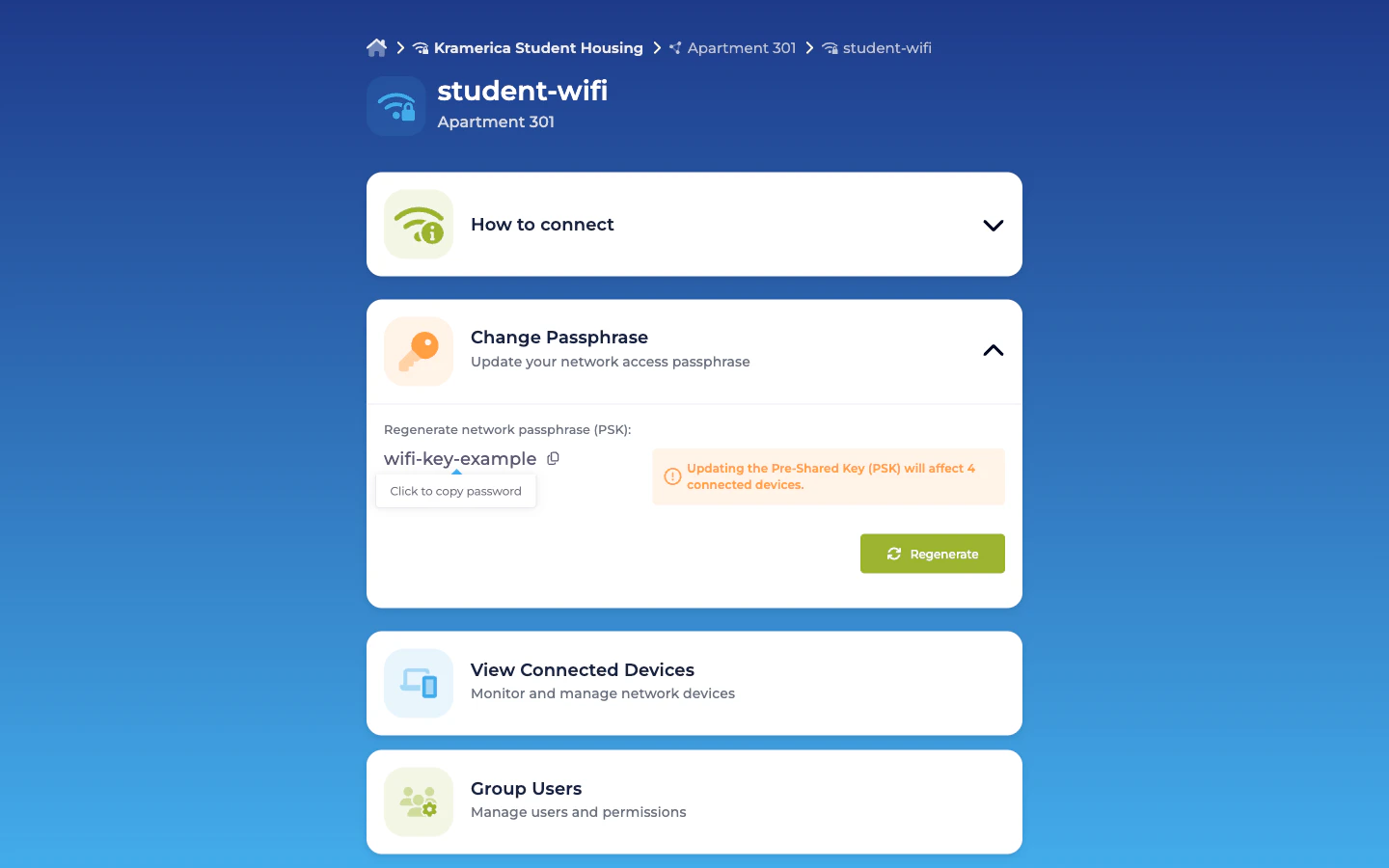
How to connect — visible to everyone
The card every resident sees, regardless of role. It expands into:- Step 1 — Connect to SSID: the building SSID name, displayed large.
- Step 2 — Enter passphrase (PSK): the PSK, initially masked with a Show toggle. Click to copy.
- View QR — a tap-to-generate QR code encoded as
WIFI:T:WPA;S:<ssid>;P:<psk>;;. iOS and Android camera apps recognise the format and offer to join automatically. Great for onboarding phones without typing anything.
Change Passphrase — Group Administrator only
The second accordion, visible only to a member with the Group Administrator permission. It shows:- The current Pre-Shared Key masked with a reveal toggle.
- A copy-to-clipboard shortcut.
- A Regenerate button that rolls the PSK. Before committing, a confirmation modal tells the Group Administrator how many connected devices will have to re-join with the new key.
View Connected Devices — visible to everyone
A link to the device list. The Group Administrator can see every device joined to the WPN’s PSK; the other roommates can too — which is the right default for “who’s on our apartment Wi-Fi right now?”.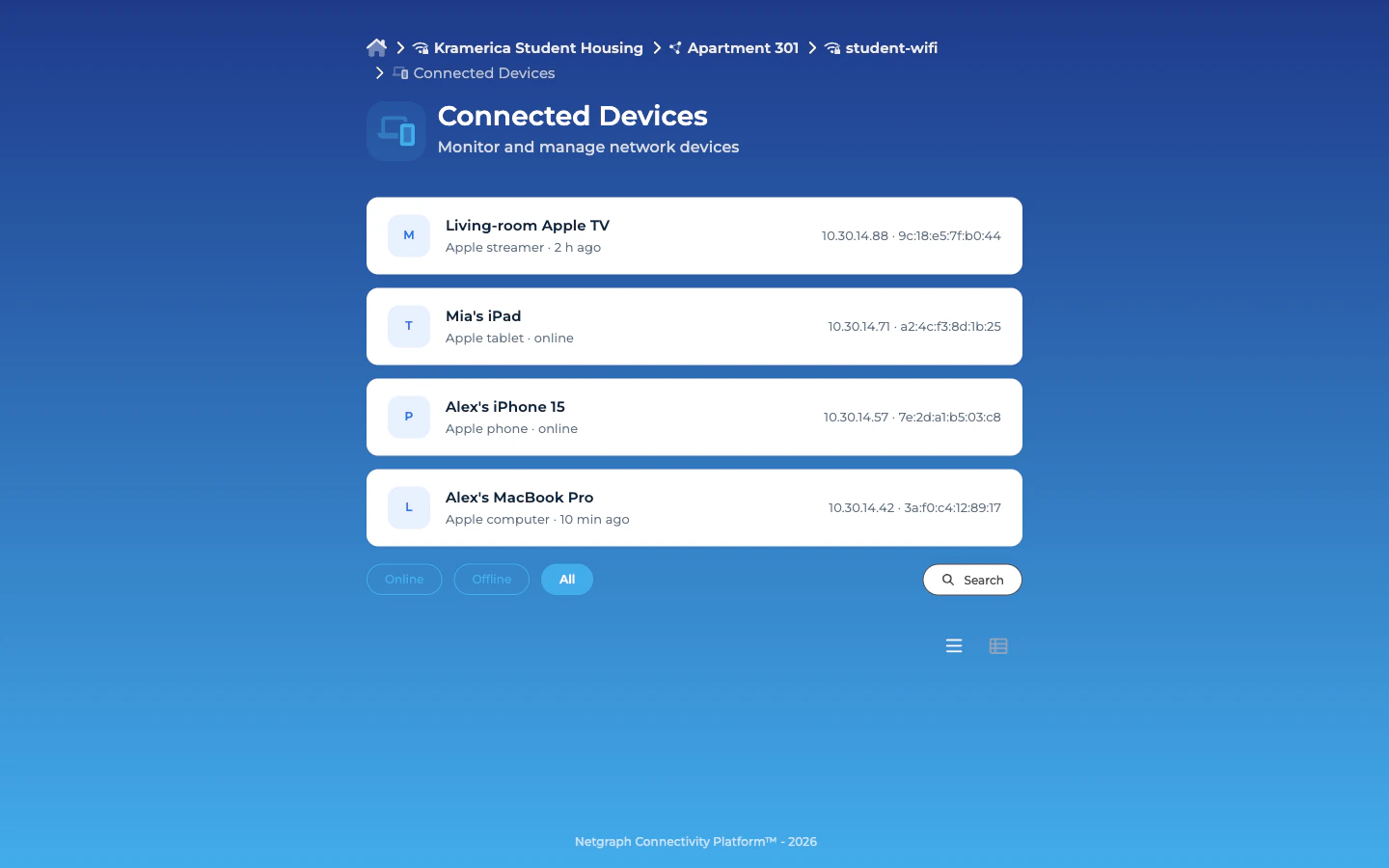
Group Users — Group Administrator only
A link to the user-management page. Only visible if the signed-in resident holds Group Administrator. Shows every Self-Service User in the WPN with their roles, and offers Add User, Modify, and Revoke actions.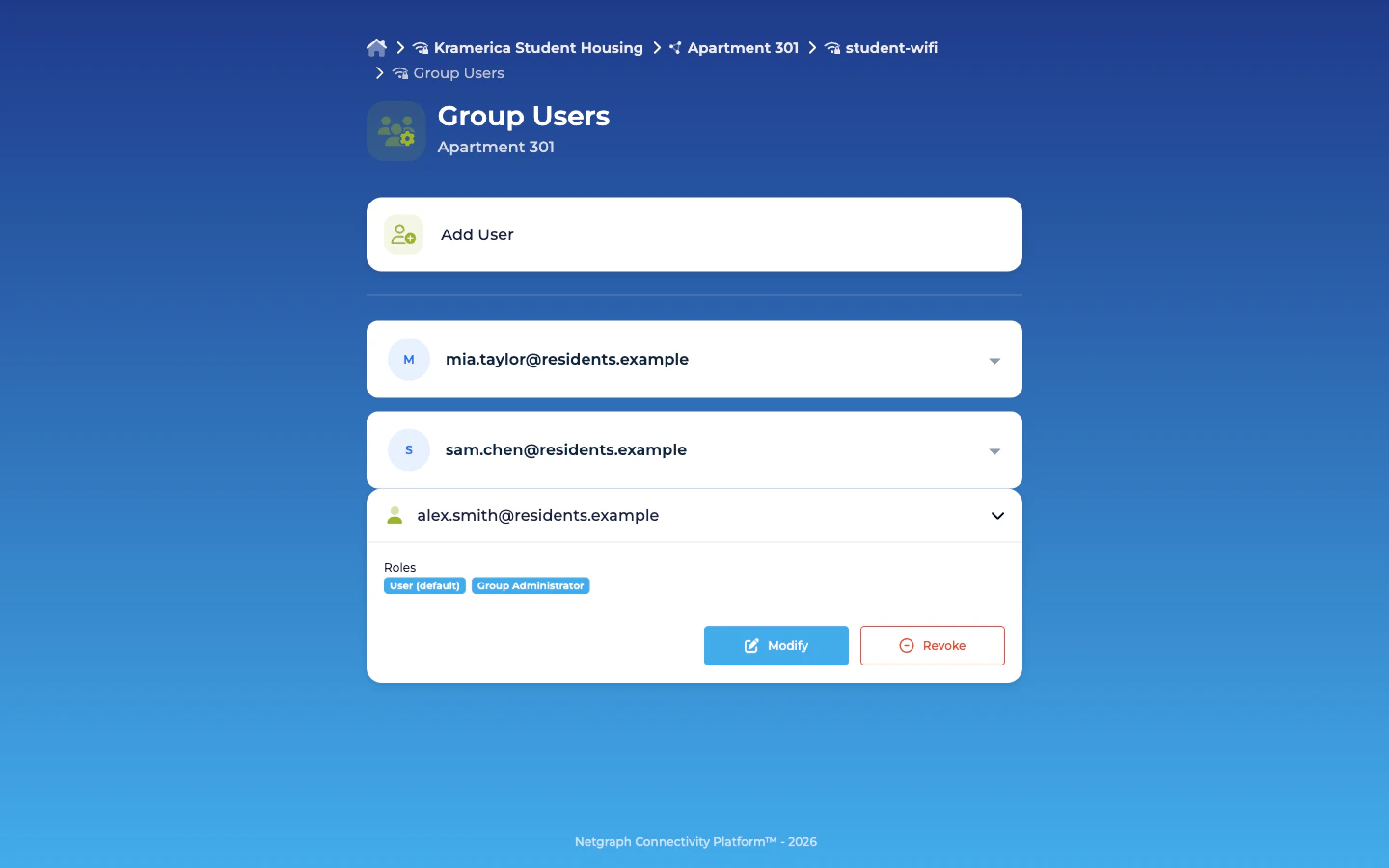
Role matrix — what each permission sees
| Card / action | User (default) | Group Administrator |
|---|---|---|
| How to connect | ✓ | ✓ |
| View Connected Devices | ✓ | ✓ |
| Change Passphrase card | — | ✓ |
| Regenerate PSK | — | ✓ |
| Group Users card | — | ✓ |
| Add / Modify / Revoke roommate | — | ✓ |
No per-OS setup guide
Unlike EntryPoint’s PEAP / EAP-TLS flow — which has to walk each operating system through certificate trust — EasyPSK is just a pre-shared key. There’s nothing to set up on the device beyond “enter the Wi-Fi password”, so the Self-Service portal doesn’t ship per-OS guides. The QR code handles iOS and Android onboarding; on laptops, residents copy the PSK and type it into the usual OS Wi-Fi prompt.Identity providers behind the portal
Self-Service Users sign into the portal either via email magic-link or via the Organization’s configured identity provider. If you’ve set up SAML at the Organization level with the target set to the self-service portal, residents authenticate against your IdP instead of receiving token emails. See Organization SAML authentication.Related
Wireless Personal Networks
The bubble the portal acts on.
Managing Self-Service Users
Admin-side invitations and role management.
Organization SAML authentication
Optional IdP integration.