

Inside a Group — cards by role
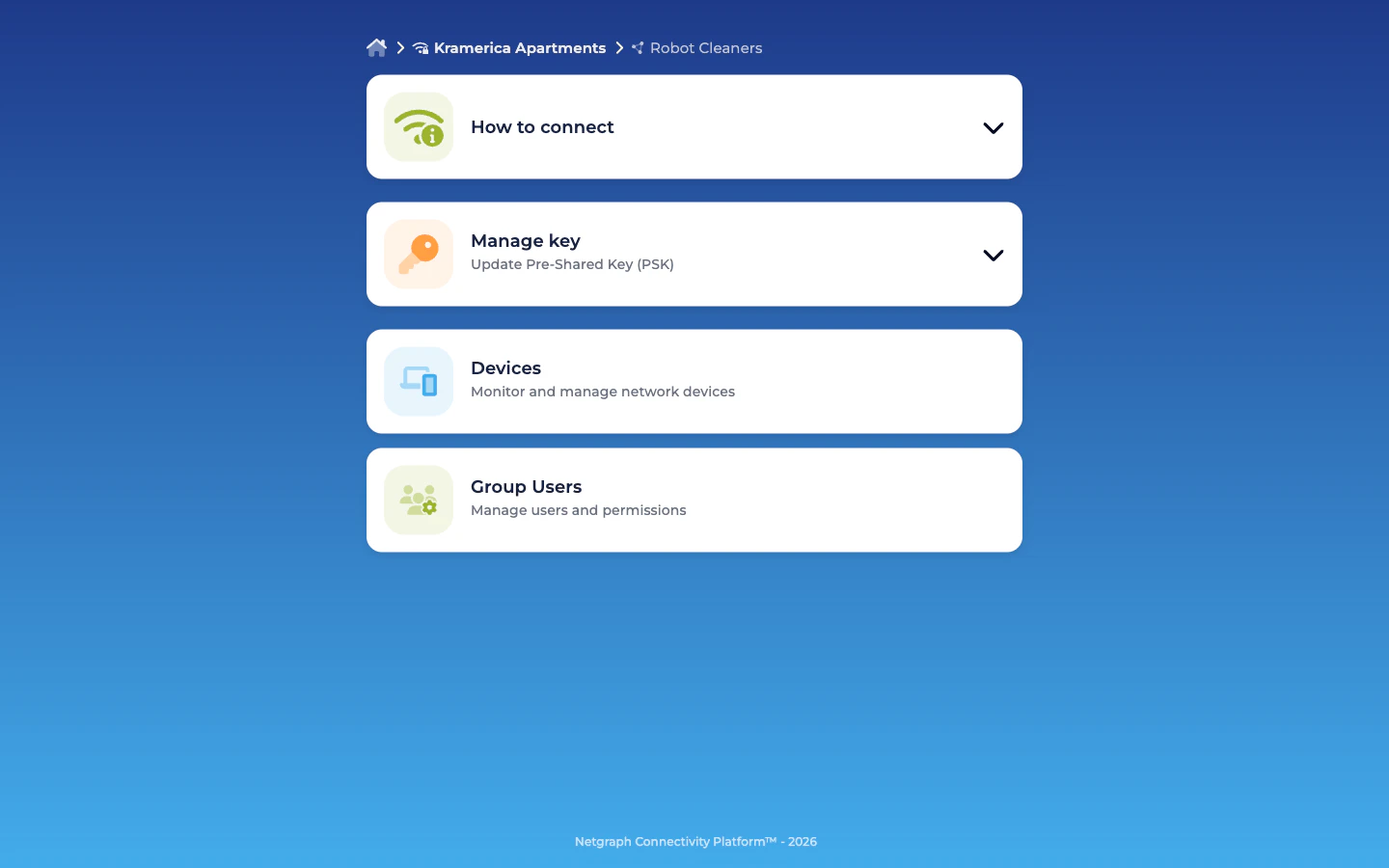
The common case is a Self-Service User who belongs to exactly one Group (the vendor or internal team that manages this device class). The portal lands them on that Group’s detail view directly. Users who are members of multiple Groups see a quick picker screen first and then drill into the Group — but day-to-day life is the per-Group view described below. The Group detail renders a set of cards that depend on the user’s roles. Every role sees How to connect and Devices; other cards appear only for users with the corresponding role.| Card | Rendered for |
|---|---|
| How to connect | Everyone. Collapsible accordion with connection instructions — SSID name, the shared PSK (masked / copyable), and a QR code for mobile-device onboarding. |
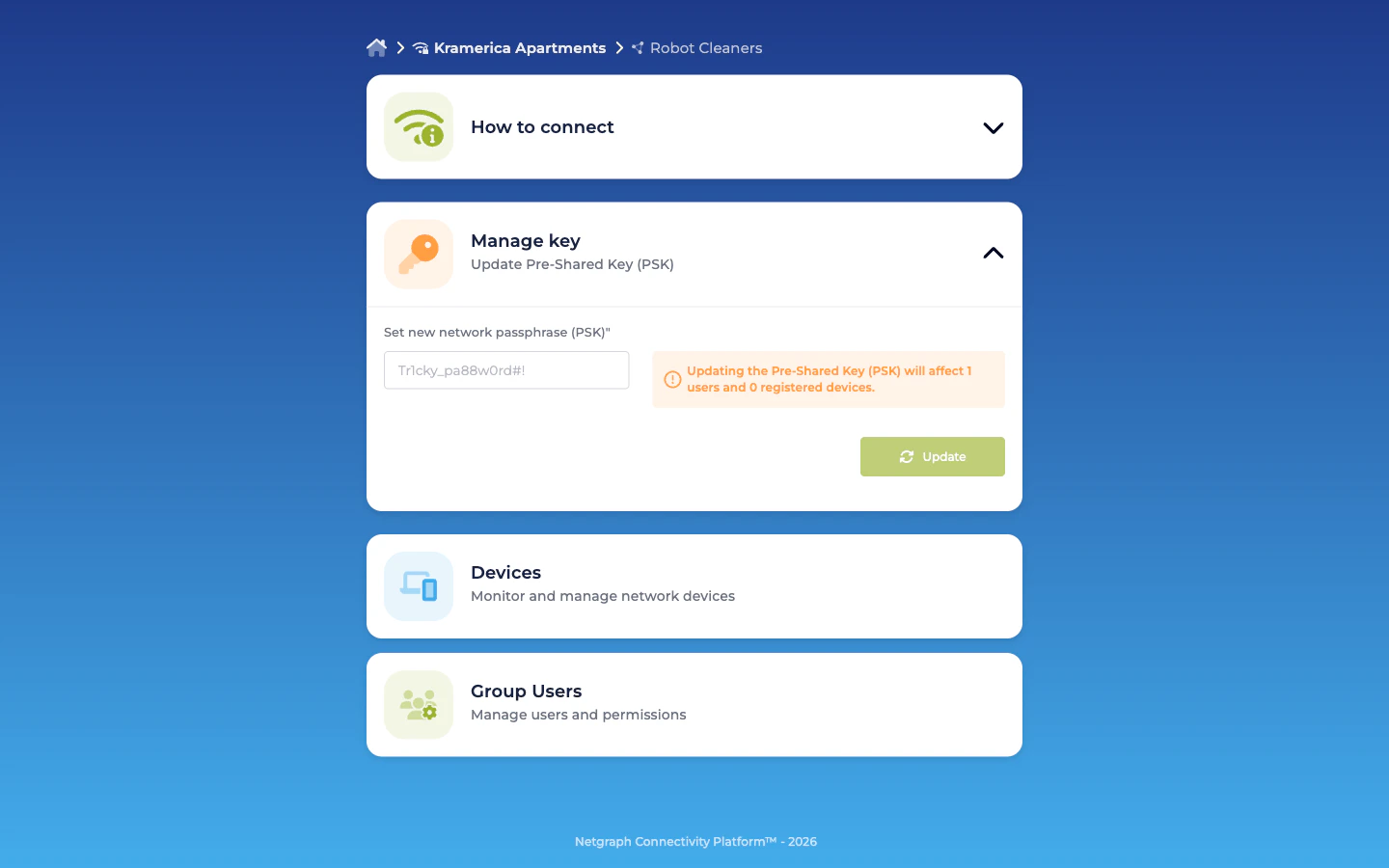
| Manage key | Only users with Pre-Shared Key (PSK) Administrator. Shows the current PSK and a Regenerate control for rotation. |
| Devices | Everyone. Add, update, revoke devices in this Group. Live session info (NAS, VLAN, session duration, data usage) where available. |
| Group Users | Only users with Self-Service User Administrator. Lists every member of the Group; invite / modify / revoke controls. |
The three roles
Role labels are verbatim what the Self-Service portal’s own UI shows; admins assign them on the admin-side Add Self-Service User dialog or in the portal’s Group Users card.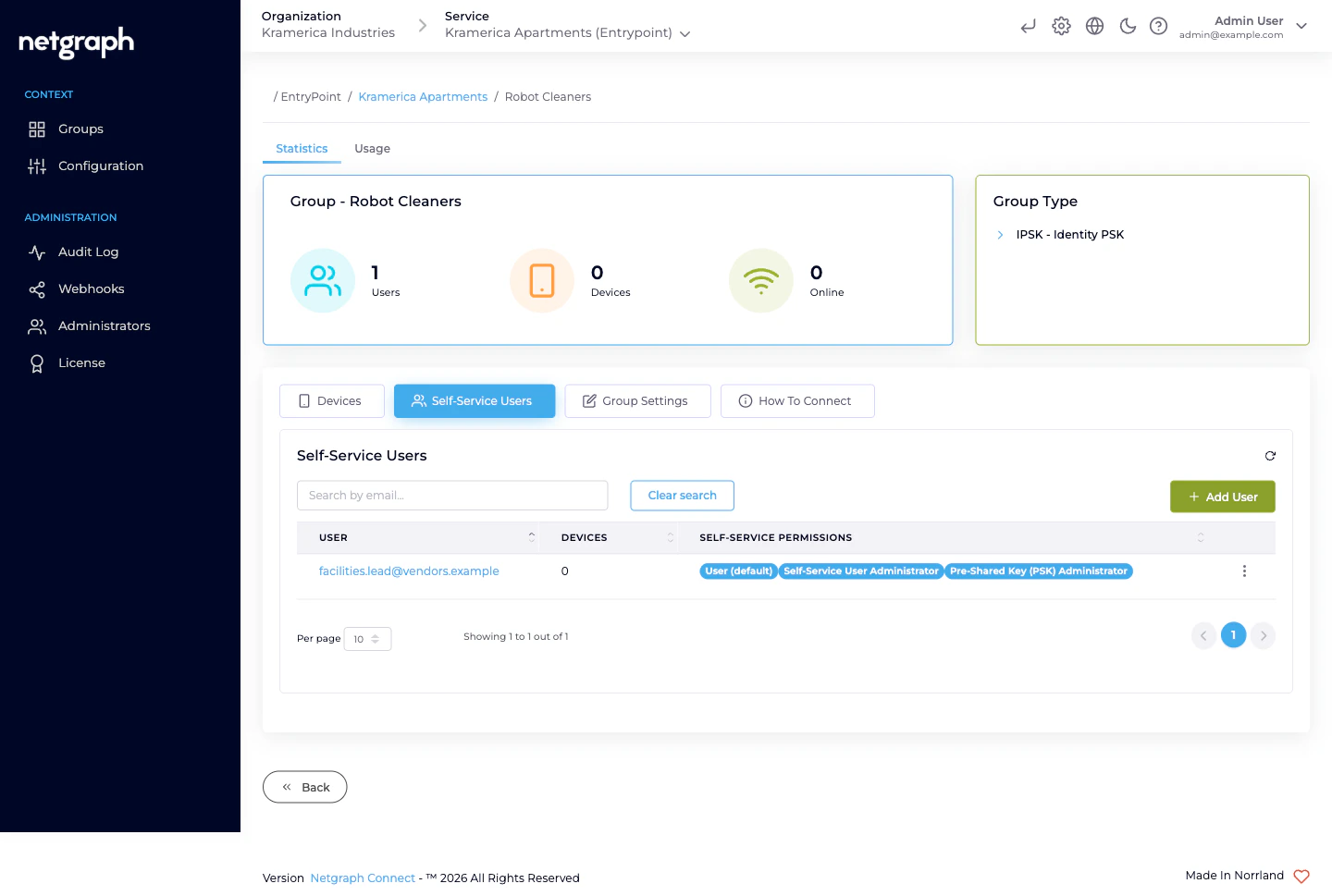
| Role | Authority |
|---|---|
| User (default) | Always on, cannot be removed. View the Group’s shared PSK. Add, update, remove devices in the Group. |
| Self-Service User Administrator | Invite, modify, and revoke other Self-Service Users in the same Group. |
| Pre-Shared Key (PSK) Administrator | Regenerate the Group’s shared PSK. |
Who gets which role?
For a real deployment:- The Group’s lead (the person who actually operates the fleet — facility services lead for robots, marketing-agency lead for signage, security-contractor lead for smart locks, R&D lead for sensors) typically gets all three roles. They run the Group end-to-end.
- A secondary lead for redundancy also gets all three. When the primary is on vacation, rotations still work.
- Everyone else on the team gets only User (default). They can add devices, remove devices, and see the PSK — all they need to do day-to-day.
Inviting members from the portal
A user with the Self-Service User Administrator role on a Group invites others directly from the portal:Pick roles
User (default) is always on and can’t be unchecked. Tick
Self-Service User Administrator and/or Pre-Shared Key (PSK)
Administrator if this person should be a backup admin.
Modifying and revoking
From the Group Users card, each row has an action menu:- Resend Invitation — for members who haven’t signed in yet.
- Modify User — change role assignments (promote a User to PSK Administrator, for example).
- Remove — revoke the member from this Group.
- Their portal session on this Group is terminated at the next request.
- They lose visibility of the Group.
- Devices they added previously stay in the Group — the Group still owns them, and the Added by field on each device preserves the historical attribution.
Regenerating the PSK (PSK Administrator)
From Manage Key → Regenerate:- The platform generates a new random PSK for the Group.
- Every device currently in the Group continues to authenticate on the old PSK until it next re-associates — at which point it fails and prompts for the new key.
- If the Context has Change of Authorization (CoA) listeners configured (under Context → Configuration → Basic Configuration), the platform sends CoA messages to force re-auth immediately.
- Before clicking Regenerate, make sure you (or whoever owns the physical fleet) can update each device with the new PSK. For visible fleets — signage units in lobbies — this typically means having technicians on-site.
- For less visible fleets — sensors rolled out across a building — rotations often ride an MDM / scheduled-task update cycle.
Self-Service Enrollment (SAML-driven)
If the Organization has a SAML Identity Provider configured for Self-Service authentication (see Organization SAML authentication), iPSK Groups can additionally turn on Self-Service Enrollment. When enabled, any user signing in with a valid SAML assertion that matches the Group’s enrollment rules is auto-attached as a User (default) on first login. This is useful when the Group’s audience is driven by an internal identity team — for example, Lab Sensors auto-enrolling anyone with an R&D claim in the SAML assertion. Admin-side invitations remain the usual flow for external vendors (facility services, marketing agencies, security contractors) whose people aren’t in your IdP. Auto-enrolled users land as User (default). Promote them to other roles via Modify User.What a delegate cannot do
Deliberately scoped out:- No visibility of other Groups. Even inside the same Context.
- No admin-dashboard access. Delegates operate only in the Self-Service portal.
- No Context-level configuration. The Identity Store, the Trusted CAs (there aren’t any for iPSK anyway), the RADIUS client secret, the IP allow-list — all admin-only.
- No CoA listener configuration. The PSK Administrator rotates the key; configuring the network-side CoA receiver is an admin operation.
Related
Groups and shared PSK
The admin-side lifecycle that creates each Group in the first place.
Managing devices — bulk and single
Admin and Self-Service flows for MACs.
Organization SAML authentication
IdP wiring for Self-Service sign-in.
Audit Log
Every Self-Service action, attributed and diffed.