

Where devices show up
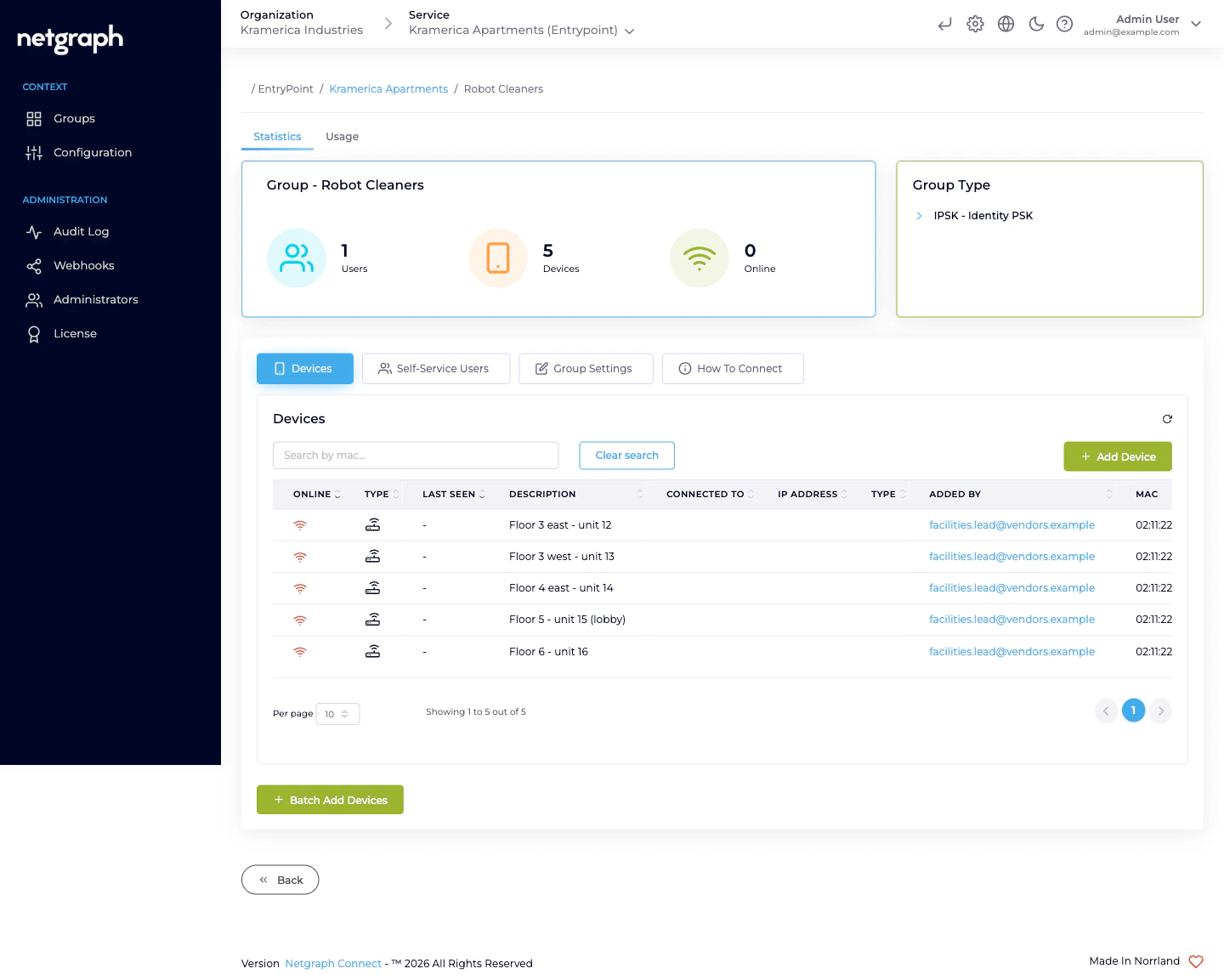
Each Group’s detail page has a Devices tab. The same data lives in two places:- Admin side. Rich table view with filter and sort — used by Organization admins to audit the full fleet.
- Self-Service portal. Accordion-style per-device view scoped to the Group the user has access to. Most day-to-day device CRUD happens here, performed by the Group’s delegates.
- Description — free-text, set when the device is added; shown in both views.
- MAC — lowercase, colon-separated. Immutable once set.
- Status — Online / Offline based on the most recent RADIUS accounting record.
- Added by / Added date — who onboarded the device.
- Updated by / Updated date — last edit.
- Last seen online — timestamp of the last Interim-Update.
- Connection info — NAS, port, VLAN where the Cisco controller reports them.
Adding a single device
Use when a one-off device arrives — a replacement robot, a new test signage display, a single smart-lock replacement.From the admin dashboard
Enter the MAC
14 hexadecimal characters, any common format (colons, dashes,
no separator). Stored lowercase with colons.
Enter a Description
Short free text — Robot-cleaner #12 (floor 4),
Signage display — reception east, Smart lock — server room.
From the Self-Service portal
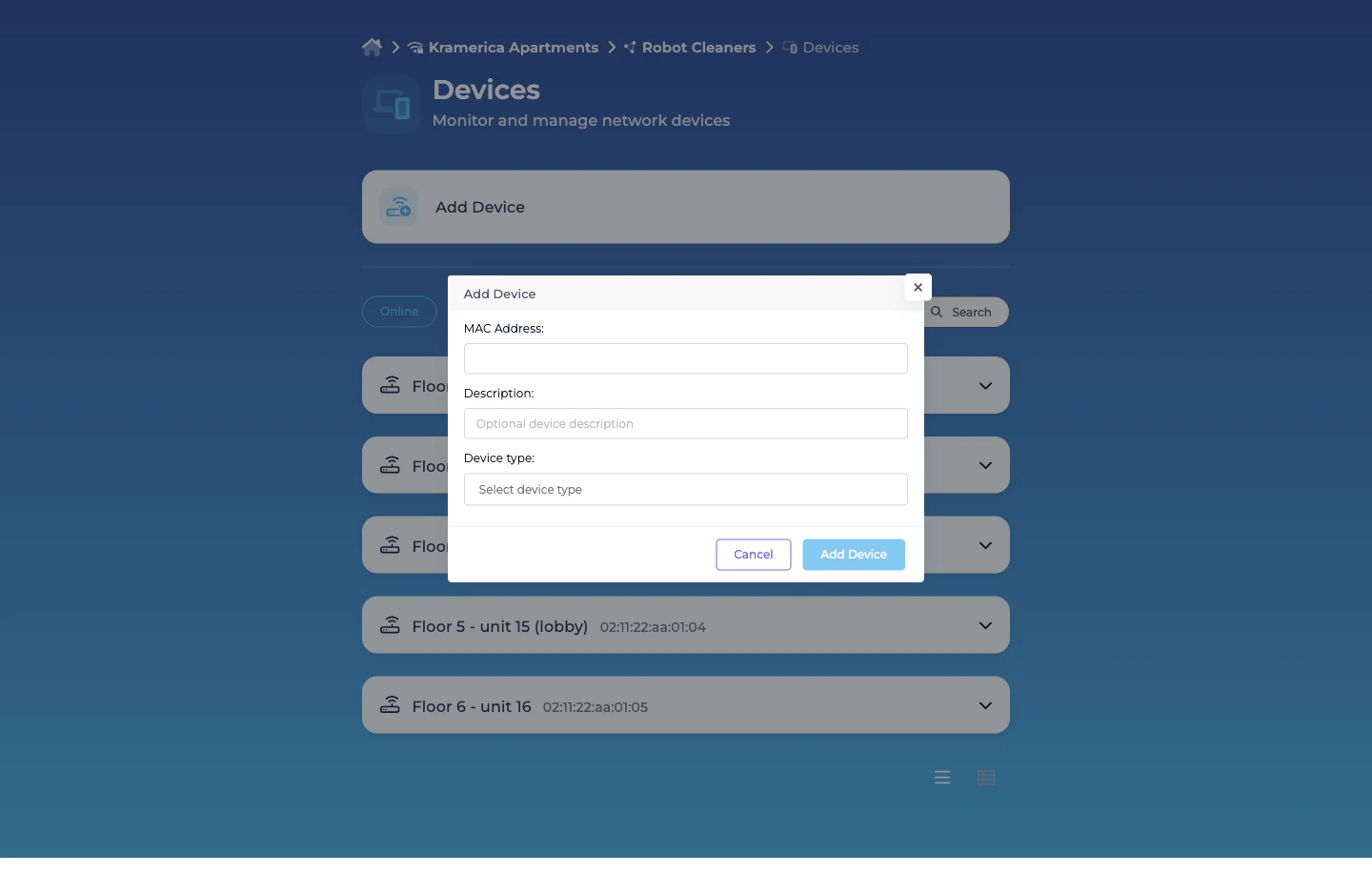
A Self-Service User with the User (default) role in the Group (the always-on permission) can add devices directly from the portal’s Devices card. The Self-Service Add Device dialog takes MAC Address, an optional Description, and a Device type. Delegates do this themselves as new units arrive — no admin ticket.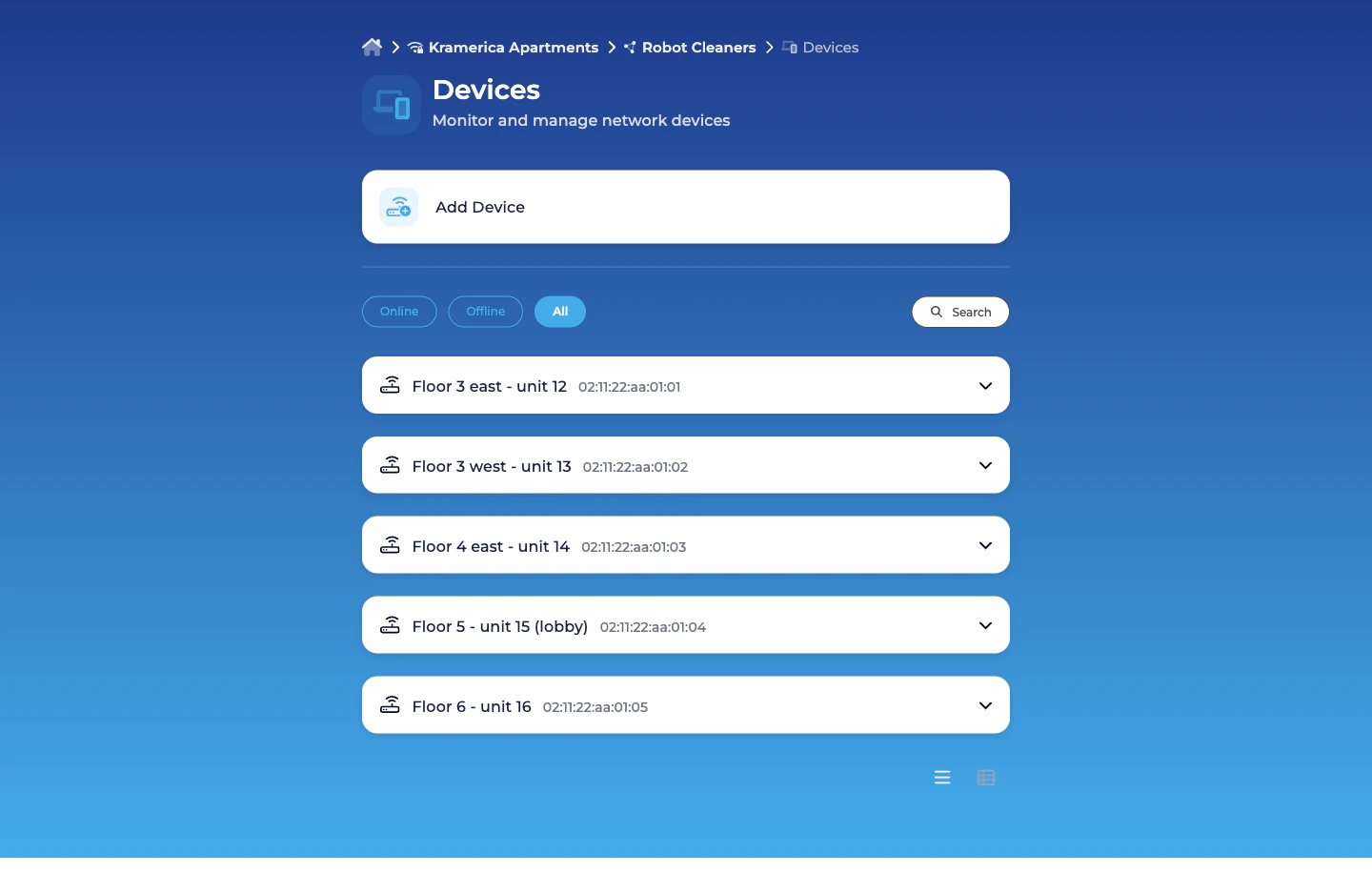
Bulk-importing via CSV
For onboarding a fleet — the building’s first hundred cleaning robots, a full rollout of digital signage — the CSV bulk upload is the right path.Prepare the CSV
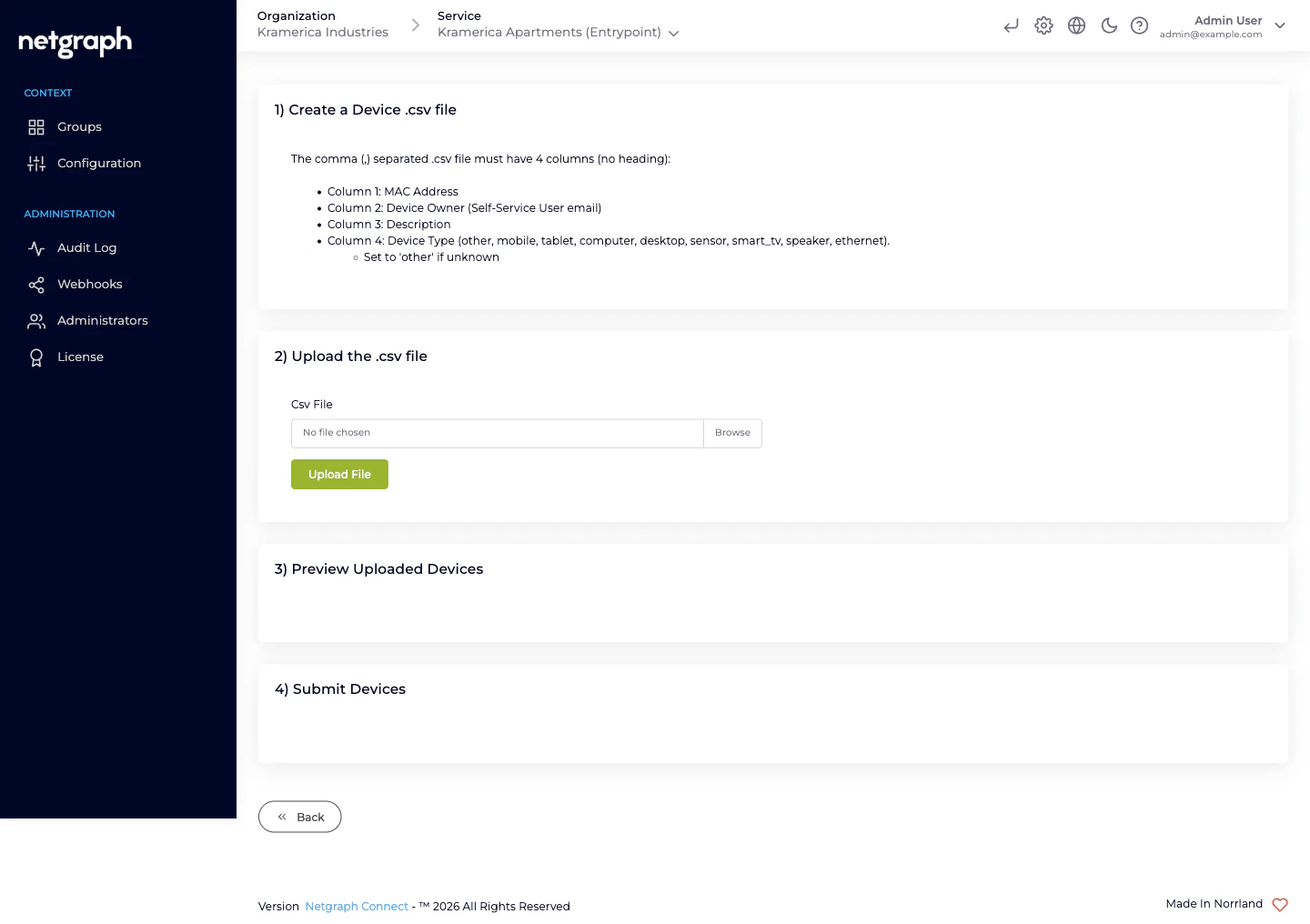
The upload form spells out the exact format: a comma-separated
.csv with no heading row and four columns:- MAC Address — any common format; stored lowercase with colons.
- Device Owner — the email of a Self-Service User on this Group. If the email isn’t a member yet, the batch submission auto-adds them as a User (default).
- Description — free text.
- Device Type — one of
other,mobile,tablet,computer,desktop,sensor,smart_tv,speaker,ethernet. Useotherif unknown.
Upload and preview
The platform parses the CSV and shows every row in a preview
table — MAC, Self-Service User, Description, Device Type, plus
a Warning Text column that flags rows the platform can’t
accept. Fix in the CSV and re-upload if needed.
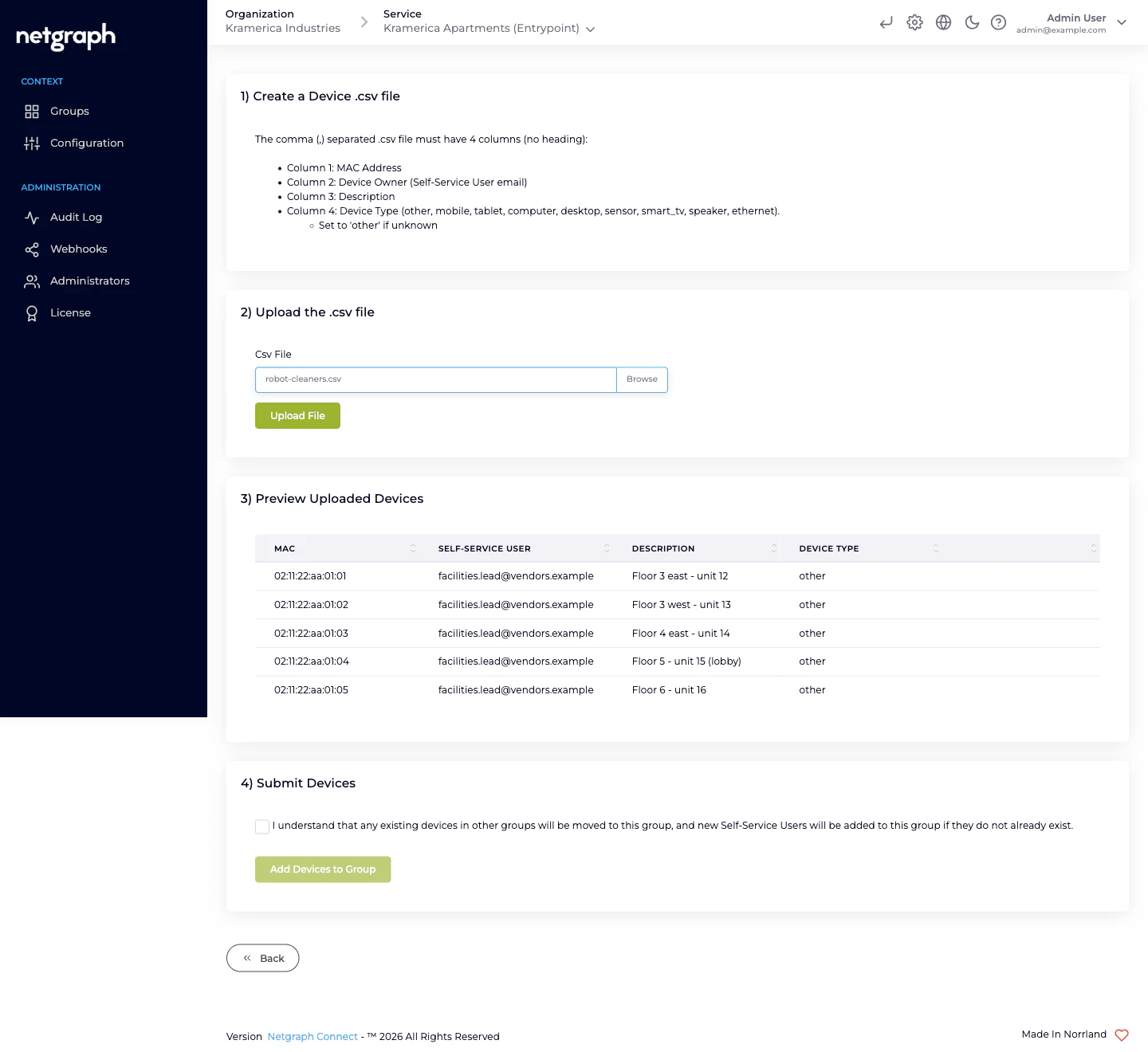
- Devices already in another Group get moved into the Group you’re batch-adding to. That’s often what you want (merging a vendor’s existing inventory into the new delegation), but it can surprise if two Groups have been managing the same physical fleet.
- Self-Service Users in the CSV’s Device Owner column that don’t exist on this Group yet get auto-added as User (default). For fleets owned by a single lead, list their email on every row; for mixed-ownership fleets, put the right email per device.
Moving a device between Groups
Sometimes a device class gets split — the Robot Cleaners Group is growing and you want to split out Lab-floor Robots as a separate Group with its own PSK and VLAN.
There’s no single “Move Device” action in the iPSK admin today —
delete-and-recreate is the shape. The platform doesn’t prevent
duplicate MACs across Groups, but the first-matching-Group rule
applies at authentication time; keeping each MAC in exactly one
Group avoids surprises.
Updating a device
Click a device row (admin) or expand its accordion entry (Self- Service) to edit its Description. MAC address is immutable — a different MAC means deleting and re-adding. Changes appear immediately in both admin and Self-Service views. The device’s live RADIUS session is unaffected — nothing re-authenticates on a description edit.Removing a device
When a device is retired:- Admin side. Devices tab → row menu → Delete. Confirmation dialog. On confirm, the MAC is removed from the Group.
- Self-Service side. Devices card → expand the entry → Revoke. Same underlying action.
- The device’s next authentication attempt fails. Its current session, if any, stays up until the next re-association or Interim-Update lapse; if the Context has CoA listeners configured, the Group’s session can be torn down actively.
- The device’s history stays in audit. Who added it, who updated it, who removed it — all preserved.
- The device’s row disappears from the Devices list.
MAC-format quirks
- Colons vs dashes. Both accepted on input; stored as lowercase with colons.
- Inventory-spreadsheet drift. Some spreadsheets use
aabbccddeeff, some useAA-BB-CC-DD-EE-FF. Normalize the CSV before upload or accept EntryPoint’s normalisation on parse. - Copy-paste errors. A missing character, a stray space, an
l-for-1substitution — watch for these when a device rejects that was supposed to be in a Group.
Operational tips
- Pair additions with device-side PSK configuration. Adding a MAC is half the job; the device also needs the Group’s current PSK typed into its Wi-Fi setup.
- Batch rollouts by Group. Onboarding 100 devices for one Group is fine; staggering across Groups on the same SSID is ambiguous-looking in audit trails.
- Use a naming convention in Descriptions. Robot-cleaner #12, Signage display — reception east — the Description is the only hint future admins (and delegates) get about what a MAC belongs to.
- Don’t reuse a MAC across Groups. The platform allows it, but the first-matching-Group authentication rule makes behaviour unpredictable.
Related
Groups and shared PSK
The per-Group PSK model and lifecycle.
Self-Service portal & roles
What each role sees and can do in the portal.
Attribute Profiles
VLAN / SGT returned on every iPSK Access-Accept.
EntryPoint diagnostics
Troubleshooting when a device can’t authenticate.