

Creating a single Wireless Personal Network
Use this when you’re adding one unit at a time — a new apartment coming online, a test unit, a one-off.Open the Context
Click Create Wireless Personal Network on the Context
overview. The form opens on the Create single tab.
Name the WPN
Typically the unit identifier — Apartment 301, Room 4,
Suite B. This is the label residents see when they land in the
Self-Service portal.
Accept or edit the Pre-Shared Key
The form auto-generates a PSK matching the Context’s
PSK defaults.
You can accept it, paste your own (8–63 characters), or press
the regenerate control for a fresh one.
Click Create Wireless Personal Network
The platform writes the Meraki Identity PSK on every associated
Meraki network and, depending on the
Group Policy Strategy,
either creates a dedicated Network Access Policy or attaches the
PSK to the shared one.
Batch-creating a building
Onboarding every apartment in a building at once is common for student housing, co-living, and hotels-with-apartments. Switch to the Create multiple tab.Enter a Name prefix
For example Apartment (with a trailing space) — the
platform will append the counter. Output names read
“Apartment 101”, “Apartment 102”, etc.
Viewing a Wireless Personal Network
Click any WPN name on the Context overview to open its detail page.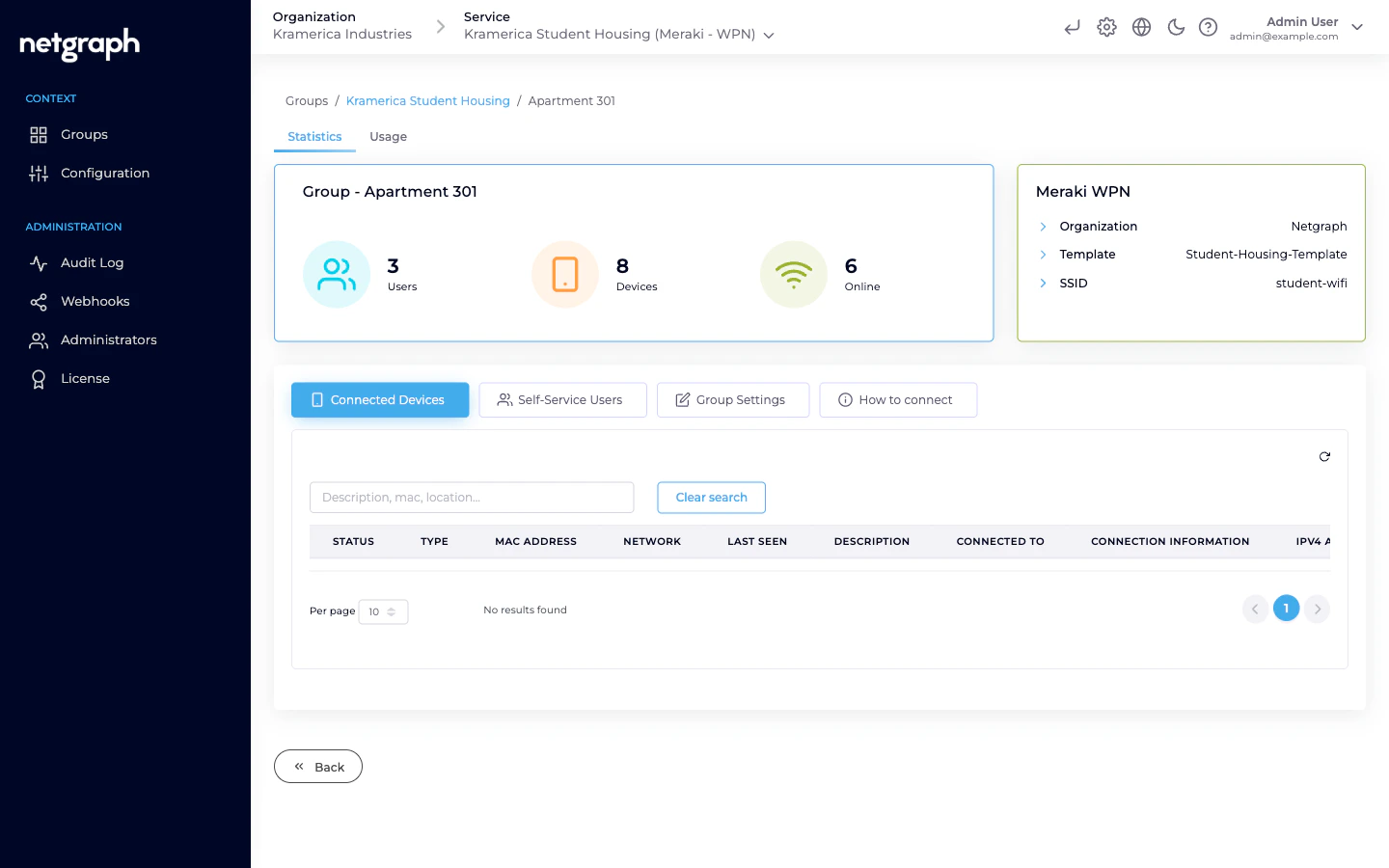
- Statistics (top) — Users, Devices, Online counts, plus the Meraki WPN summary (Organization, Template or Network, SSID).
- Usage (top) — time-series chart of Registered vs Online devices for this WPN specifically.
- Connected Devices tab — the clients currently joined to this WPN’s PSK, with columns for Status, Type, MAC, Network, Last seen, Description, Connected To, Connection info, IPv4, First seen.
- Self-Service Users tab — the residents (see Managing Self-Service Users).
- Group Settings tab — rename, rotate the PSK, remove.
- How to connect tab — the admin’s view of the connection details (SSID, masked PSK, QR code). Useful when you need to help a resident onboard before they sign into the portal.
Rotating the Pre-Shared Key
Rotate when a key leaks, when a roommate moves out and the unit doesn’t want them keeping access, or on a periodic schedule.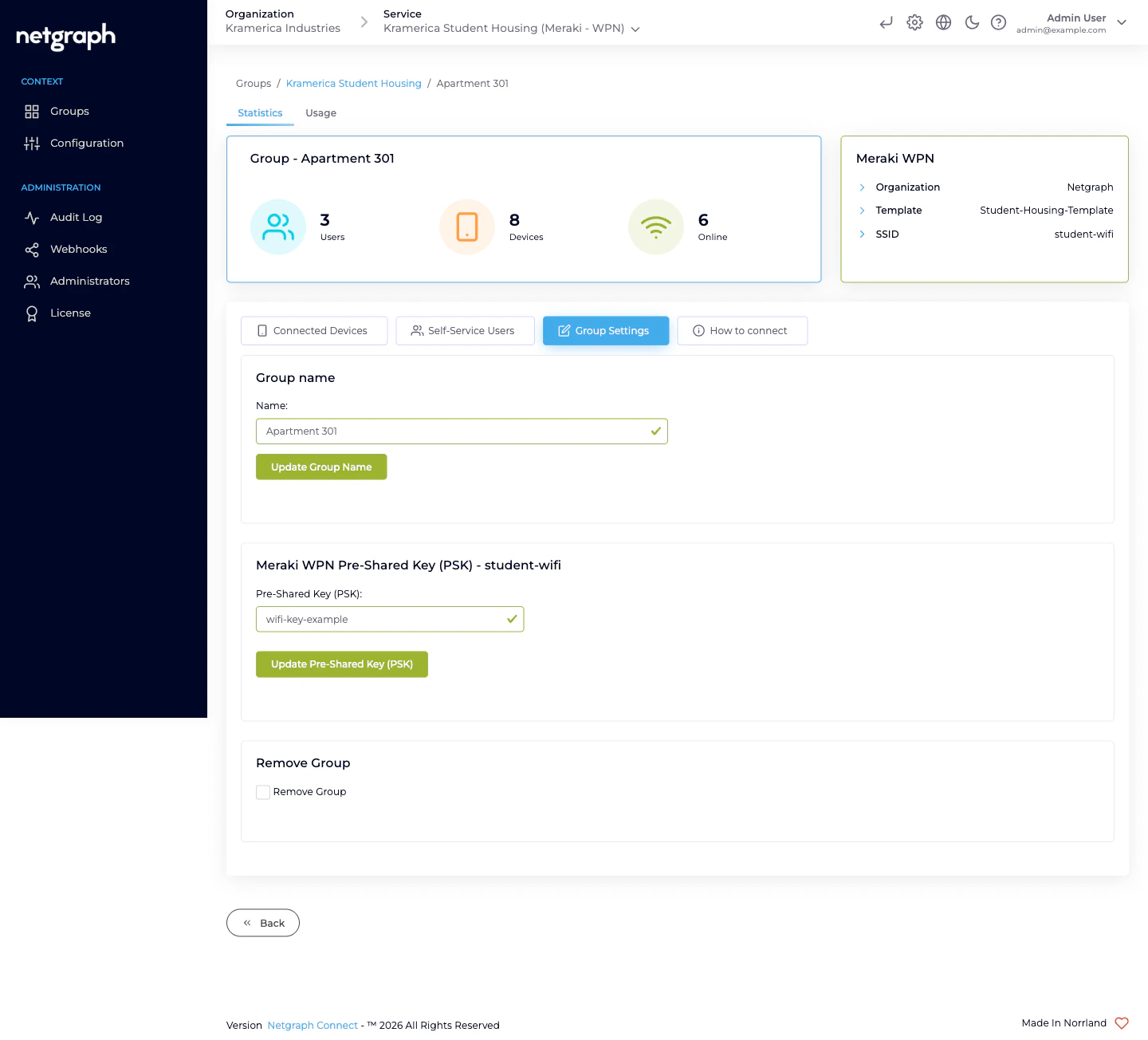
Renaming a Wireless Personal Network
The Group name field on Group Settings. Rename as many times as you need. The displayed name updates in the Context overview, in every resident’s Self-Service portal, and in the Meraki dashboard’s Identity PSK name.Seeing who’s connected (admin)
The Connected Devices tab on any WPN. The same data is also aggregated at Context level under the Devices tab on the Context overview, with a Group column so you can tell which apartment each device belongs to. Filter by description, MAC, or location (when a Meraki tag includes the Network / SSID location).Removing a Wireless Personal Network
When a unit is permanently retired — a resident has moved out and the lease is closed, or a room is being repurposed.Related
Managing Self-Service Users
Invite, promote, revoke residents.
Self-Service portal
What residents do themselves.
Troubleshooting
When things don’t behave as expected.