

- Invited by an admin — from the admin dashboard, shown below.
- Invited by the WPN’s Group Administrator — from the Self-Service portal. Same flow, same permissions, scoped to their own WPN.
- Self-enrolled — if you’ve turned on Self-Service Enrollment on the WPN, the first resident who signs into the portal with an approved identity gets auto-attached as a User (default).
Inviting a resident from the admin dashboard
Set permissions
User (default) is always checked and can’t be unchecked.
Check Group Administrator additionally if this resident
should manage the PSK and roommates for this unit.
Choose whether to send the email invite
Keep Send email invite? checked to have the platform send
the Self-Service portal login email immediately. Uncheck it to
create the pending invitation without sending; you can then
Resend Invitation later from the row’s action menu.
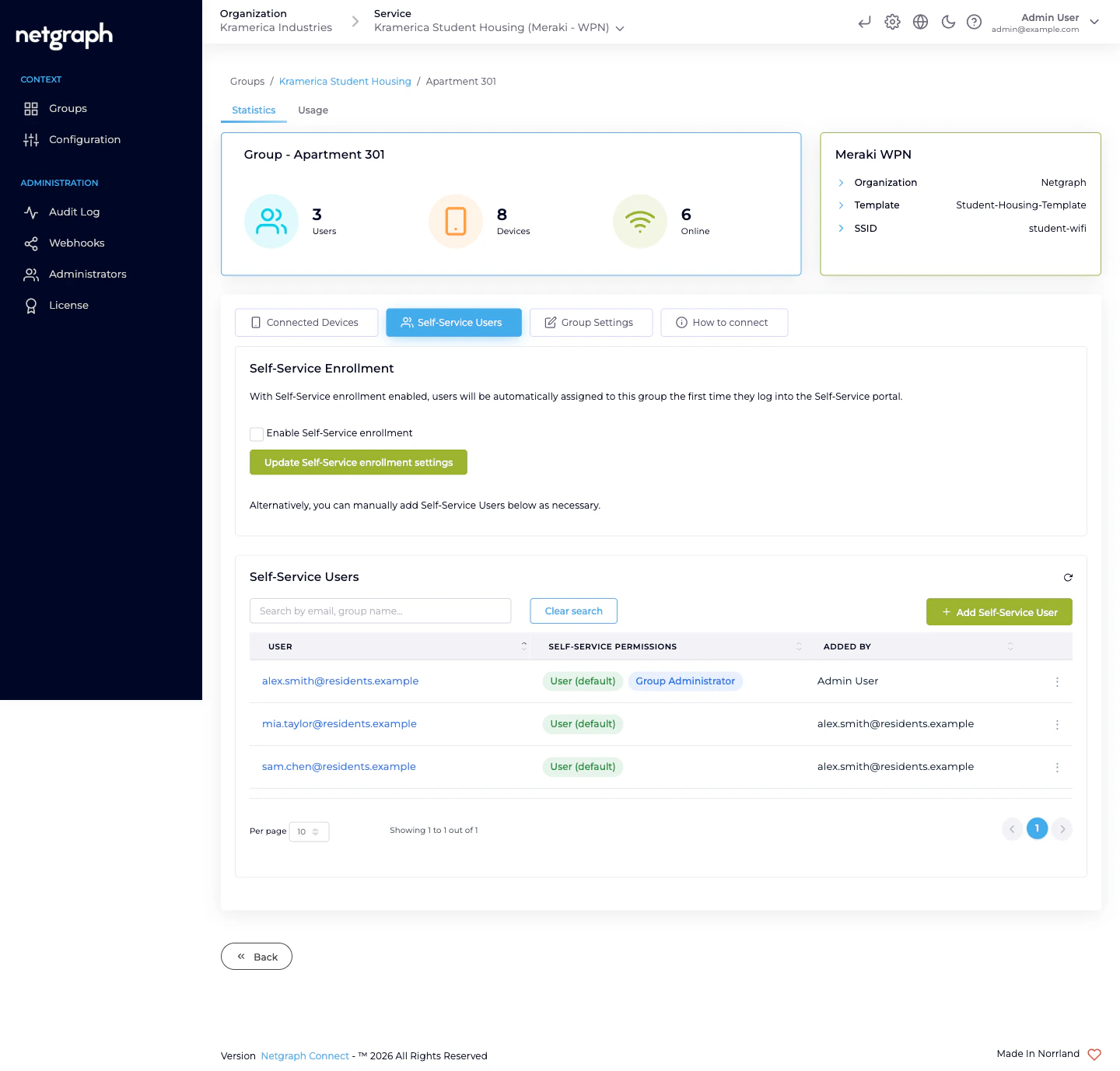
Self-Service Enrollment
Above the user list, the Self-Service Enrollment section has a single toggle: Enable Self-Service enrollment. Turn it on and the platform auto-attaches a resident to this WPN the first time they sign into the Self-Service portal. Useful when:- Residents sign in through your Organization’s SAML IdP and the IdP scopes them to a specific unit through the claim set.
- You’re onboarding a building one floor at a time and the manual Add Self-Service User flow would double your work.
Promoting a resident to Group Administrator
From the Self-Service Users tab:Demoting a Group Administrator
Open Modify User and uncheck Group Administrator. The resident remains in the WPN as a User (default) and keeps their Self-Service portal access — they just lose the management cards.Revoking a Self-Service User
When a resident moves out:
Revoking a Self-Service User does not rotate the Pre-Shared Key
— the ex-resident’s existing devices will still join the WPN if
they know the PSK. Typical practice is to revoke the user and
rotate the PSK (or let the Group Administrator do the rotation from
their side), so the ex-resident’s devices lose access at the same
time they lose portal visibility.
Where residents come from
- Email-only invitation — the platform sends a magic-link-style invitation to the email you entered. The resident clicks the link and signs in; no password to manage.
- SAML — if the Organization has a SAML relying party configured with the target set to the self-service portal, residents authenticate against your IdP instead of receiving magic-link emails. See Organization SAML authentication.
Related
Wireless Personal Networks
The per-unit bubble residents manage.
Self-Service portal
What residents see after they sign in.
Organization SAML authentication
IdP integration for the portal.